
Log all your income under your own categories
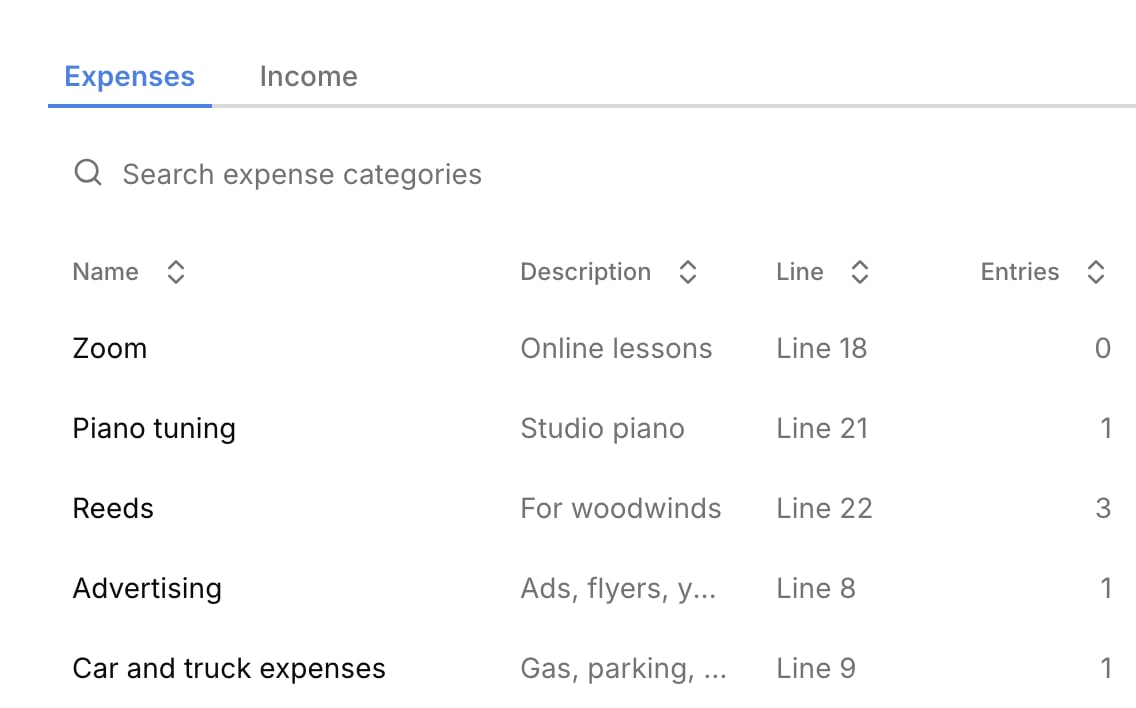
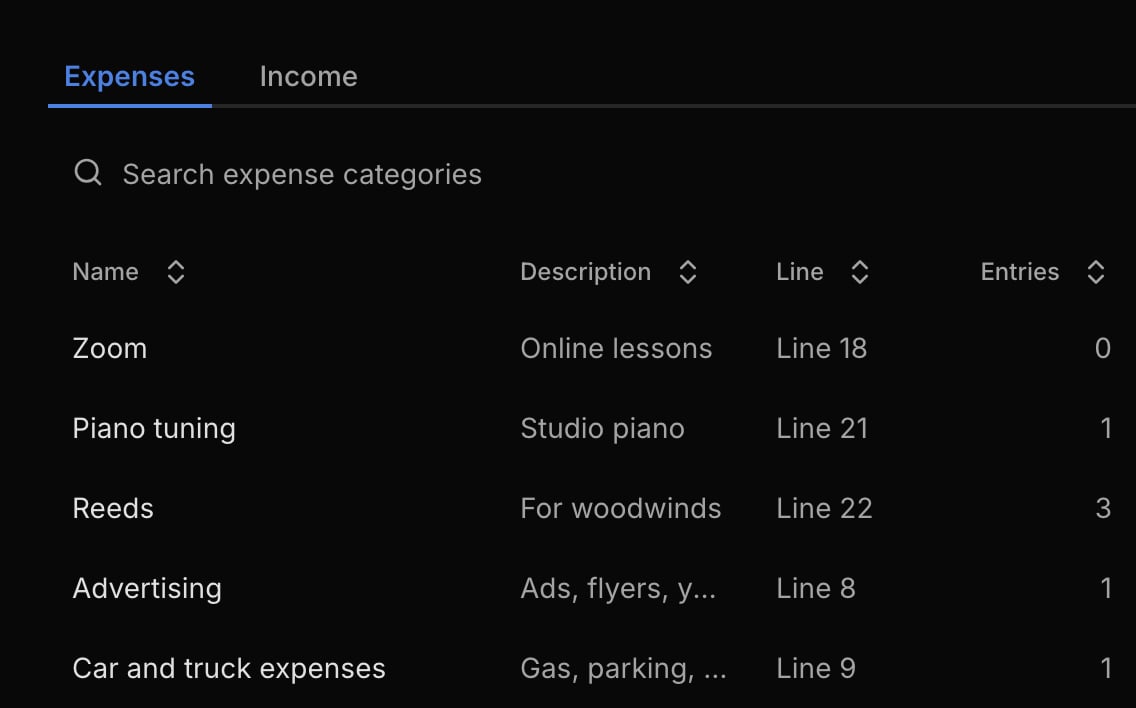
Some of the money you earn never goes through an invoice. Now you can log it with the rest of your money, and file everything under categories you name.Income from outside billing
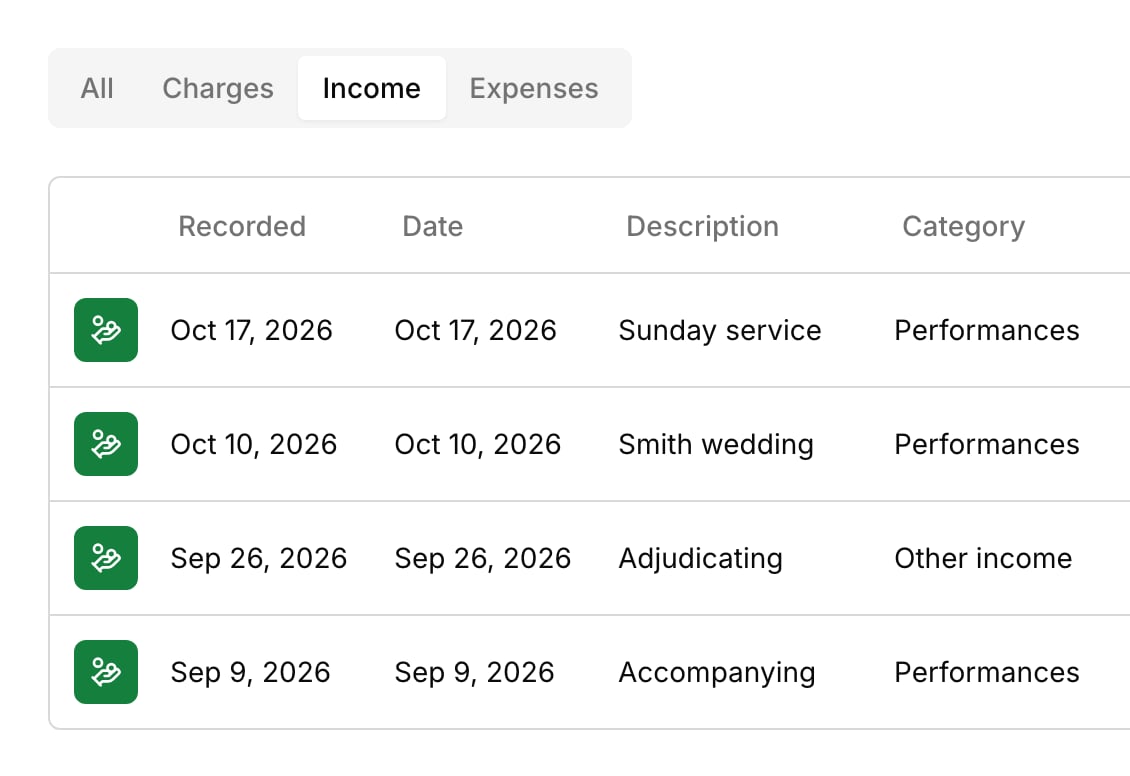
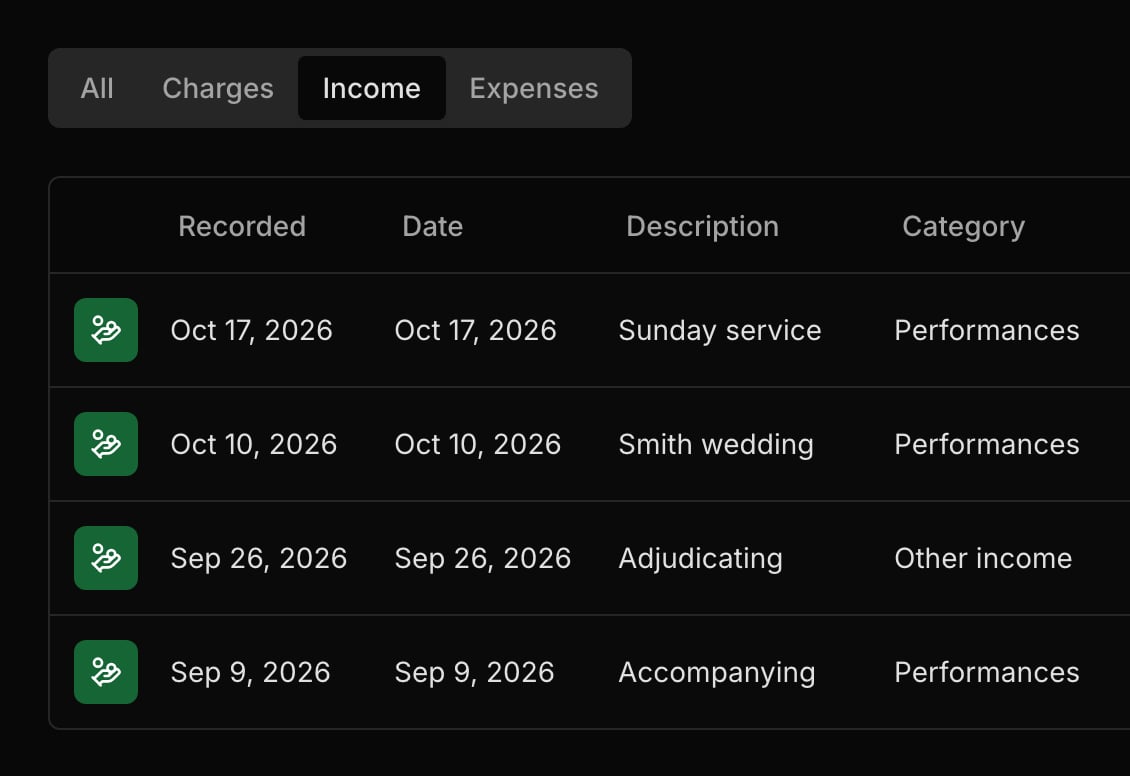
I anywhere, and say who paid you if you like. It counts toward your revenue and your Profit & Loss, so your totals show everything you earned. It never changes what anyone owes, and families never see it.Open the Income tabCategories in your own words
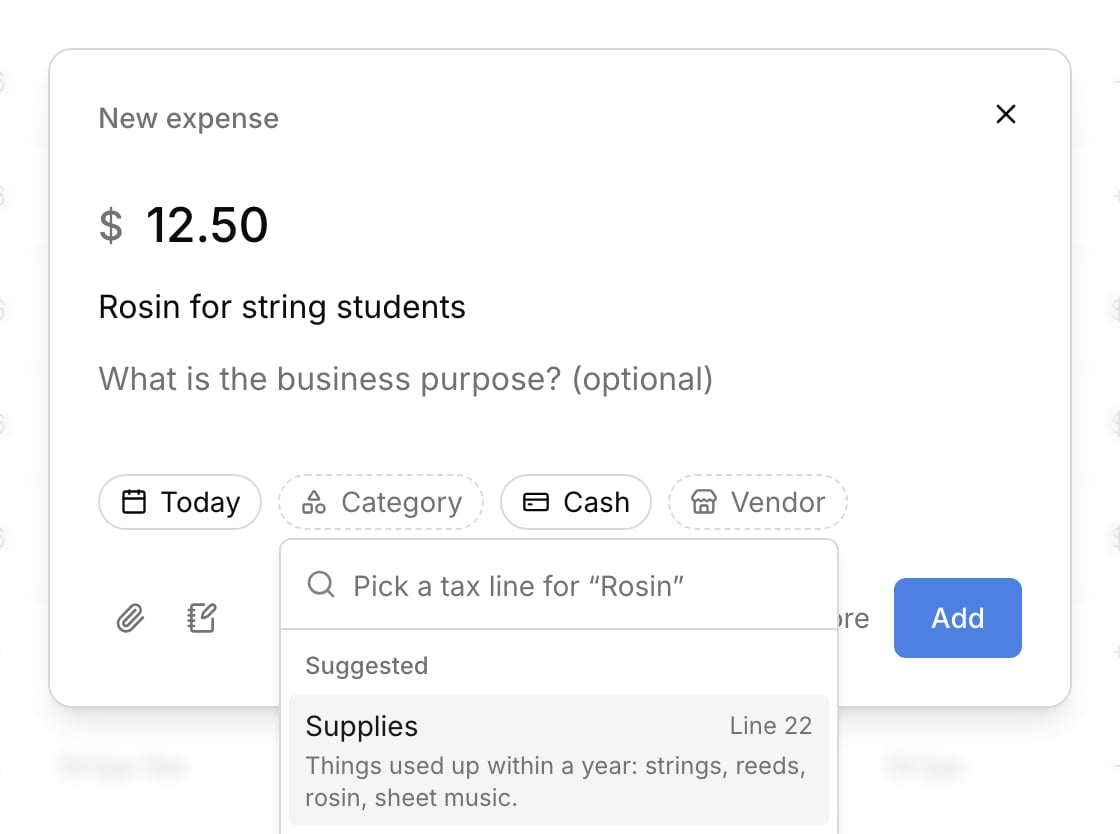
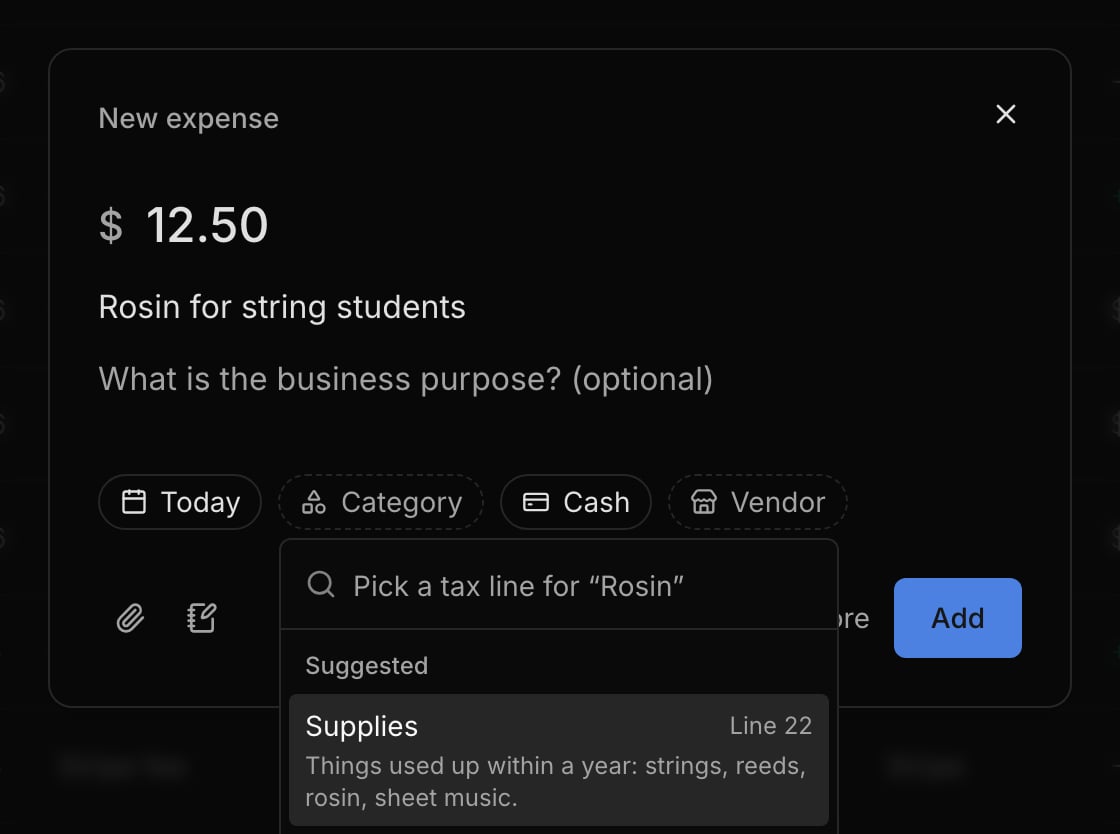
Your categories, all in Settings
Changed (5)
Changed (5)
- Renamed built-in categories and moved Other income to Line 1.
- Allowed changing a charge’s category after it’s sent or voided.
- Changed the default category for invoice lines from Other income to No category.
- Removed the Students refresh button; next lessons now update instantly.
- Opened the sidebar’s menu groups by default.
Improved (3)
Improved (3)
- Showed search on phones, and made
/work in more lists. - Made calendar agenda search match every word and ignore accents.
- Changed the default for meals, travel and car expenses to not include their extra details.
Fixed (10)
Fixed (10)
- Fixed a new student’s first lesson landing at the wrong time.
- Fixed reschedule emails showing the wrong original lesson time.
- Fixed some invoice edits silently not saving.
- Fixed invoice retries emailing every parent again.
- Fixed automatic invoice sends failing without an inbox alert.
- Fixed a cleared phone number still showing on invoices.
- Fixed the bad-email warning on accounts opening the wrong form.
- Fixed reopened reports missing new entries; each now shows its update time.
- Fixed unexpected sign-outs after moving between pages.
- Removed unsafe links from lesson notes and policies.
Bill every payer exactly their share
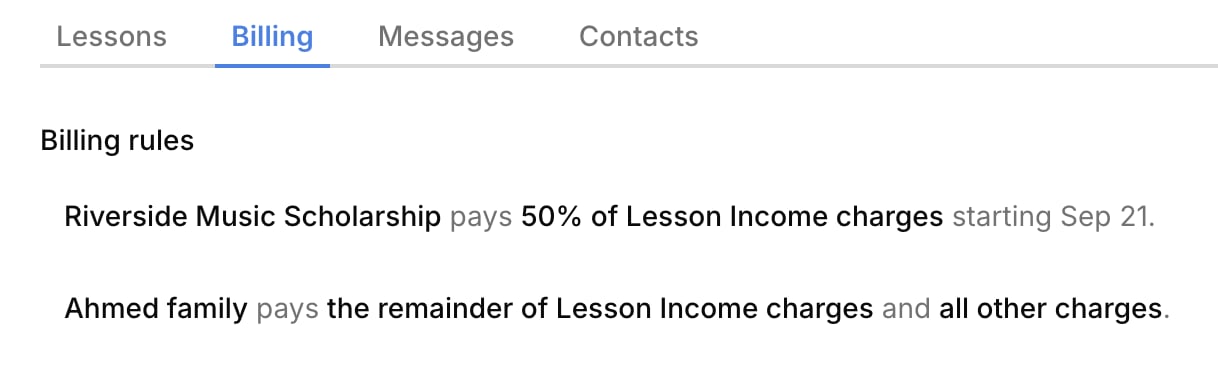
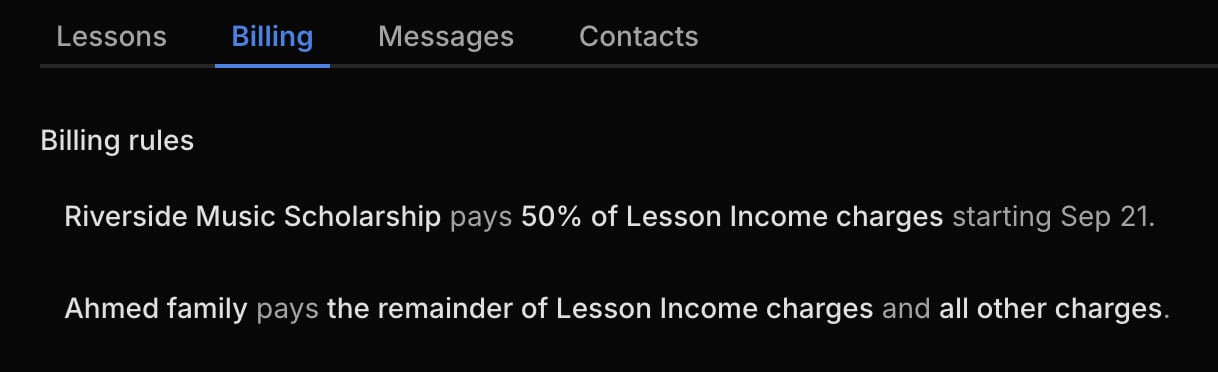
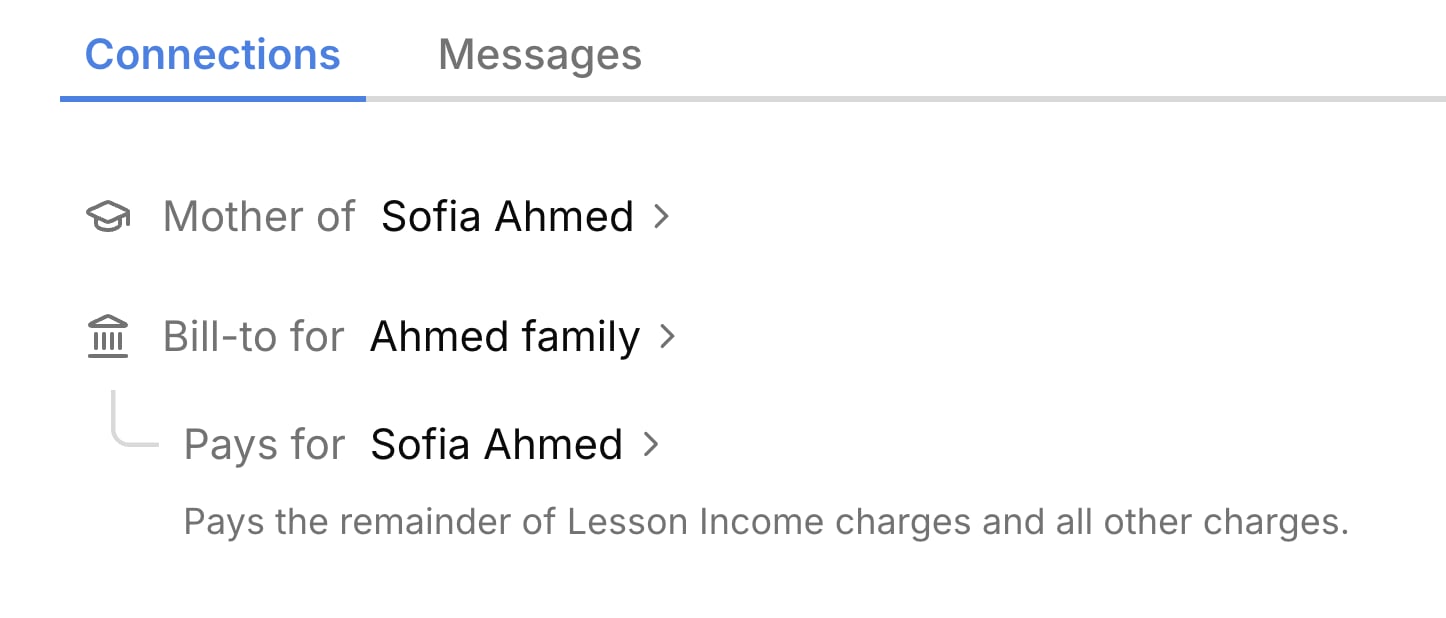
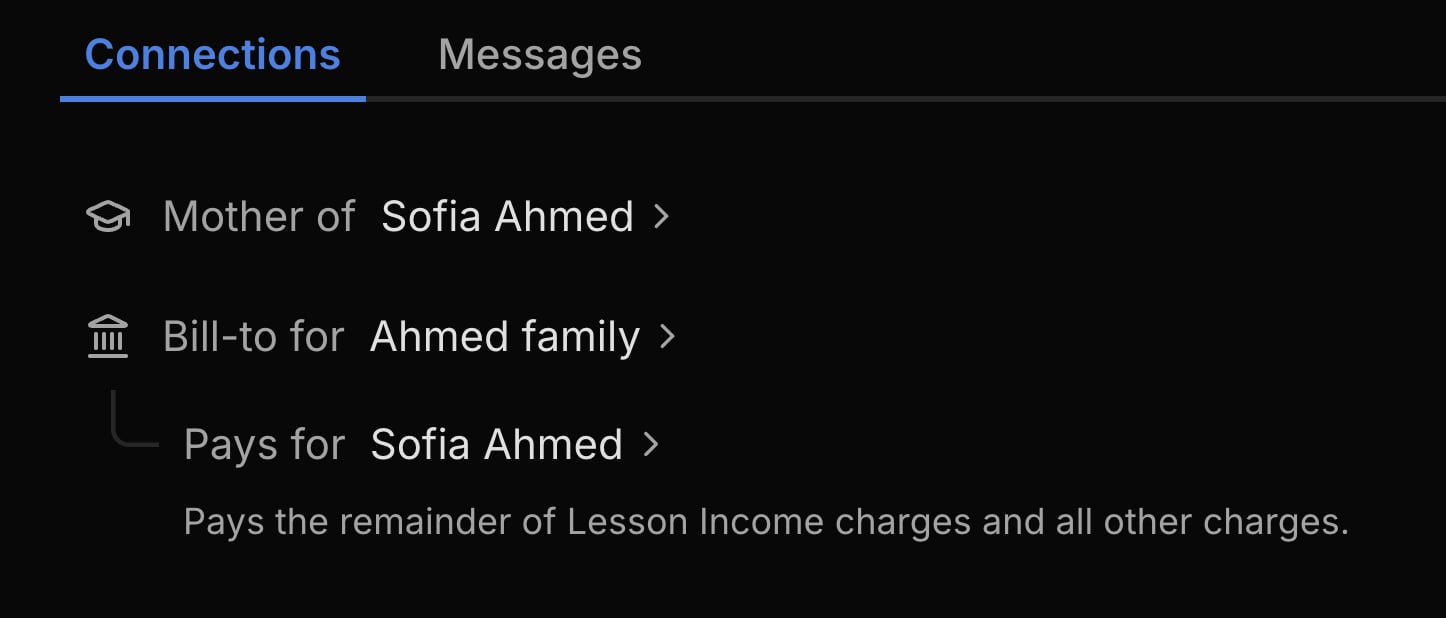
Some families split lessons between two parents. Some lessons are paid by a school, a scholarship, or a grandparent. Now you can bill each of them for exactly their part.Billing rules for shared payers
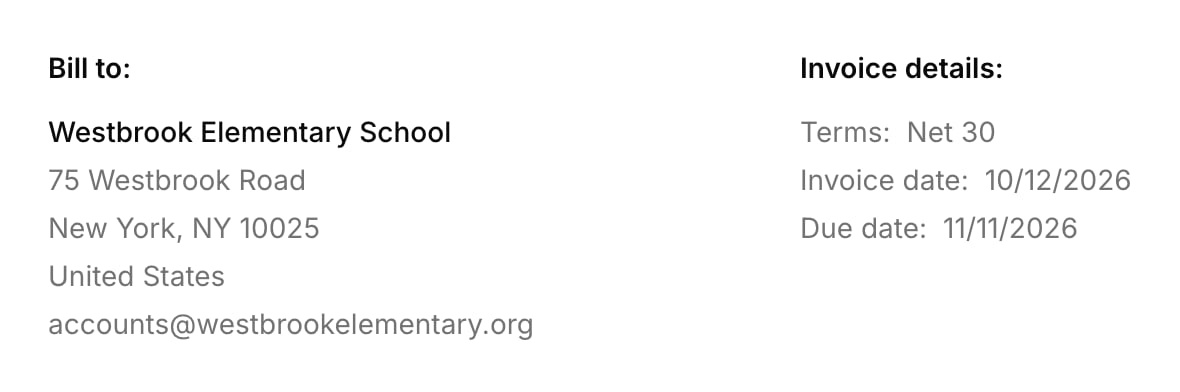
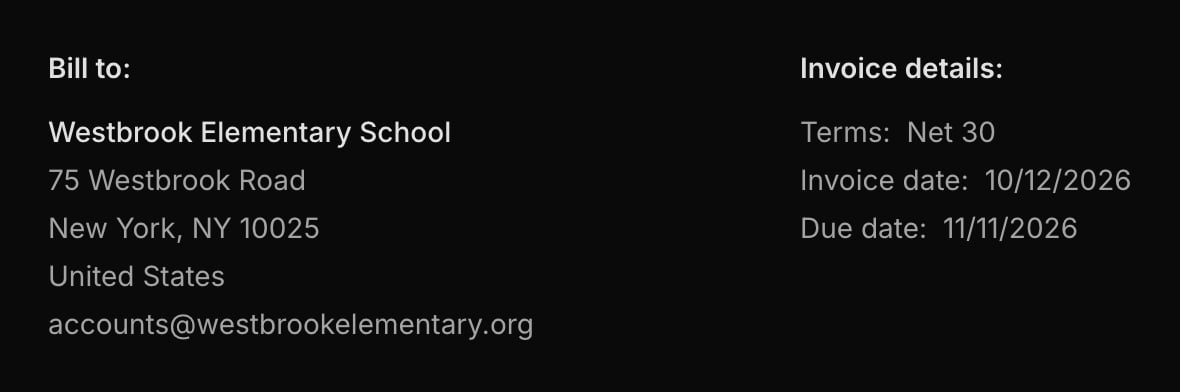
Accounts for schools and venues
Contacts, all in one place
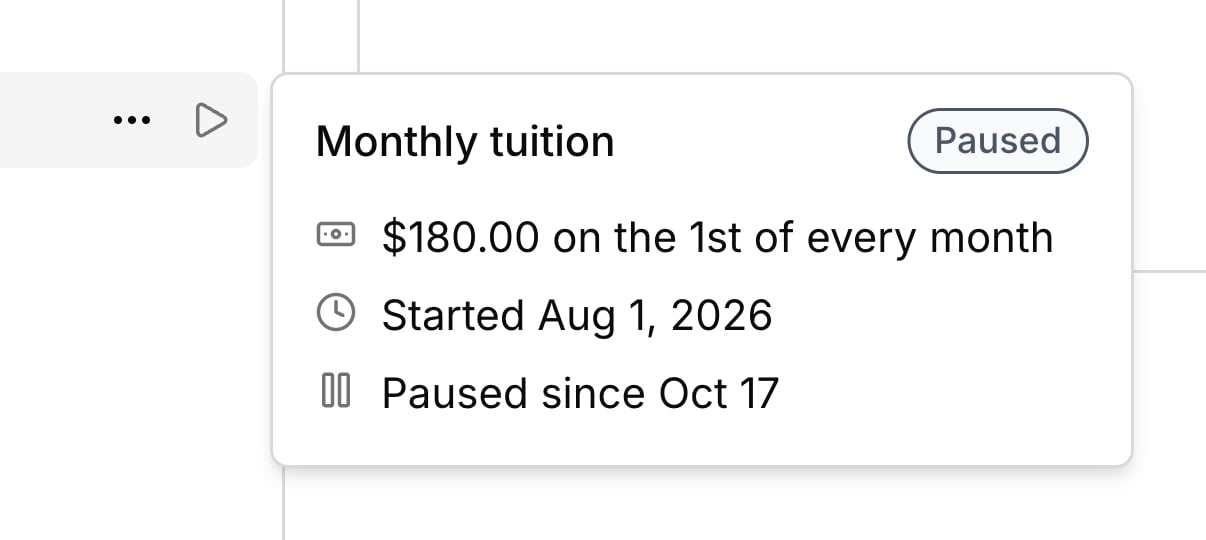
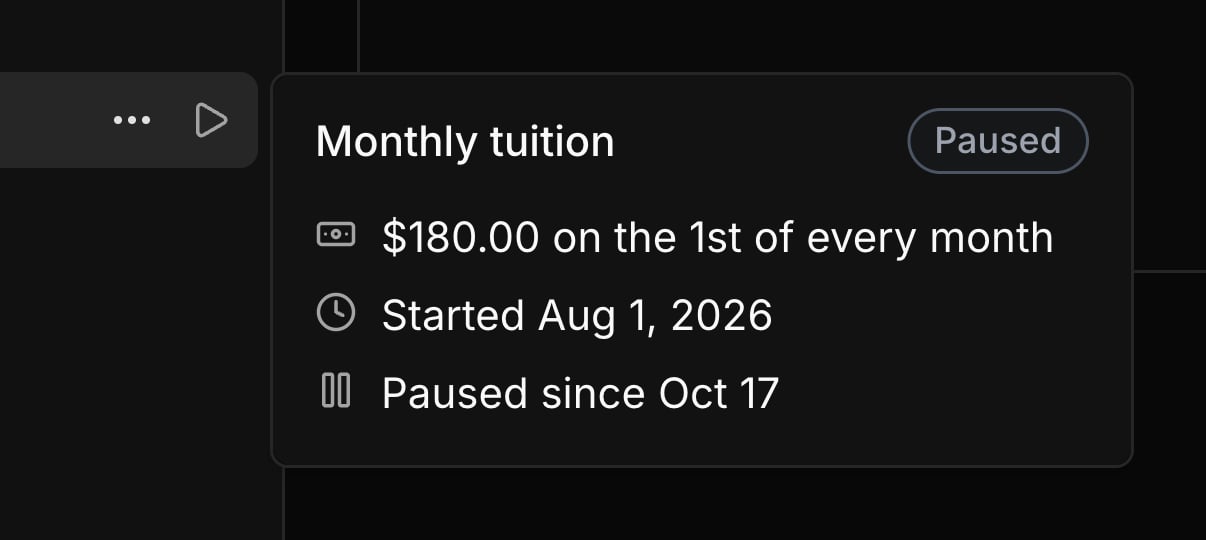
Recurring charges you can pause
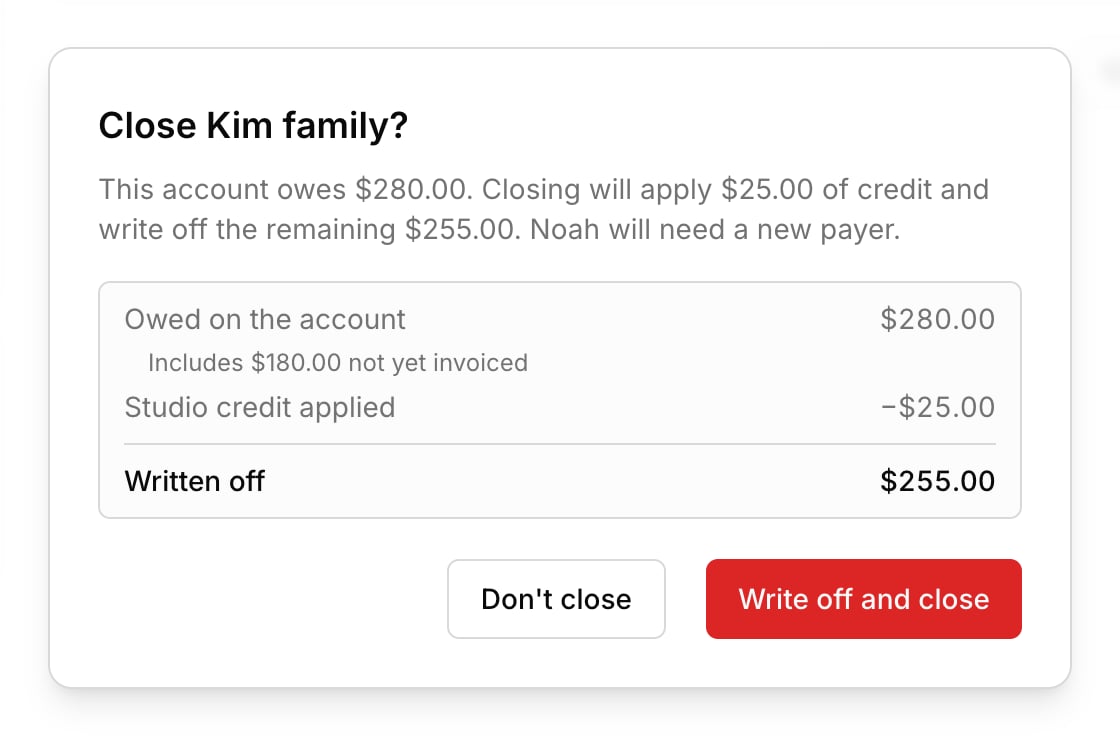
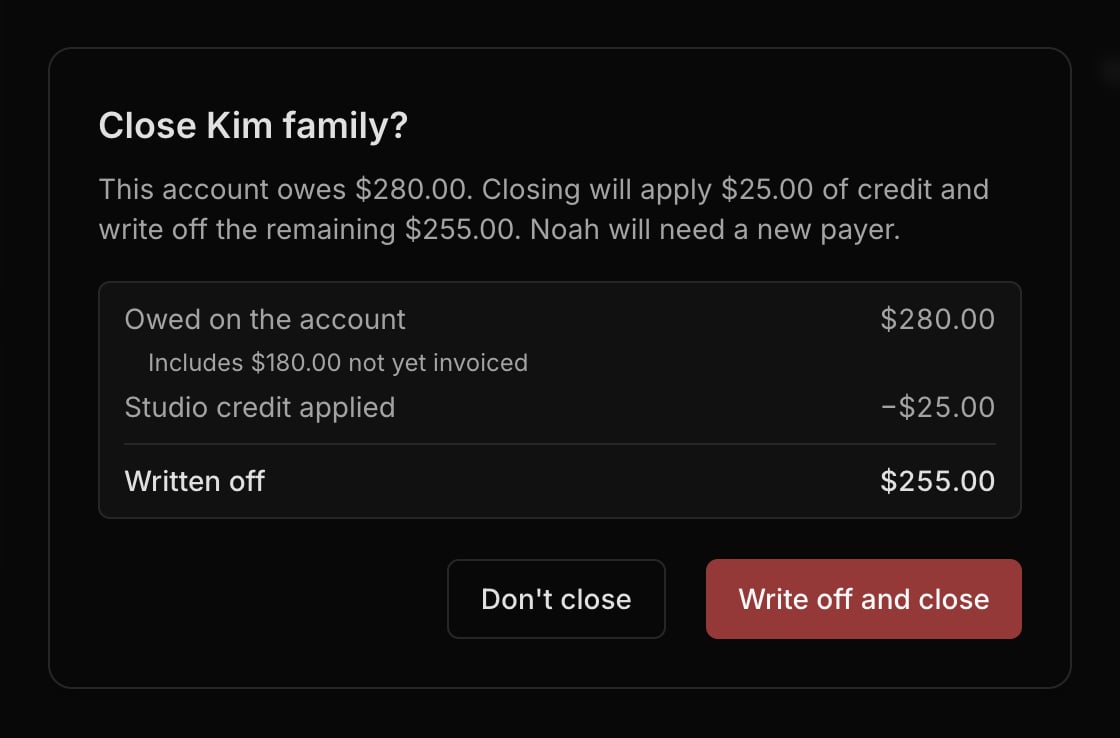
Closing an account
Changed (9)
Changed (9)
- Reorganized the students, accounts, and transactions table columns.
- Converted Settings lists into simple tables.
- Renamed notification preferences to involvement.
- Combined student and contact editing into one form.
- Made deactivating, locking, and deleting a student all-or-nothing.
- Set up billing automatically for every new student.
- Combined students and accounts in the New charge picker.
- Grouped invoice lines by student.
- Required a description on every invoice line.
Improved (18)
Improved (18)
- Made search work the same on every list. Press
/to start one. - Clarified empty pages, searches, and filters.
- Added counts to the Pending students and Failed invoices tabs.
- Added Other and custom relationship options for contacts.
- Made changing a student’s primary contact a single step.
- Added a name check before deleting a student.
- Added Disconnect contact, Delete person, and Delete account.
- Allowed fixing the booker’s email when converting a booking.
- Simplified a student’s charge history.
- Allowed moving any unpaid charge to another account.
- Simplified transaction descriptions.
- Simplified transaction details.
- Recorded voided lesson charges at their real amount.
- Added a Weekly option to recurring charges.
- Raised the credit limit to $999.99.
- Retried failed automatic invoices once a day for five days.
- Refined invoice and report PDFs.
- Enlarged date pickers on phones and tablets.
Fixed (34)
Fixed (34)
- Fixed families staying signed in after deleting their portal account.
- Fixed portal links landing on the wrong page.
- Fixed the portal showing the wrong paid-on date.
- Hid empty lesson notes from family members without lesson progression.
- Fixed contact changes for one student affecting their siblings.
- Fixed removing a contact from one student removing them everywhere.
- Fixed removing a student from an account removing its other people.
- Fixed rejected signups leaving unused contacts behind.
- Stopped deleting a student from voiding their charges and invoices.
- Stopped recurring charges for deactivated and locked students.
- Fixed locked students missing from the Inactive list.
- Fixed Mark All Present and Mark All Absent in partly marked group lessons.
- Fixed editing an unscheduled event scheduling it.
- Fixed “this and following” changes resetting rates and duplicating lessons.
- Fixed calendar dates slipping a day across time zones.
- Fixed typed locations not saving.
- Fixed charging a non-lesson event billing every student.
- Fixed booking pages showing availability a day early.
- Fixed resending an invoice cancelling the family’s open checkout.
- Fixed invoices showing the wrong status after a failed send.
- Limited portal links in invoice emails to people who can see the invoice.
- Fixed Try again sending to removed addresses.
- Fixed draft invoice totals after editing a charge.
- Explained why disputed invoices can’t be marked unpaid.
- Fixed a moved charge showing its old account.
- Fixed refund and void amounts on invoices and charges.
- Fixed voided lessons after a lost dispute creating credit.
- Fixed Stripe refunds, disputes, and fees being dropped or doubled.
- Fixed Recorded dates showing the previous day.
- Locked voided charges and expenses from editing.
- Fixed refund signs and unbilled charges in transaction reports.
- Fixed automatic invoicing for studios with many accounts.
- Fixed vendor suggestions stopping at 1,000 expenses.
- Clarified mileage log errors.
Your students and their families now have a portal
Introducing the student portal, a space where each family can follow their own lessons and invoices.Each family goes to portal.harnesscalendar.com and signs in with their email (a one-time code, no password to remember), then sees their student’s upcoming and past lessons in your studio’s timezone, along with your notes and attendance for the lessons you share.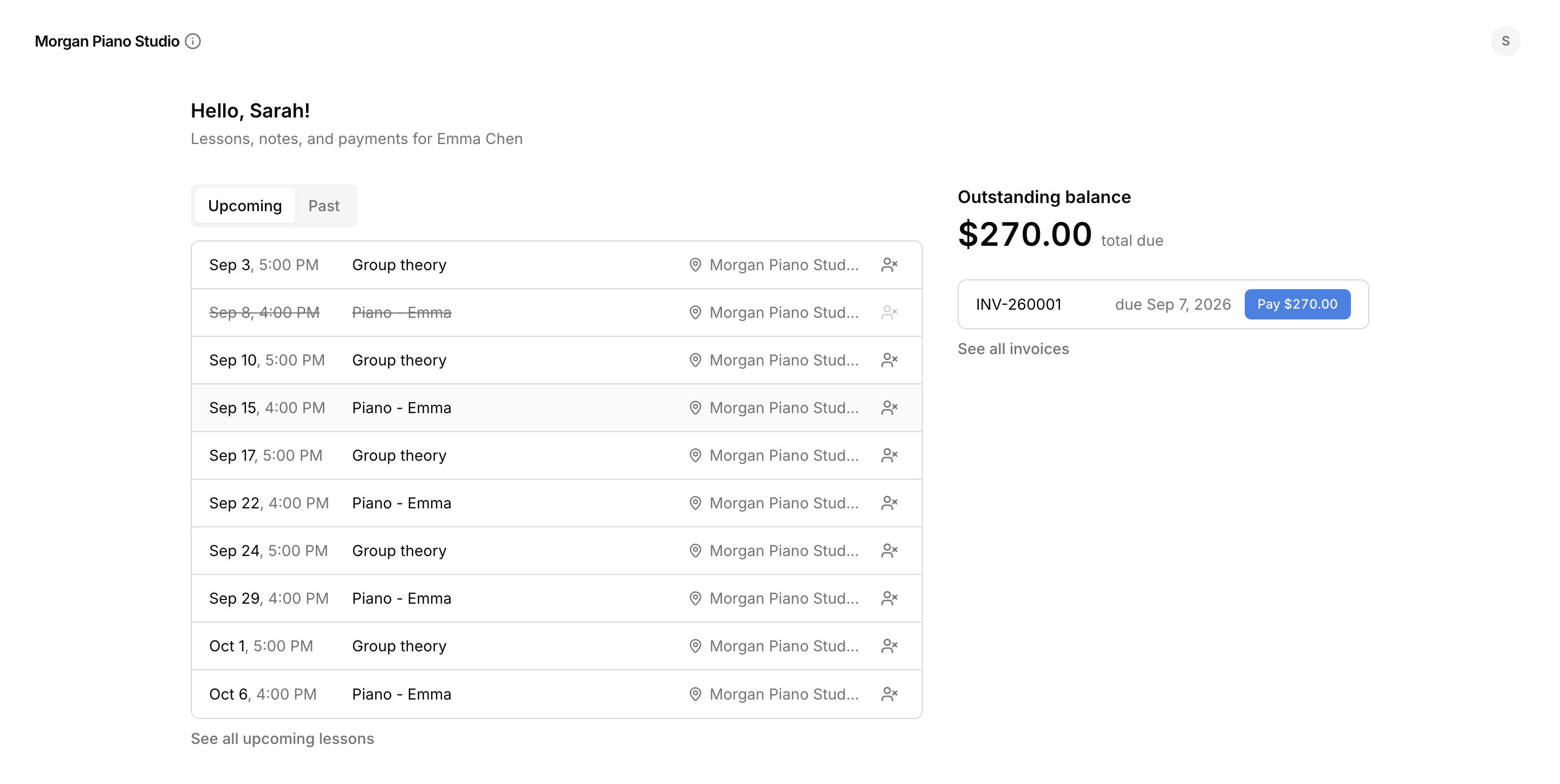
Their invoices, in one place
Families can see what they owe, open any invoice, and pay online where you’ve turned that on. No more “did you get my invoice?” threads.”Can’t make it”
A family can tell you ahead of time that a student will miss a lesson, with a reason if they want. If they give less notice than your late-cancellation window allows, the lesson is charged automatically on their next invoice, exactly as if you’d marked it yourself.You stay in control
You choose per contact who sees the schedule and who sees the details, so a co-parent and a grandparent can have different access. Send a portal invite when you add a contact, send it again anytime, and preview the portal exactly as a contact sees it before they log in.About this studio
A tap on your studio’s name shows families who you are, how to reach you, and your policies. They can install the portal as an app on their phone, too.Improved (2)
Improved (2)
- The emails Harness sends for you (invoices, reminders, lesson notes, and portal invites) have a cleaner, more consistent design.
- Pages across the app load faster, and no longer flash a loading screen before your content appears.
See every email you’ve sent, and whether it landed
Harness sends a lot of mail for you: invoices, reminders, lesson notes, schedule changes. Until now none of it left a trace you could check, so when a parent said the invoice never arrived, you had nothing to look at.Every student and account now has a Messages tab listing what was sent about them, newest first, with who received it and what became of it. Open any message to read it exactly as the recipient saw it. Mail sent before this update is listed too, though most of it can’t show its content.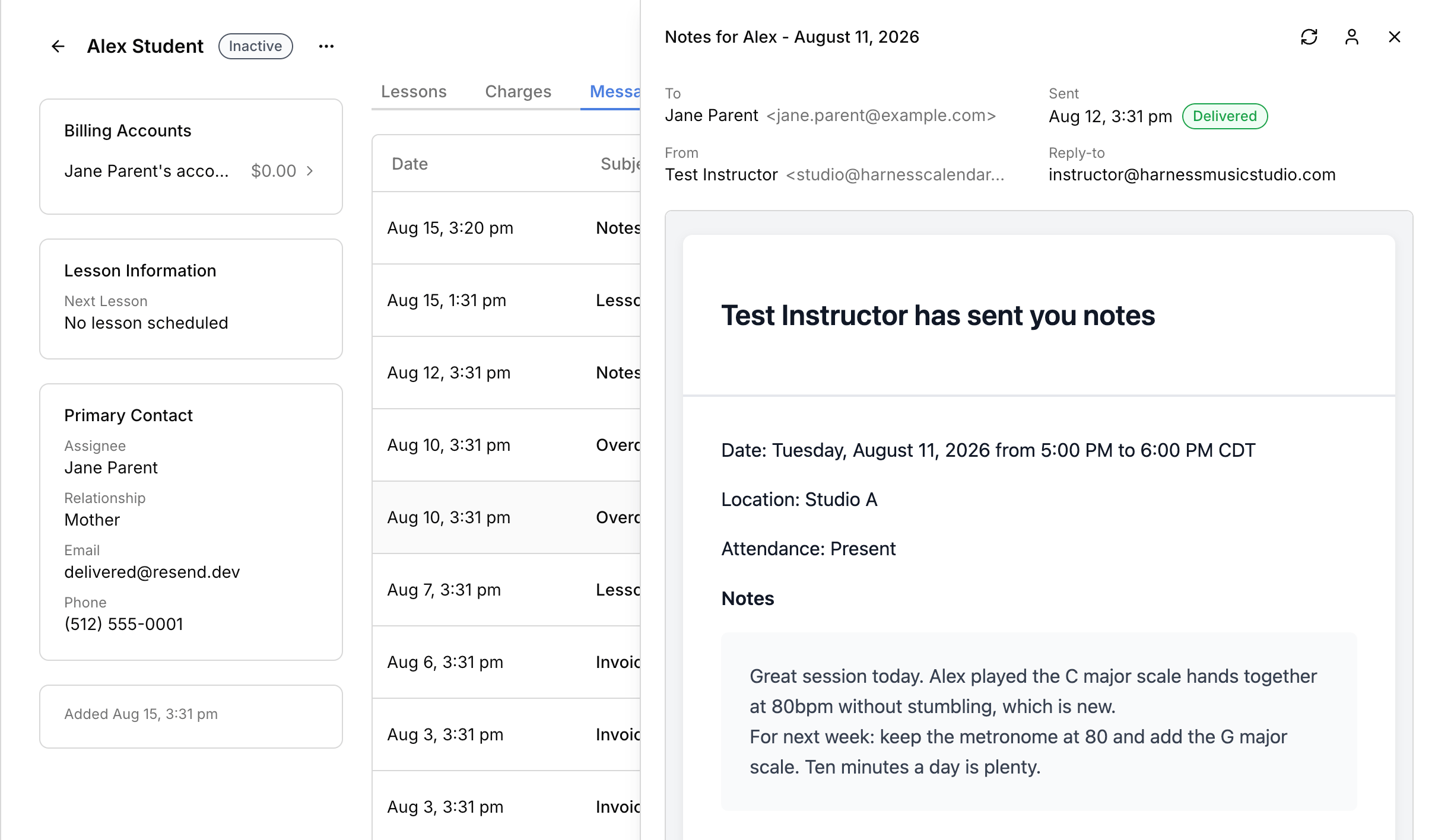
Each contact gets their own copy
An invoice to two parents is two separate emails now, so neither one sees the other’s address.When an address stops working, Harness tells you
A bounced or blocked address raises a warning on the student, the account, and the contact card that carries it, and it stays until mail reaches that address again. Fixing the address is usually all it takes, and the warning clears on its own.Send again, or try again
Delivered mail can be re-sent as an exact copy when someone says they never got it. Mail that failed gets Try again, which goes to the contact’s current address, so correcting a typo and proving the fix is two clicks. Resent copies are linked to the original, so you can always tell a resend from a second send.Improved (2)
Improved (2)
- Clicking a lesson in a student’s history opens a panel with the notes, attendance, and details in one place, and you can step through lessons without losing your spot in the list.
- Dates read shorter across the app: “Jul 11” for this year, with the year shown only when it isn’t.
Fixed (1)
Fixed (1)
- Copy buttons only confirm when the copy actually happened. A browser that refuses the copy now says so instead of showing “Copied”.
A more natural way to record and read your money
New add expense and add charge modals, and a transaction detail sheet that explains itself.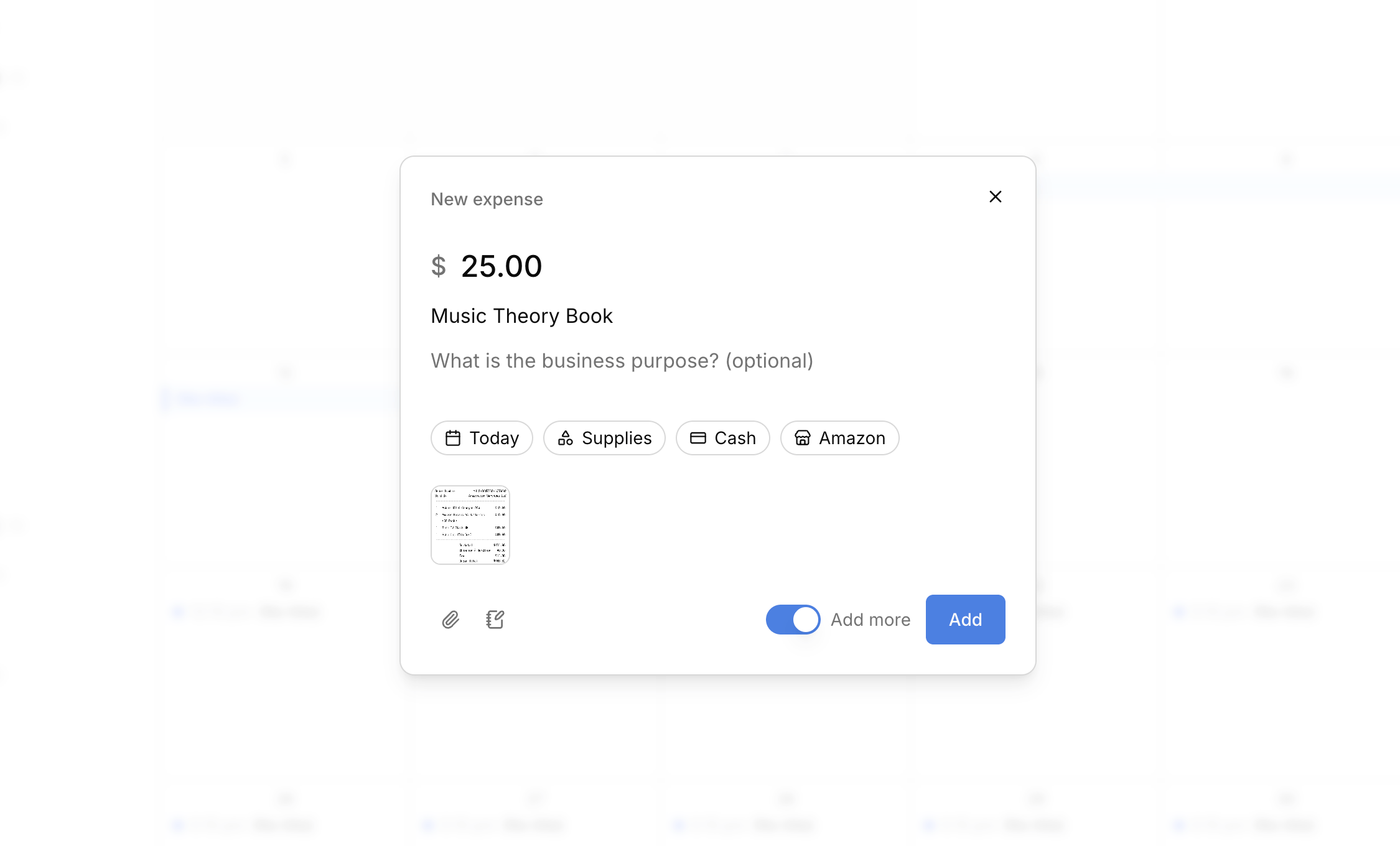
Recording an entry
The Add expense and Add charge modals lead with the money. Type the amount and what it was for. Everything else (date, category, method, vendor, account, who was there) sits below as pills you can move through quickly, already filled with sensible defaults.- Receipts. Drag a file anywhere onto the modal to attach it. Thumbnails appear as you go, and clicking one opens it full size.
- Add more. Keep the modal open after saving, so a stack of receipts is one sitting instead of one trip each.
- Charges show where they land. A line under the pills tells you which account gets billed, and when.
Reading an entry
Clicking a transaction opens a sheet shaped around what the entry is, not a single form that half-serves everything.- See the state first. What it is, what it’s worth, and where it stands lead the sheet.
- Follow the money. A charge, its invoice, and the payment that covered it are one click apart in either direction.
- Correct in place. Edit a field where you read it. Changes save as you make them.
- Detail when you want it. Receipts, tax fields, processing fees, and reference numbers are there without crowding the facts that matter.
Improved (5)
Improved (5)
- The filter, tab, and sort you set on a list are remembered, and the back button returns you to the view you were in.
- Enter saves from any modal with a text field. Where Enter belongs to the text itself, like a note or a picker, use Cmd+Enter (Ctrl+Enter on Windows).
- Modals take focus when they open, so screen readers announce them.
- Delete confirmations start on Cancel, so Enter can never confirm a deletion by accident.
- Void no longer appears on expenses, where it never meant anything. Delete is how you correct one.
Fixed (6)
Fixed (6)
- A pay link opened in two tabs can no longer take two payments for the same invoice, and it refreshes itself if the balance changed after you sent it.
- Your Profit & Loss no longer understates income after a refund.
- The fee Stripe charges for a dispute is recorded on every dispute, including the ones you win. It used to disappear from your books.
- A lost dispute records the money that was seized, so the loss lands somewhere instead of nowhere.
- A payment that lost a dispute can no longer be voided.
- Lesson times are correct for studios more than twelve hours from UTC, where an event could land on the wrong day.
Harness can now do your billing
Set up how you charge once, and Harness generates the charges, groups them into one invoice per account, and sends them on your schedule.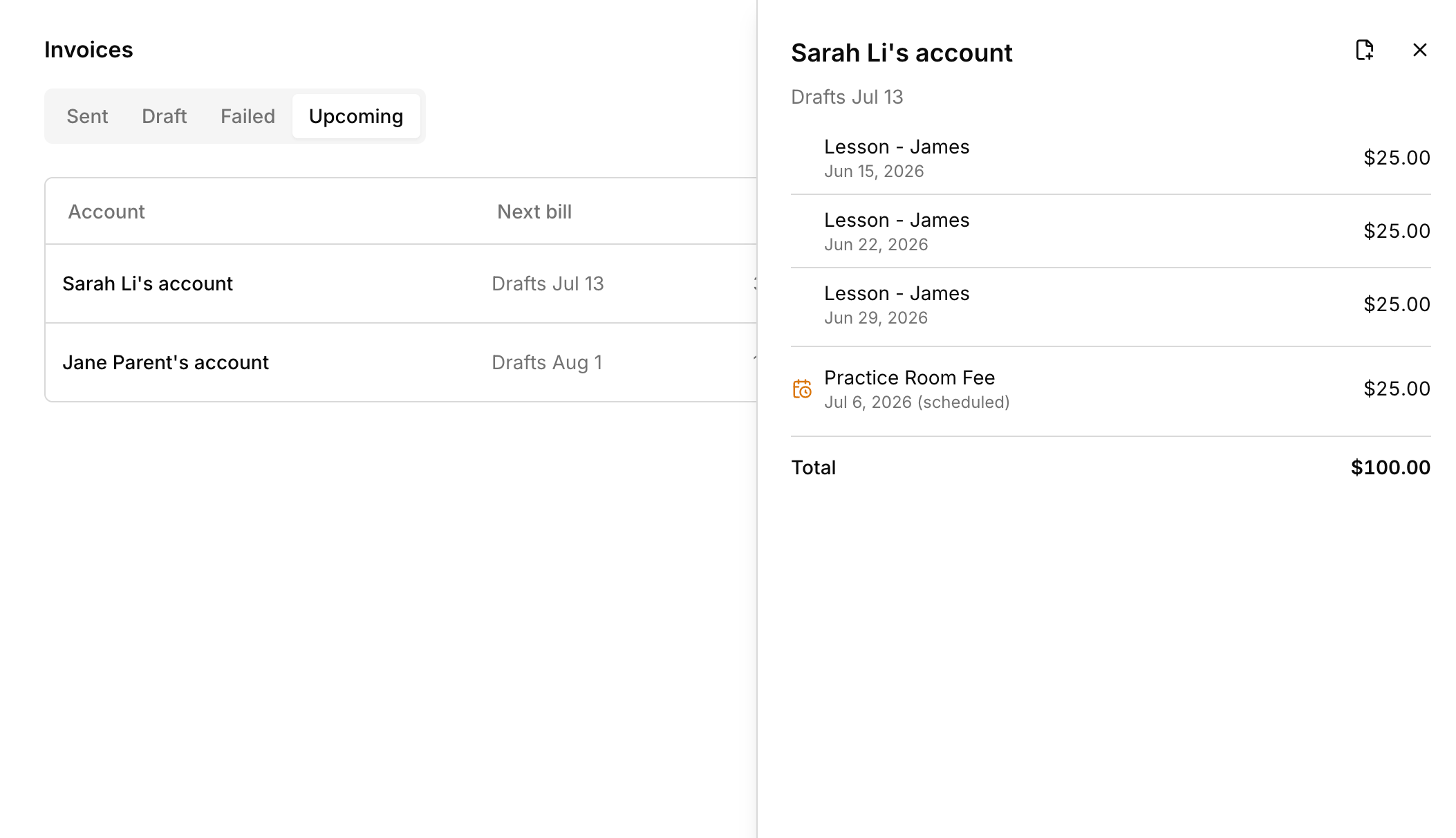
Set up how you charge
- Rate presets. Save your lesson prices once, then pick one when you set a lesson as paid.
- Recurring charges. Add standing fees to an account (monthly tuition, instrument rental, a term charge). Save your standard setup as a template and apply it to any account.
- Billing cycles. Each account bills daily, weekly, or monthly.
Charges create themselves
Mark attendance and the charge follows. Recurring charges appear each period on their own, and a one-off charge you add by hand simply rides the account’s next bill.One invoice per account
At each account’s cycle close, Harness gathers every ready charge into one grouped invoice per account. You choose the automation level:- Draft for review (the default): invoices assemble and wait in your Draft list for a glance before sending.
- Full auto: invoices assemble and send themselves, with a pay link when Stripe is connected.
- Manual: charges accrue and you invoice by hand, like before.
See the next bill before it goes out
The new Upcoming tab shows what each account’s next bill will contain and when it goes out, projected recurring charges included.Improved (6)
Improved (6)
- Students with no emailable contact and accounts with no billing recipient are flagged in lists and on their pages, next to where you fix them.
- Move a charge to a different account from its transaction details.
- Transaction details show which account a charge belongs to.
- Invoices assembled by Harness carry an Auto badge, and drafts with no recipient are flagged.
- New studios choose how often they bill during onboarding.
- A banner warns you if your subscription payment fails, so you can update your card before losing access.
Fixed (1)
Fixed (1)
- Recurring lesson times no longer shift when your computer’s timezone differs from your studio’s, or drift an hour across daylight saving.
See your calendar the way you work
New calendar views, a faster app, keyboard shortcuts, and a few smaller upgrades.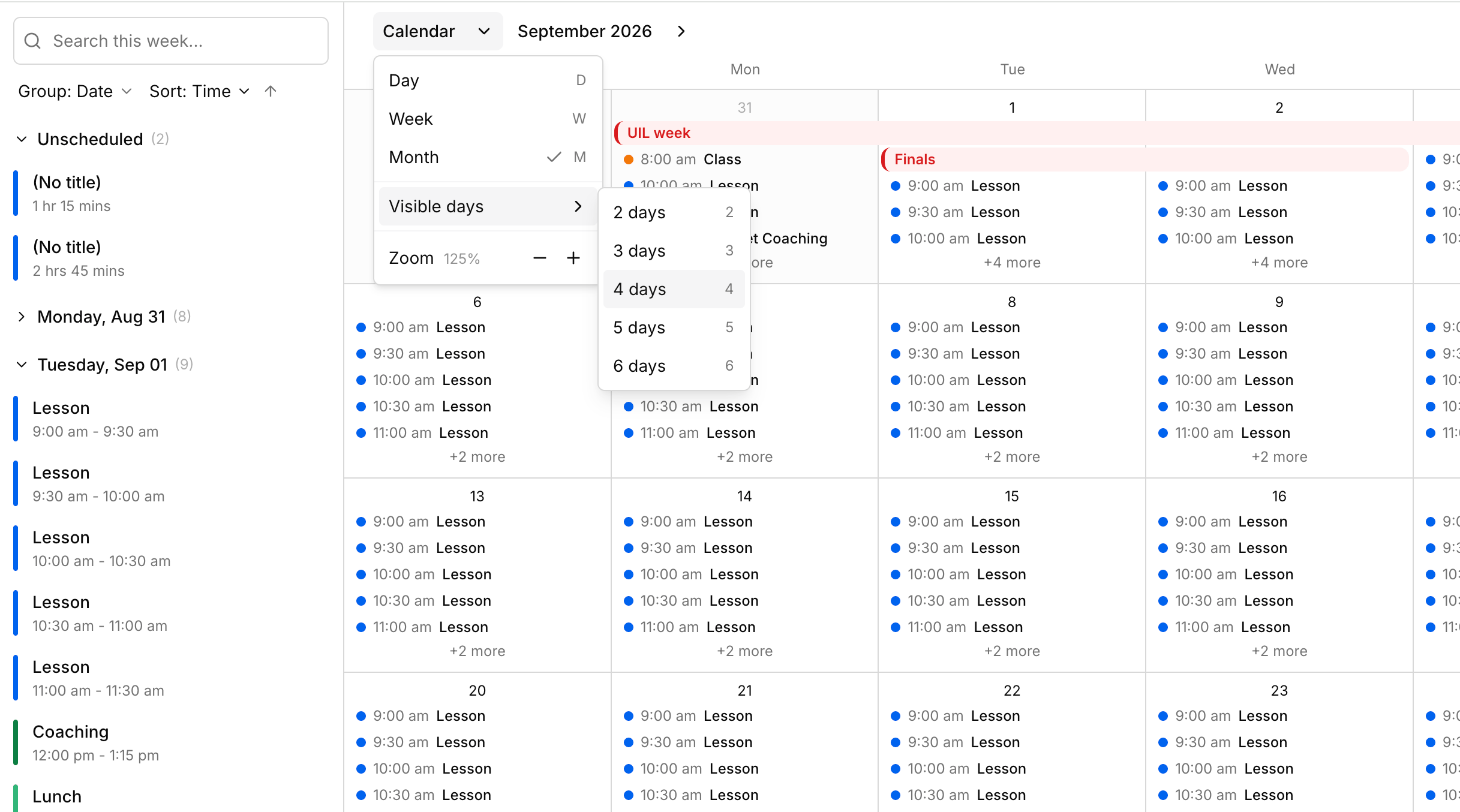
Calendar views
Your calendar can now show more than one fixed week.- Month view for scanning a whole month at a glance, so you can see where you’re packed and where there’s room.
- Day view for focusing on a single busy day.
- A custom range of 2 to 6 days, handy if you only teach a few days a week.
- In month view, drag a lesson to another day and it keeps its time, click a date to open that day, or drag across days to block out a multi-day event.
Improved (5)
Improved (5)
- Pages, transactions, and invoices load faster.
- Right-click any table row to open its actions.
- Keyboard shortcuts for the calendar: press
d,w, ormto switch views,jandkto move forward and back,tto jump to today, and?to see the full list. - Send feedback from inside Harness.
- Add your origin address when logging mileage.
Fixed (3)
Fixed (3)
- You can send lesson notes without marking attendance first.
- Lesson note emails now show times in your studio’s timezone, not UTC.
- Invoices no longer flicker while loading.