
Before you start
- Mileage is a record for your own books, kept apart from what students owe. Trips aren’t money in or out, so they don’t show in your Profit & Loss, transaction report, or financial summary.
- You’ll find it under Settings → Business records, not under Finances, on every plan.
Add a vehicle
You log trips against a vehicle, so add one first.1
Open Business records
Go to Settings → Business records. Your vehicles are listed here, each showing its lifetime miles.
2
Add a vehicle
Use Add vehicle, then fill in the Year, Make, and Model. Add an optional Description (trim, color, and so on).
3
Save
Click Add vehicle. It joins your list, ready to log trips against.
Log a trip
1
Open the log form
Open a vehicle from Settings → Business records, then use Log mileage. You can also press 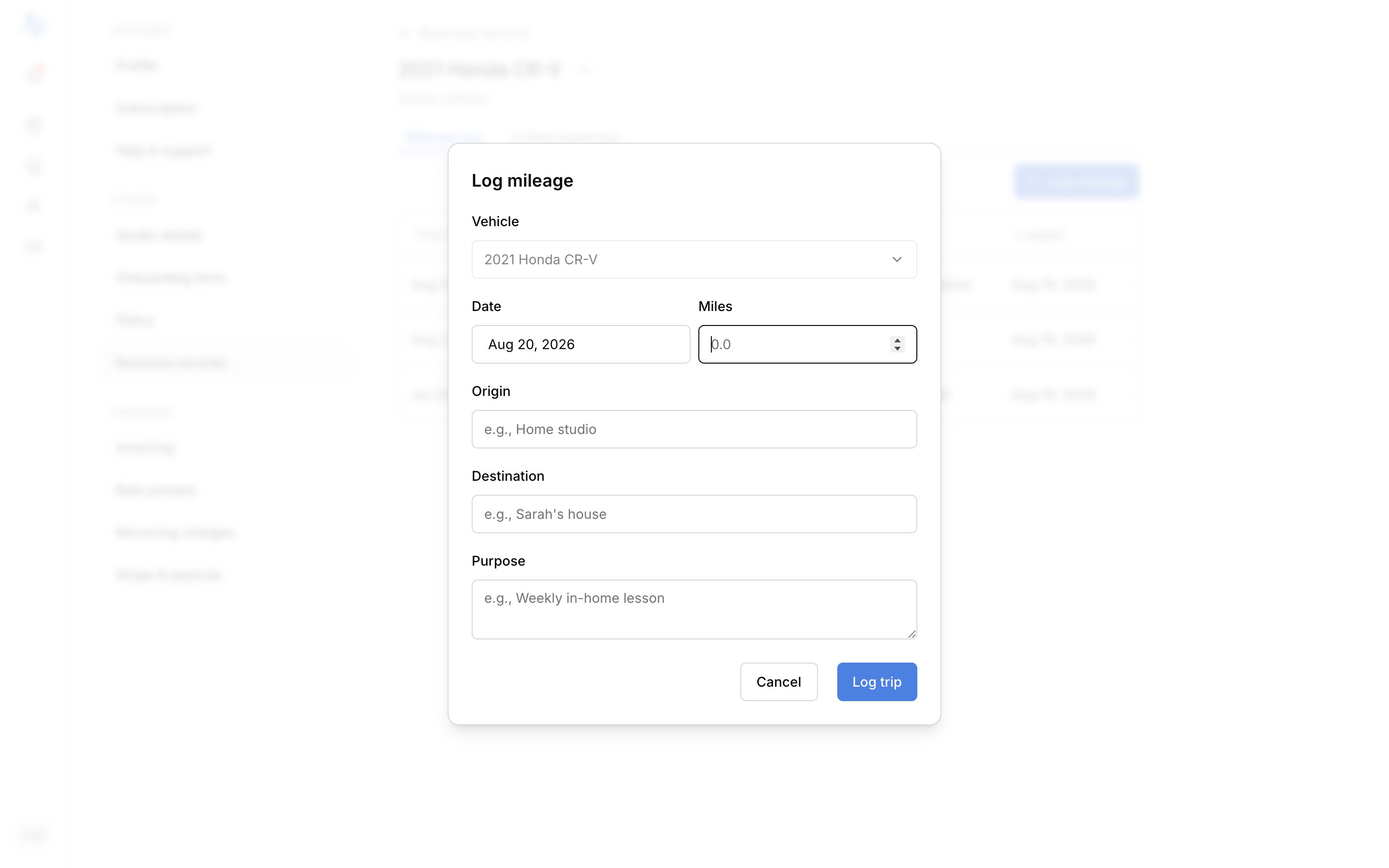
m from anywhere to open the form: if you have more than one vehicle, pick which one the trip was for.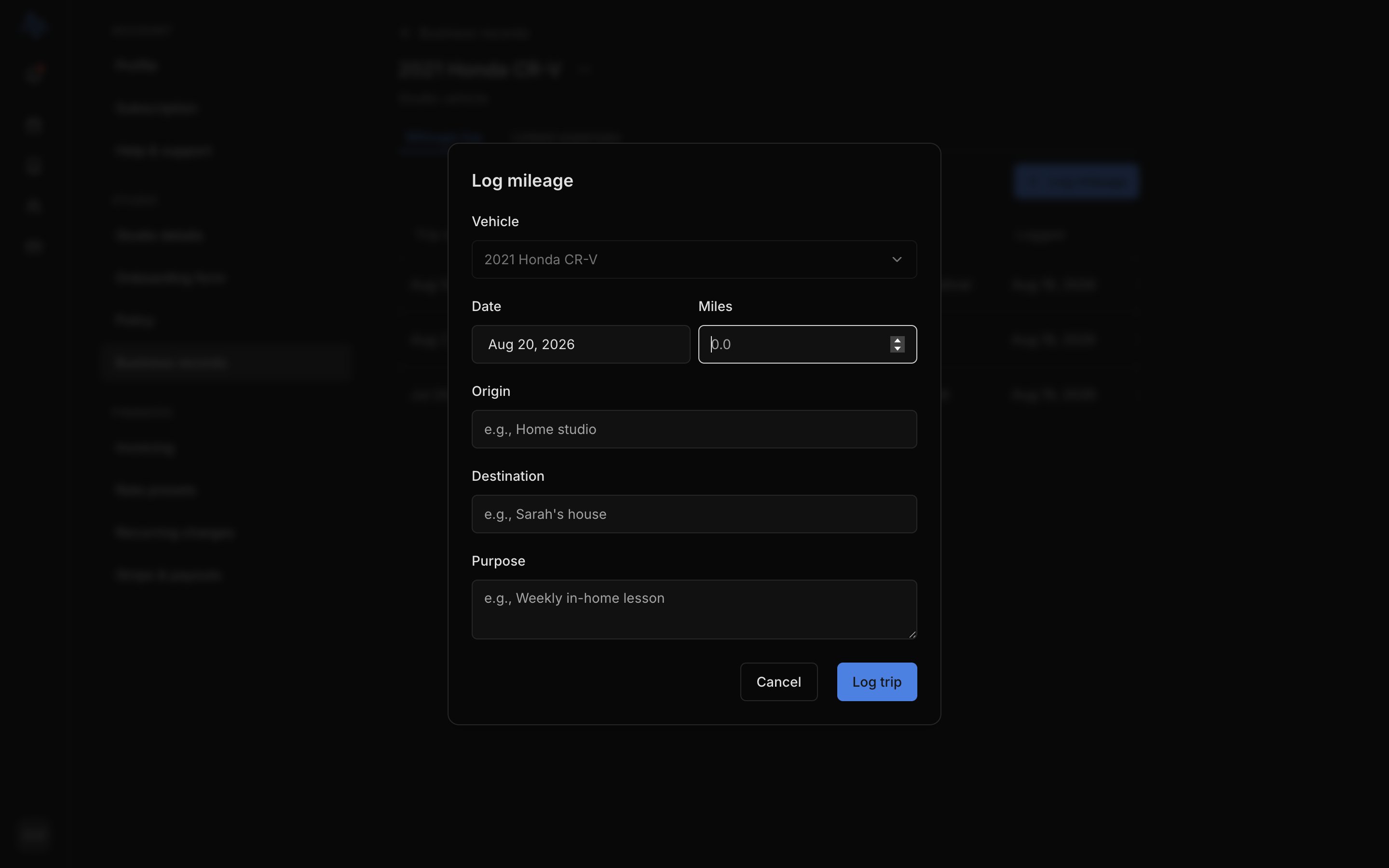
2
Fill in the trip and save
Fill in the vehicle, date (defaults to today), miles, destination, and purpose, then click Log trip. It lands in that vehicle’s mileage log.
Your vehicle’s records
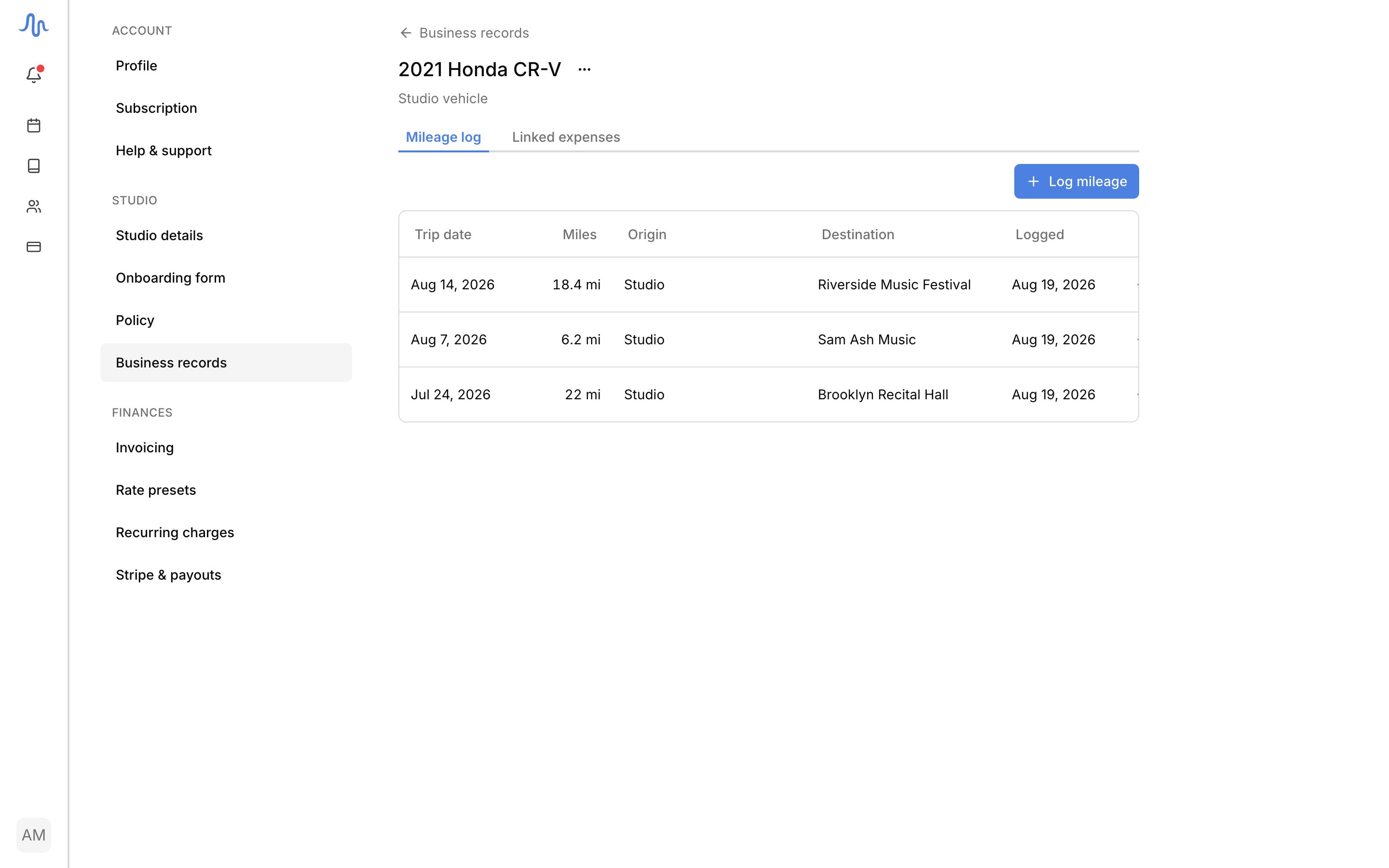
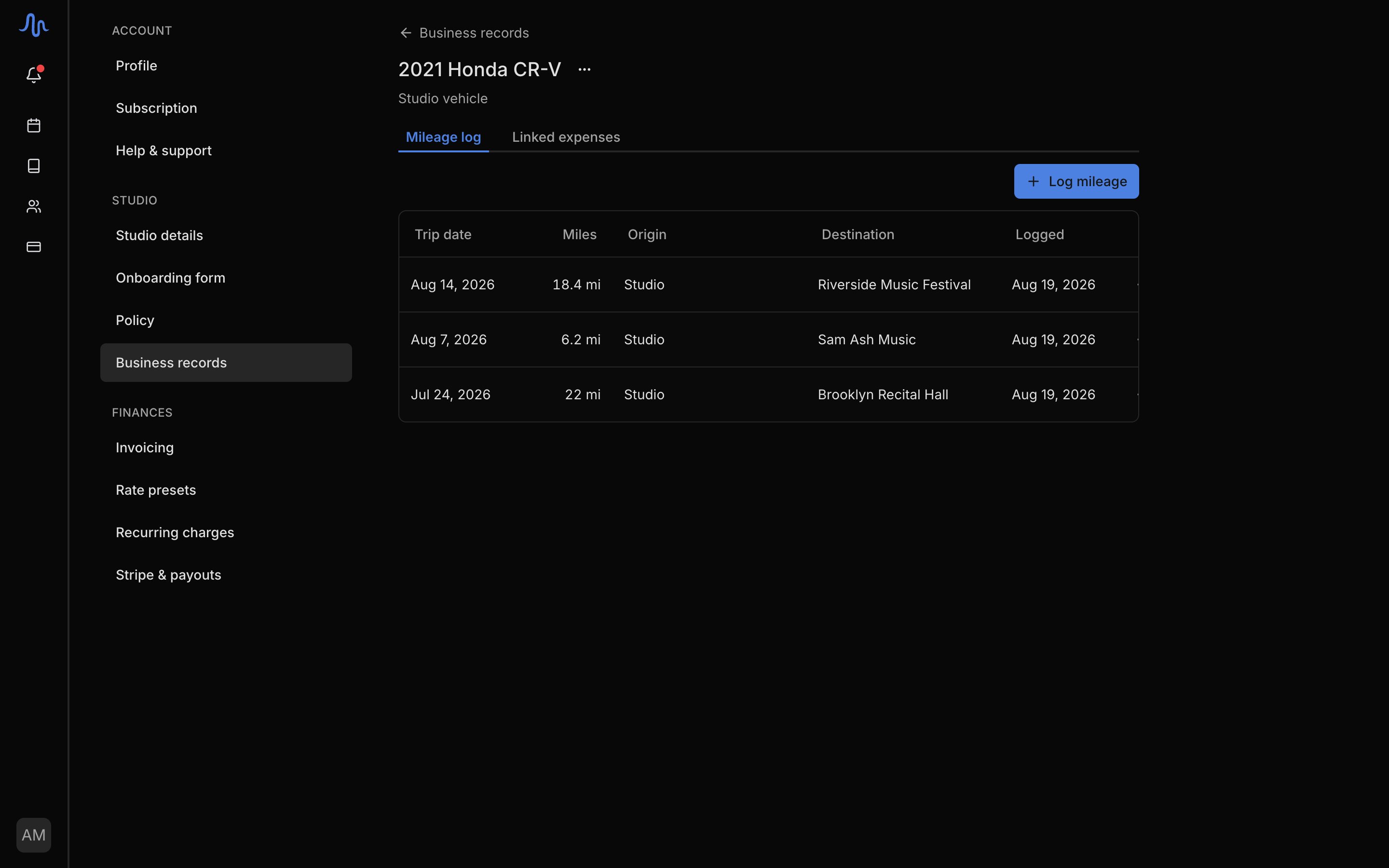
Opening a vehicle from Settings → Business records gives you two tabs:- Mileage log: every trip you’ve logged for this vehicle, with its date, miles, destination, and purpose. Click a trip to edit it, or use the row menu to Edit or Delete.
- Linked expenses: the Car & truck expenses you’ve tagged to this vehicle, so the trips and costs sit together.
FAQ
How do my car expenses connect to a vehicle?
How do my car expenses connect to a vehicle?
When you record a Car & truck expense, you tag it to a vehicle. It then appears in the vehicle’s Linked expenses tab and, unlike a trip, in your reports and Profit & Loss.
Can I edit a trip after I log it?
Can I edit a trip after I log it?
Yes. Open the vehicle, find the trip in its Mileage log tab, and click it to edit. You can also delete it from the row menu.