
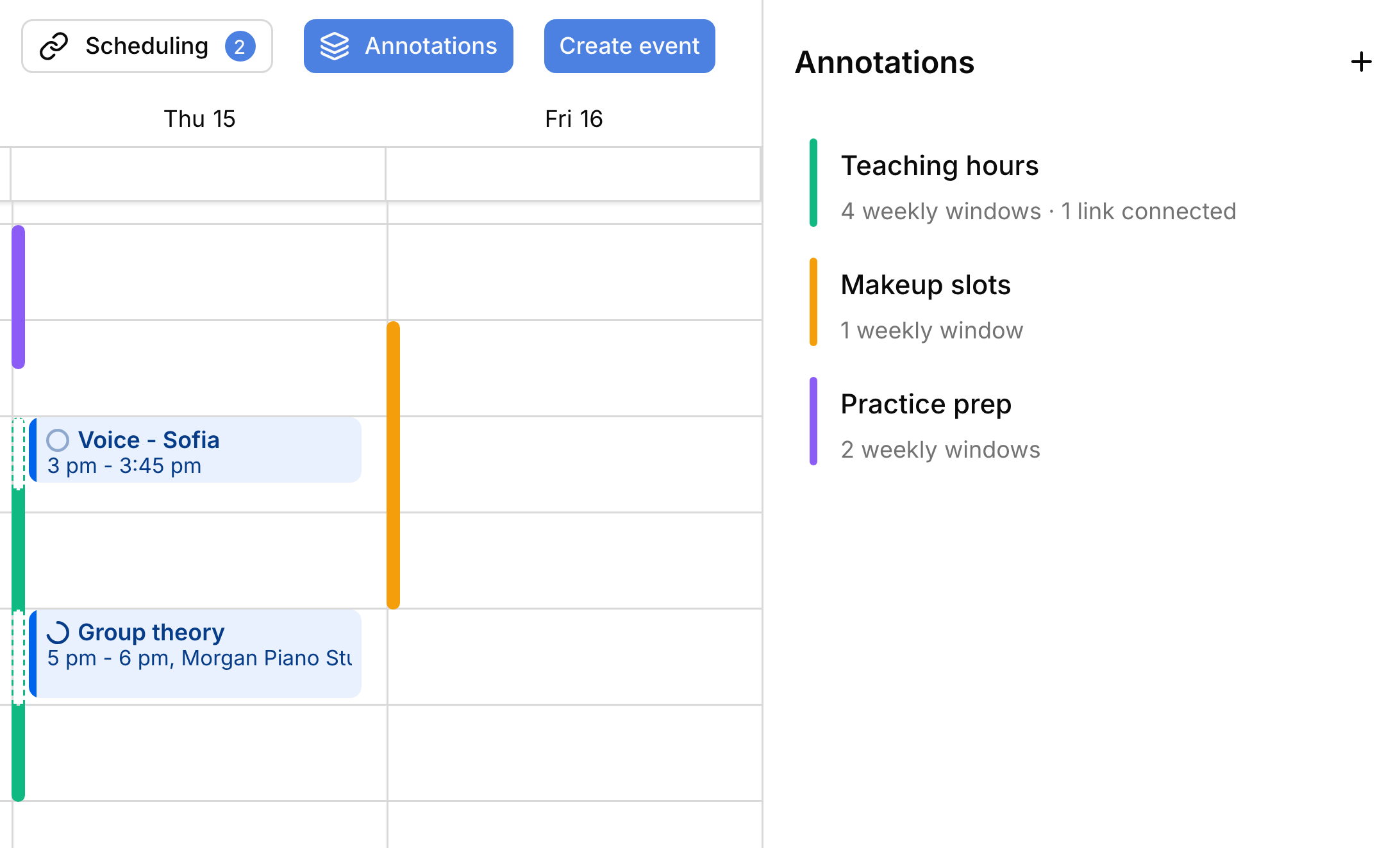
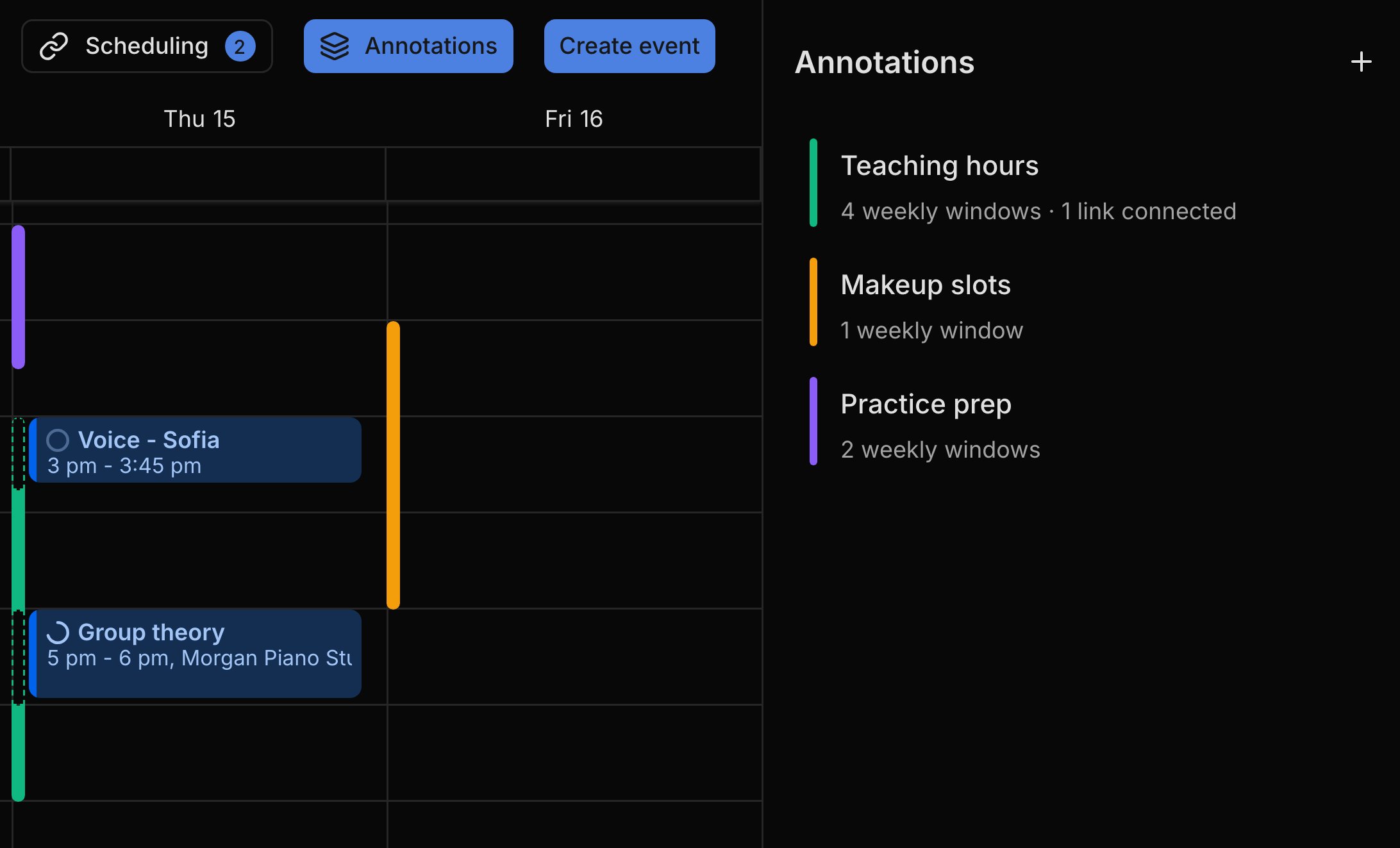
Weekly or one-time
Every annotation is one of two kinds, set under Availability type. Weekly windows paint on the same days every week, like the afternoons you teach. Ad-hoc windows paint only on the dates you pick, like extra makeup slots before a recital. Each window shows as a thin bar down the edge of its day, and where a lesson overlaps it, the bar turns to a dashed outline so the lesson stays readable.Add an annotation
You build an annotation from the calendar, in the Annotations panel.1
Start a new annotation
On the calendar, click Annotations, then +. Harness creates one and opens it.
2
Name it
Give it a Name, like “Teaching hours”, and pick a Calendar color so you can tell its bars apart.
3
Choose weekly or one-time
Under Availability type, pick Weekly windows or Ad-hoc windows.
4
Add your times
Click + Weekly window or + Ad-hoc window and set each row, or drag on the calendar grid while the annotation is open.
Edit, hide, or delete
You reshape an annotation right on the calendar, much like moving an event. To open it, click its row in the Annotations panel or one of its bars. Drag a bar to move it, or drag its edge to change the times; a weekly window changes every week. To remove one window, click its bar and press Delete. The eye icon on a row hides the annotation without deleting it, and the row’s ⋯ menu has Delete for the whole annotation.Use with scheduling links
An annotation can supply the open times for a scheduling link, so you set your hours once. Pick the annotation under the link’s Source, and the link follows every change you make; the annotation lists it under Connected scheduling links. To give the link different times, switch its Source to Custom: the link keeps a copy of the times and stops following the annotation. If you delete the annotation, each connected link keeps its own copy and keeps working. Scheduling links are on the Professional plan.FAQ
Why didn't my annotation stop people booking that time?
Why didn't my annotation stop people booking that time?
Annotations are your own notes and never block a time. To keep a time off a booking page, leave it out of the link’s open times. See where availability comes from.
Why did my booking page change when I edited my annotation?
Why did my booking page change when I edited my annotation?
A scheduling link that uses an annotation follows every change to it. To give the link its own times, switch its Source to Custom.
Why can't I see annotations in Month view?
Why can't I see annotations in Month view?
Annotations show in Day and Week views, where the calendar shows hours. Switch views from the Calendar menu.
Where did my weekly windows go?
Where did my weekly windows go?
Switching an annotation between Weekly windows and Ad-hoc windows clears the times of the kind you switched away from. Switch back and add them again.