
Add a student
A short form sets up the student, their family, and who pays. Click Add Student → Manually Add, then:1
Who the student is
Enter the student. Under Who is the student’s primary contact?, choose Student if they handle their own lessons and bills, or Someone else for a parent or guardian, so the student doesn’t need their own email. Either way, the primary contact needs an email, since they’re billed.
2
Other contacts
Add anyone else in the family, like a second parent, and how they’re related.
3
Who's involved
Choose who hears about scheduling and who gets your lesson notes. See who gets emails.
4
First lesson
Set the day and time of their first lesson, priced at your first rate preset, if you have one. Or click Skip for now, and the student starts as inactive until you add them to a lesson.
5
Review
Leave Send welcome and portal invites to contacts ticked to give the family portal access, then click Create.
- Families fill in your sign-up form. Add Student → Shareable Link copies its link.
- Make a student turns someone already in your contacts into a student.
- Create student adds one from a booking.
Active, inactive, and pending
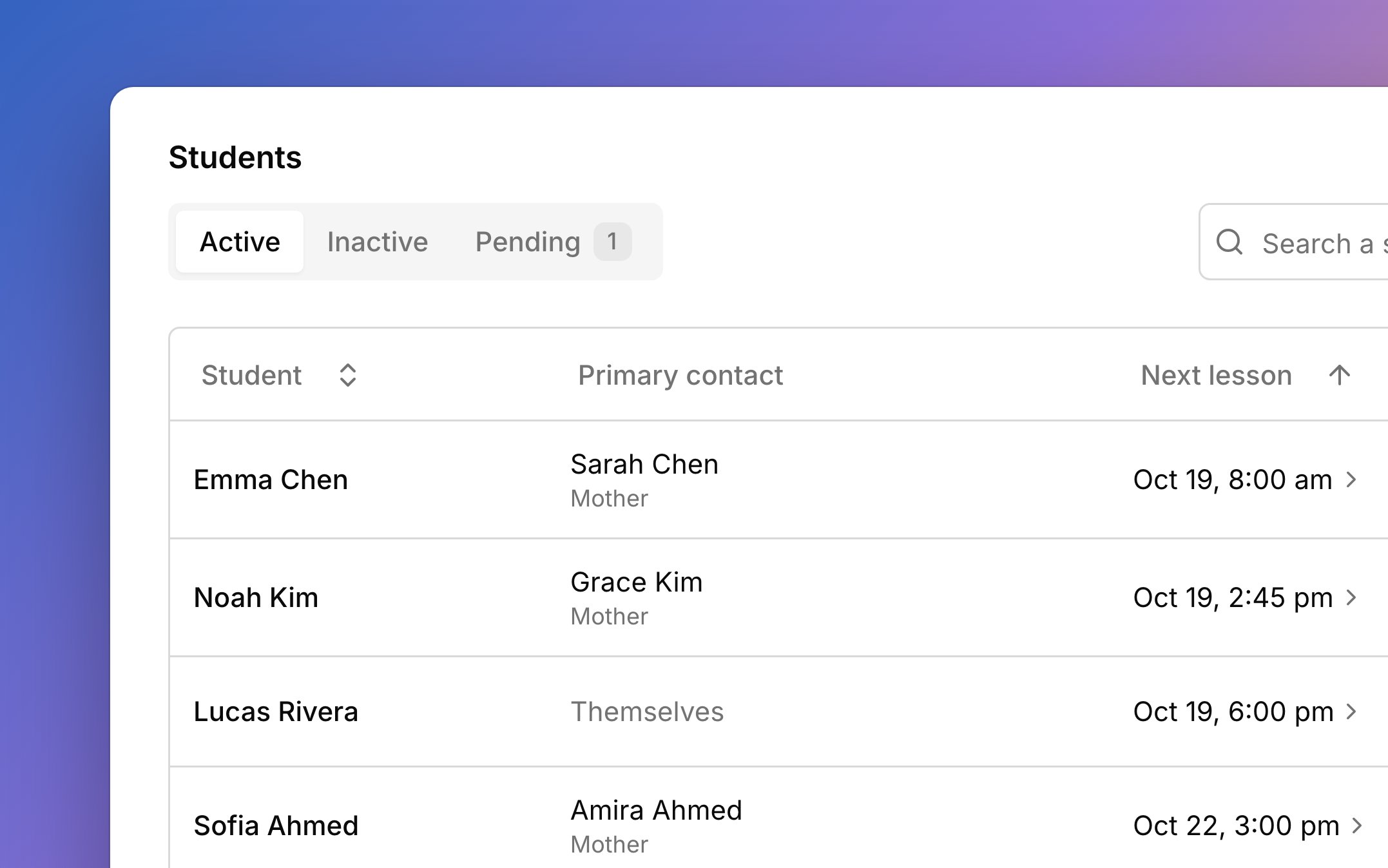
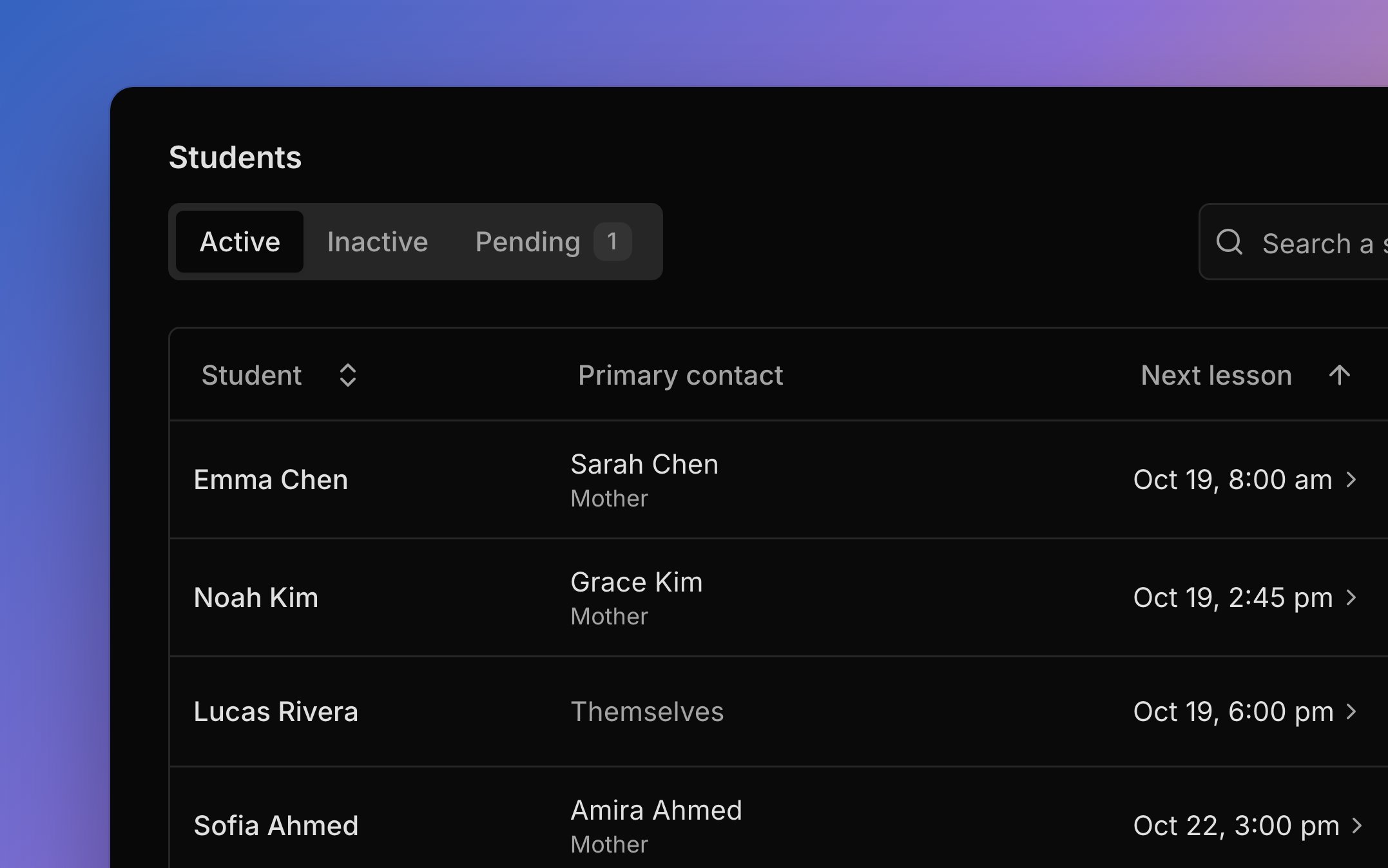
Every student has a status, and Harness works it out from their lessons, so you never set it.- Active: on an upcoming lesson.
- Inactive: no upcoming lesson. They turn active again once you add them to one.
- Pending: signed up through your sign-up form, waiting until you approve or reject them. The tab shows how many are waiting.
The student’s page
A student’s page puts everything about them in one place; click their row to open it. The sidebar shows their next lesson, their recurring charges, who pays under Paid by, and their contacts, with a star on the primary. The tabs hold the rest:- Lessons: every lesson you’ve marked attendance for, with whether notes were sent, and a total count.
- Billing: who pays for the student under their billing rules, and their charges.
- Messages: every email sent about the student. See Message history.
- Contacts: the family and what each person is involved in. See Contacts.
Make a student inactive
Make a student inactive when you stop teaching them but want to keep their records. After their last lesson, choose Deactivate from the menu, and Harness takes them off every future lesson: their private lessons are removed, and group lessons go on without them. Their contacts, billing, and history stay. If they have recurring charges, the dialog lists them under End these recurring charges; untick one, like an instrument rental, to keep it billing. On the Hobby plan, inactive students still count toward your 5-student limit; see Your plan. To bring them back, choose Activate and save the lesson it opens. Deactivate shows only for a student with an upcoming lesson, since one without is already inactive.Delete a student
Delete a student to remove their personal details for good. Choose Delete student from the menu, then type their name to confirm. Their past lessons and charges stay in your records under a nameless “Student #xxxx”, so their account balance doesn’t change. Anyone connected only to this student, like a parent with no other students, is deleted with them, and the dialog names them first.What your families see
Families hear from you when a student joins. With Send welcome and portal invites to contacts ticked, the primary contact gets a welcome email with a link to sign in to the student portal, plus your studio policy when it’s published. Other contacts involved in the student’s lessons get a portal invite. The same emails always go out when you approve a sign-up. Deactivating or deleting a student sends the family nothing.FAQ
Should I make a student inactive or delete them?
Should I make a student inactive or delete them?
Why is a student locked?
Why is a student locked?
Your studio went over the Hobby plan’s limit when a trial or paid plan ended, so you chose which students to keep. The rest stay locked until you change to the Professional plan. See Your plan.
I put the student on the calendar. Why are they still inactive?
I put the student on the calendar. Why are they still inactive?
A student turns active once they’re added to an upcoming lesson, and the list shows it after you refresh the page. If they’re still inactive, check they’re added as a student on a lesson with a date and time.
Can I see how many lessons a student took this semester?
Can I see how many lessons a student took this semester?
Not for a date range. The student’s Lessons tab lists every lesson you’ve marked, with attendance, and a total count for all time.
Why won't it let me create the student?
Why won't it let me create the student?
The primary contact needs a valid email, because Harness bills them. Add one, or choose a different primary contact.