
What families can see
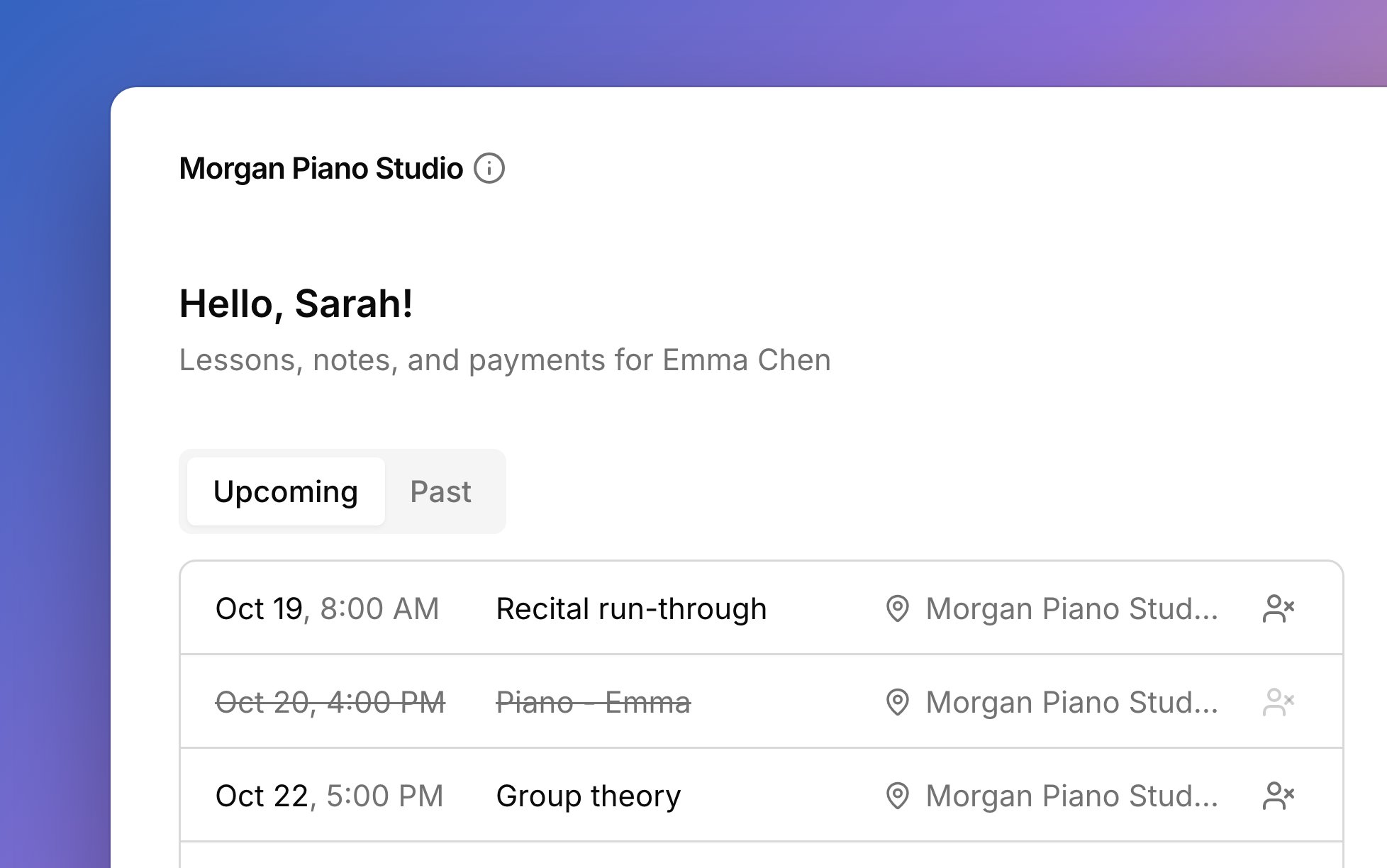
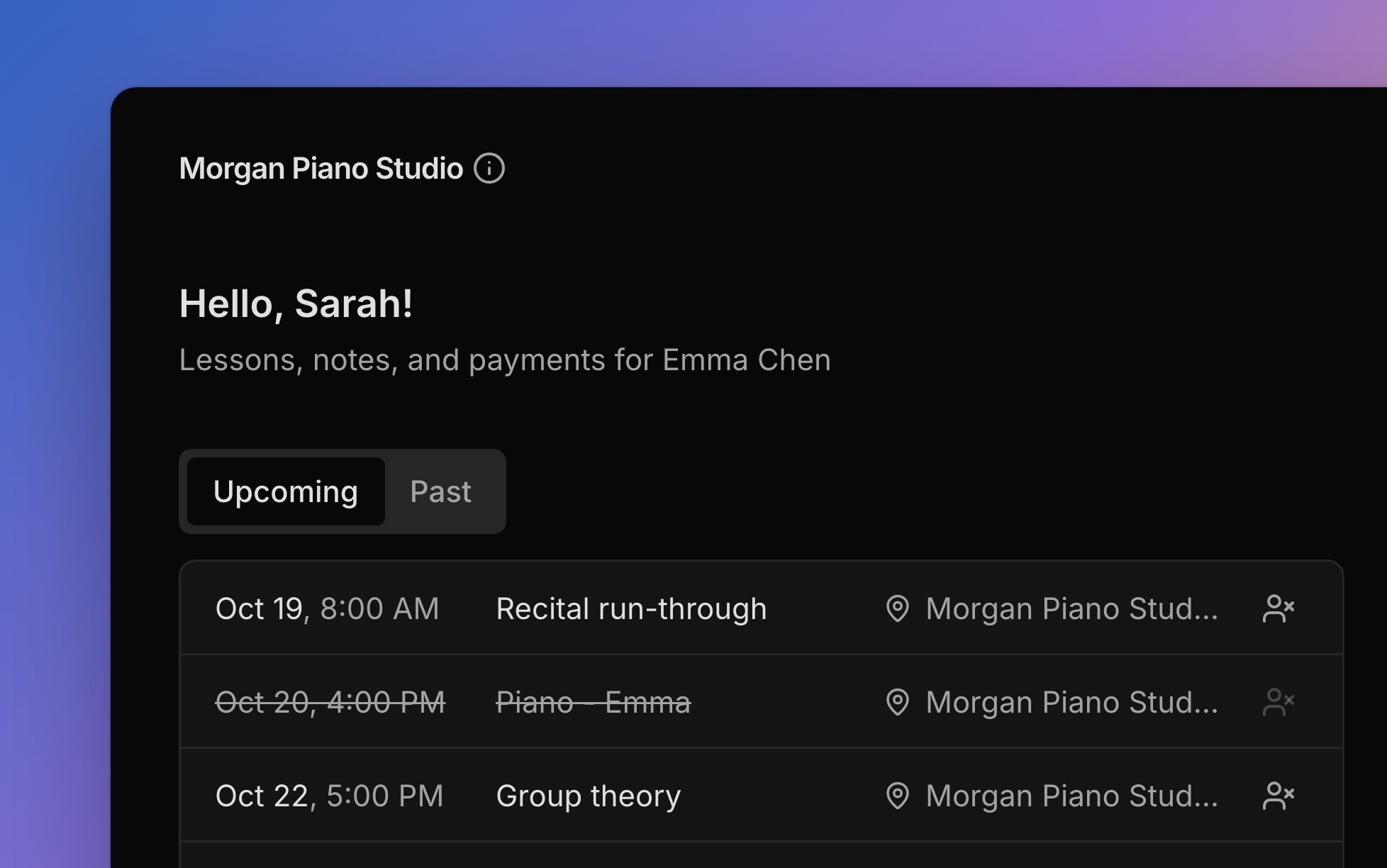
What each person sees depends on how they’re connected to your students and accounts.- Lessons: upcoming lessons, and past ones with their attendance, for anyone involved in a student’s lessons.
- Lesson notes: your saved notes on past lessons, for contacts involved in Lesson progression.
- Billing: the balance, open invoices, and every sent invoice, for people on an account.
- Your studio’s details, when they tap your studio name: your contact details, your late-cancellation window, and a link to your studio policy.
What families can do
Families handle a few things on their own, with no password to remember.- Sign in with their email and a six-digit code sent to it.
- Pay an invoice with the Pay button, which shows the amount due, when online payments are on for it.
- Tap Can’t attend on an upcoming lesson to tell you a student won’t be there. Only contacts involved in Scheduling see it, and a late notice can be charged; see Late cancellations.
- Set their own time zone and appearance under Settings, or delete their portal sign-in.
Give a family access
A family’s access comes from the contact records you already keep.1
Connect the person
For lessons, open the student’s Contacts tab, click Add contact, and turn on Scheduling or Lesson progression (who gets emails). For invoices, add them to the account with Add person, or choose Attach to an account from their menu on People → Contacts.
2
Check their email
It’s the address they’ll sign in with, so make sure it’s right.
3
Send the invite
Leave Email this contact a portal invite ticked, or Send welcome and portal invites to contacts when you add a student. Any time later, choose Send portal invite from a person’s, student’s, or account’s menu. The email points them to the portal, where they sign in.
Preview the portal
View portal shows you what one person sees at your studio, without signing in as them. It sits beside Send portal invite in the same menus: on a contact card, on People → Contacts, on a student’s row, and on an account. The preview is read-only, so the Pay button and Download PDF show but don’t work, and Can’t attend isn’t offered. It shows only your studio, even if the person has lessons somewhere else.FAQ
Why can't a parent sign in?
Why can't a parent sign in?
Sign-in works only for an email on one of your contacts or an account’s Bill-to. Check that the email in Harness matches what they typed, and fix it with Edit person if it doesn’t.
A parent signed in but sees nothing. Why?
A parent signed in but sees nothing. Why?
They aren’t connected to anything yet. Turn on Scheduling or Lesson progression for one of their students, or add them to an account.
Do I have to send the invite first?
Do I have to send the invite first?
No. Anyone with a connected email can sign in. The invite just points them to the page.
Why doesn't last week's lesson show under Past?
Why doesn't last week's lesson show under Past?
Past lessons show once you’ve marked attendance or saved notes for them. Mark attendance and the lesson appears.
Why doesn't the family see a charge I added?
Why doesn't the family see a charge I added?
Families see sent invoices, not charges on their own. The charge shows once it’s on an invoice you’ve sent.