
Simple or detailed form
The form comes in two types, and you pick one under Form type in Settings → Sign-up form.- Simplified asks for the basics in three short steps, and Harness decides from the answers who hears about lessons.
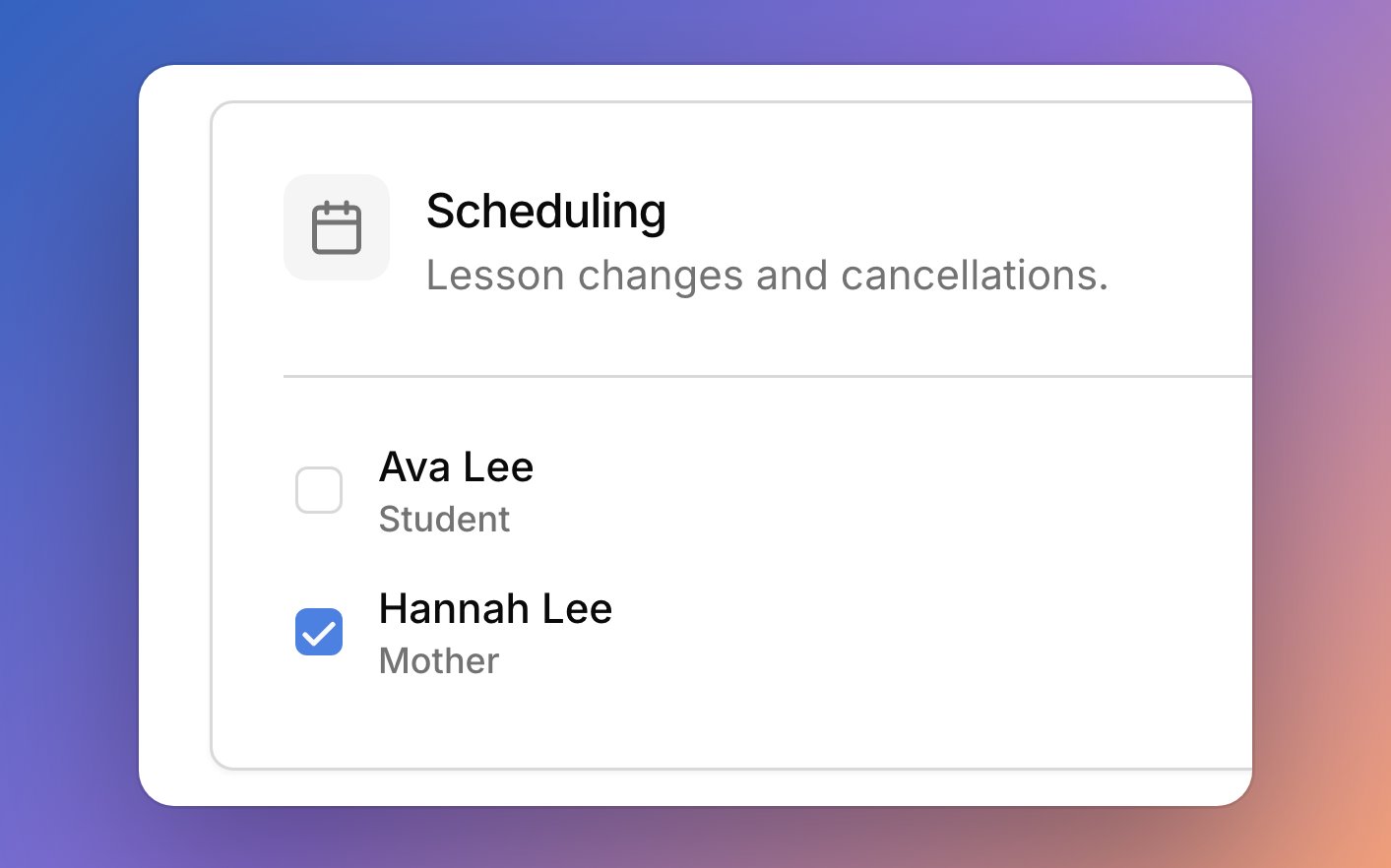
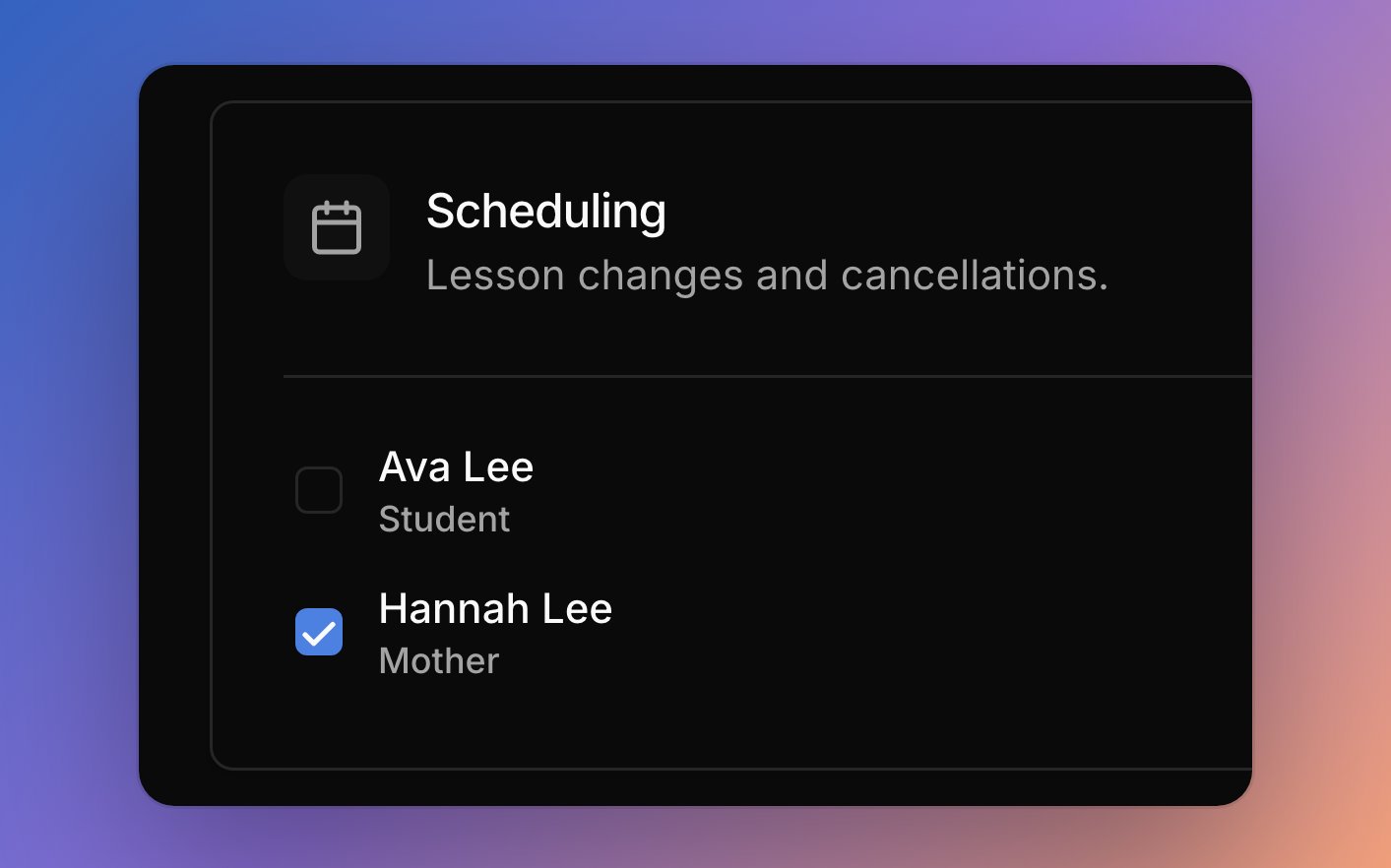
- Dynamic, the default, changes with the answers. Families can add up to four more people and choose who’s involved in scheduling and lesson progression.
Share the link
Every family uses the same link, so you set it up once and send it to anyone who wants to sign up.1
Turn the form on
In Settings → Sign-up form, turn on Enable form and pick a Form type.
2
Write your confirmation message
Under Confirmation message, write what families read in their confirmation email, like your next steps. Then click Save Changes.
3
Copy and send the link
Click the copy button next to Shareable link and send it however you like. The form doesn’t show your studio name, so say who it’s from.
Approve or reject sign-ups
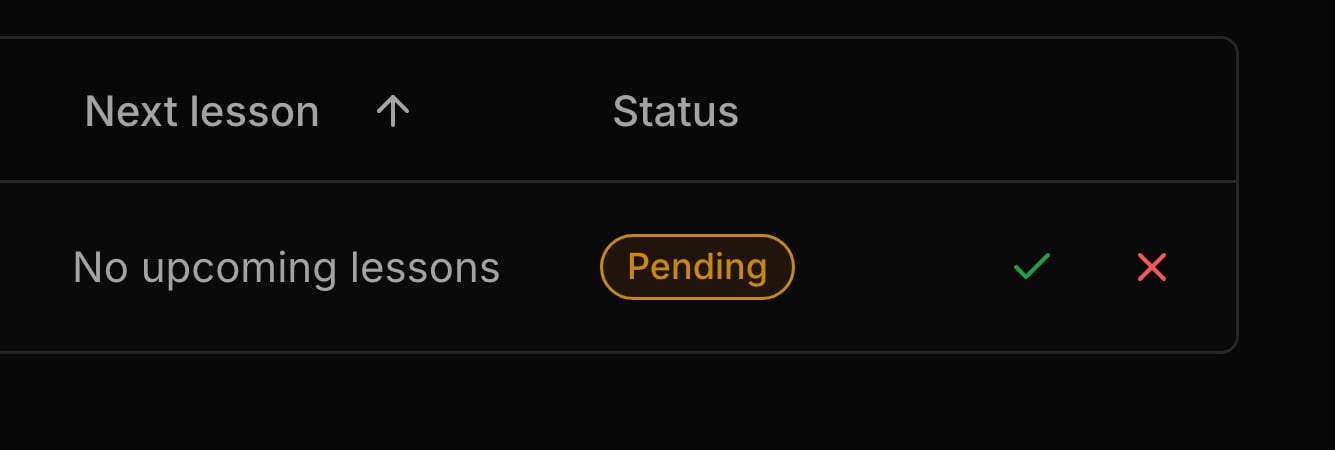
Every sign-up waits on the Pending tab of People → Students until you decide, and nothing approves itself. Harness emails you and adds a notification when one arrives. Click the row to see the student, their people, and who will pay once they’re approved.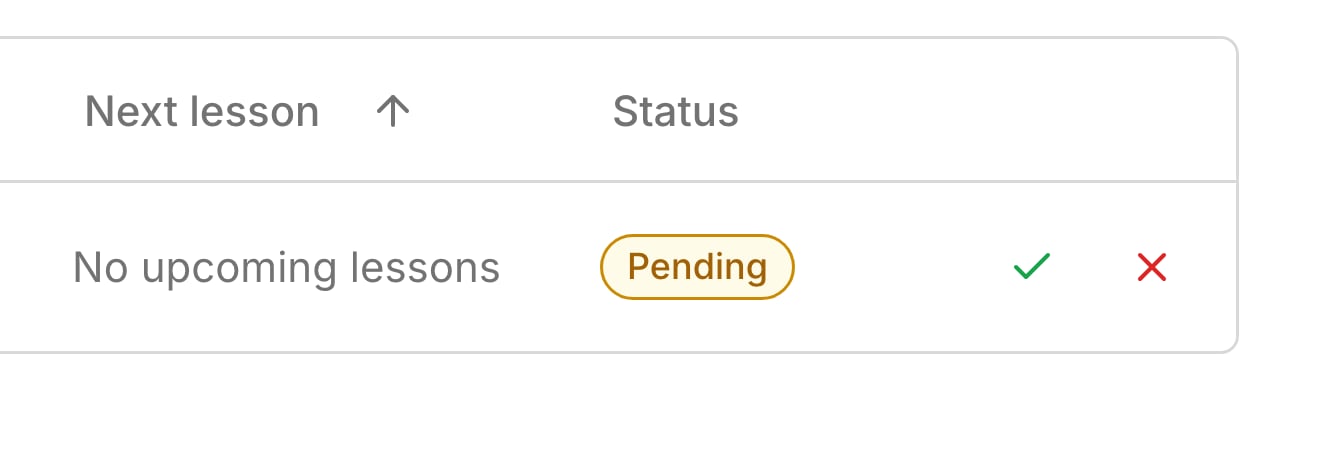
Turn the form off
Turning the form off stops new sign-ups, like when your studio is full. Turn off Enable form, and anyone who opens the link sees “Form Not Available”. The link doesn’t change, so turning the form back on reopens it for everyone who has it. Shareable Link on the Students page still copies the link while the form is off, so check the switch before you send it.What your families see
Families fill in the form from any device, without making an account.- The form opens with I am the student or I am the parent or guardian, and asks the questions that fit.
- When your studio policy is published, they tick a box agreeing to it before they can submit.
- After they submit, they see a thank-you screen and get a confirmation email from you with your message.
- Once you approve, they get a welcome email and an invite to the portal. A rejected sign-up gets no email.
FAQ
Can I add my own questions?
Can I add my own questions?
No, the questions are the same for every studio.
Both parents filled out the form. Why are there two students?
Both parents filled out the form. Why are there two students?
Each sign-up makes a new student, even for a child you already have. Reject the extra one and add the second parent to the first student. Next time, have one parent fill in the Dynamic form and list the other.
Where's my confirmation message? The family only saw "Thank you".
Where's my confirmation message? The family only saw "Thank you".
It’s in the confirmation email, not on the screen after they submit. The email goes to the one person the family chose to be contacted.
Why can't I approve this student?
Why can't I approve this student?
Approving sets up who pays, so it needs a working email for that person, or on the Hobby plan, room under your student limit. To fix a wrong email, see Approve or reject sign-ups.
Why is my approved student inactive?
Why is my approved student inactive?
Approved students stay inactive until they’re on a lesson; see Active, inactive, and pending.