
Who counts as a contact
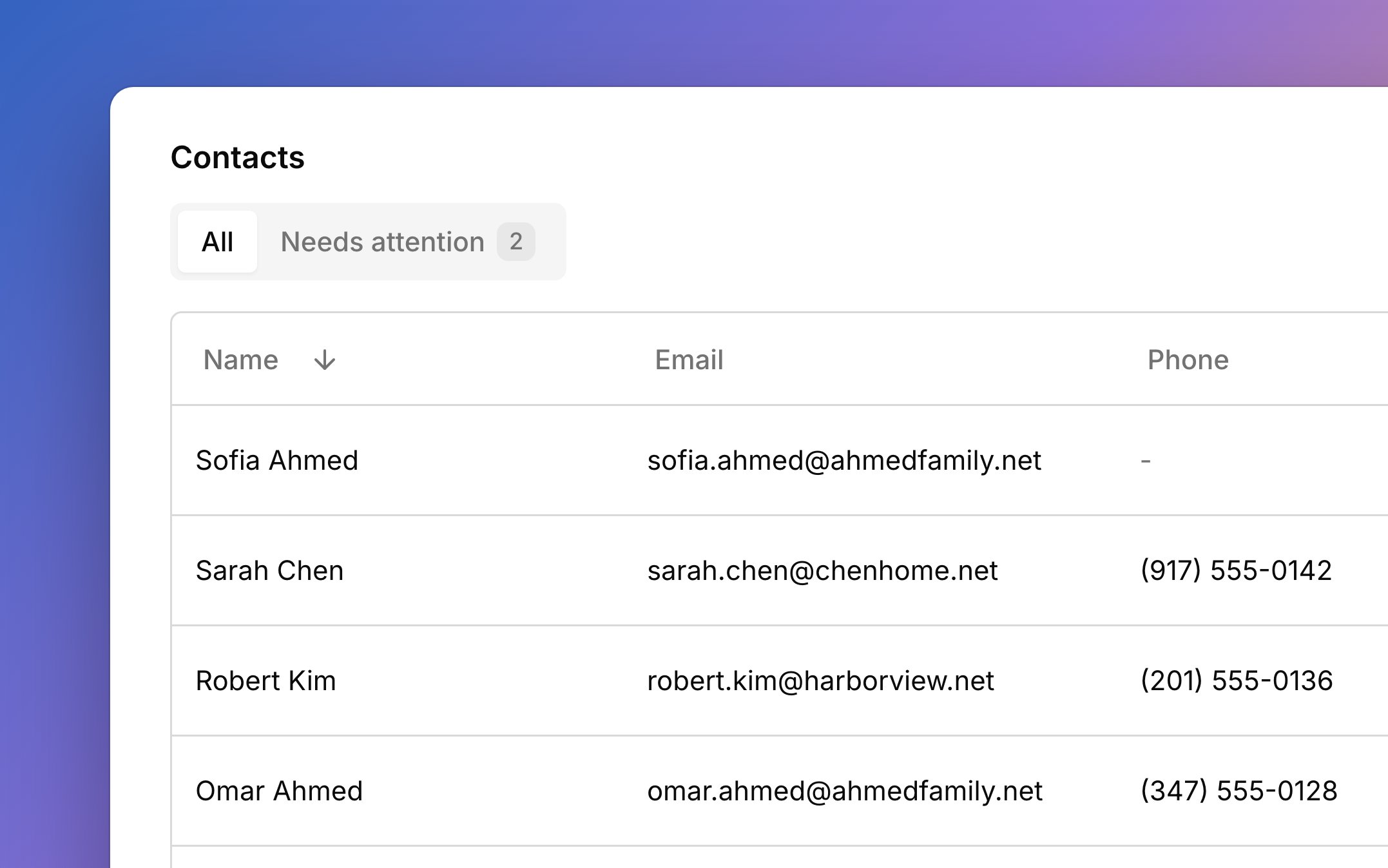
Everyone lands here on their own: every student, and every parent, guardian, or payer you add through a student, an approved sign-up, or an account’s Bill-to. The Connections column says who each person is in one line, like “Mother of Maya and Leo” or “Bill-to for Park Rentals”. Search finds a person by their own details or by their student’s or account’s name, since you often remember the child, not the parent. Press/ to jump to search.
Add person makes a new person with no connections. To reuse someone who’s already here, pick them in the search when you add a contact to a student.
Connect to students and accounts
A person’s Connections tab shows every student and account they’re tied to. To connect someone to a student, open the student’s Contacts tab and click Add contact. Search for someone who already exists or type a new name, pick their relationship, and choose what they’re involved in. To connect someone to an account, choose Attach to an account from their ⋯ menu. They get its invoices and see it in the portal, or you can make a new account with them as its Bill-to. Make a student in the same menu turns a person into a student. Disconnect on a row of the Connections tab removes that one link. If it was their last connection, Harness offers to delete them too. An account’s Bill-to can’t be disconnected; change the Bill-to in Edit account instead.Primary contact
Each student has one primary contact, starred on their Contacts tab. This is the main person for that student: they get the welcome email and studio policy updates, and a new student’s first account bills them. A primary contact needs an email. To change it, choose Make primary on another contact’s card, then decide what the old and new primary each stay involved in. Disconnecting the primary asks you to pick a new one first, and the old primary is deleted if they have no other students or accounts.Who gets emails
Two choices on each contact, under Involved in, decide which lesson emails that person gets for the student:- Scheduling: a confirmation when the family moves a lesson with a reschedule link or taps Can’t attend in the portal. These contacts also get the Can’t attend button and see the student’s lessons in the portal.
- Lesson progression: your lesson notes, by email and in the portal.
Needs attention
The Needs attention tab shows anyone whose email can’t receive mail, so you can fix it before an invoice or note goes missing. That covers an address that bounces, isn’t valid, or is a placeholder like example.com, and a primary contact or Bill-to with no email. The same warning shows by the person’s name and on their page, where Edit person fixes it.Delete a person
Delete person in a person’s ⋯ menu removes them and all their connections for good. Harness refuses, and says why, while the person is a student, a student’s primary contact, or an account’s Bill-to. Hand off that role first: make someone else primary, or change the Bill-to in Edit account. Emails already sent stay on the student’s and account’s Messages tabs, under the address they went to.What your families see
Families hear from you based on how they’re connected.- Contacts involved in Scheduling get reschedule and Can’t attend confirmations, and can tap Can’t attend on upcoming lessons.
- Contacts involved in Lesson progression get your notes by email and can read them in the portal.
- People on an account get its invoices and see it in the portal.
- Anyone connected signs in to the student portal with their email.
FAQ
Can one parent belong to two families?
Can one parent belong to two families?
Yes. When you add them to the second student, pick them in the Add contact search instead of typing them again.
I edited a parent's email. Why did it change on another student too?
I edited a parent's email. Why did it change on another student too?
One person is one record, so an edit changes them everywhere they appear.
Why can't I delete this person?
Why can't I delete this person?
They’re a student, a primary contact, or an account’s Bill-to. Hand off that role first, as in Delete a person.
Why didn't the grandparent get lesson notes?
Why didn't the grandparent get lesson notes?
Notes go only to contacts involved in Lesson progression for that student. Turn it on for them, as in Who gets emails.
Why do I have two Sarah Chens?
Why do I have two Sarah Chens?
Add person always makes a new person. Delete the one you don’t need, and next time pick the existing person in the Add contact search.