
What they’re for
Use a recurring charge for anything you bill at a set price on a schedule, like monthly tuition, an instrument rental, or a term fee. A fee repeats Weekly, Monthly, or Annually, or on a Custom schedule, such as every two weeks or every three months for a term. If you bill flat monthly tuition, set up those lessons without a price so marking attendance doesn’t charge on top of it (see Make an event a lesson).Set one up
Save the fee once in your settings, then add it to each student or account that pays it.1
Save the fee
Go to Settings → Recurring charges, click +, and enter the name, amount, category, and how often it repeats. Click Create. The category is how the income is grouped in your reports, so a rental can show apart from lesson income.
2
Add it to a student or account
From the student’s or account’s ⋯ menu, choose Add recurring charge and pick the fee under Charge. To make a new fee without leaving, pick New template at the bottom of the list.
3
Set the dates and add
Starts is the first charge’s date, and later charges bill on the same day of the week or month. It can’t be changed later. Ends is optional. Lower First charge for a short first month, or set it to 0 to skip it. If you bill per lesson, you don’t need this: lessons bill only once you mark attendance (see Automatic billing). Check the sentence at the bottom, which says who’s billed and when, then click Add.
Who it bills
Where you add a recurring charge decides who pays it. On a student, each charge follows their billing rules, so it splits between payers the same way their lessons do. On an account, it bills that account directly, which suits a school or a fee for the whole family. Each charge then waits for the account’s next invoice like any other charge, and families see it there as a line under the fee’s name, with no separate notice. Recurring charges are created on every plan. Having Harness draft or send the invoices that collect them is on the Professional plan (see Automatic billing and Your plan).Change, pause, or end
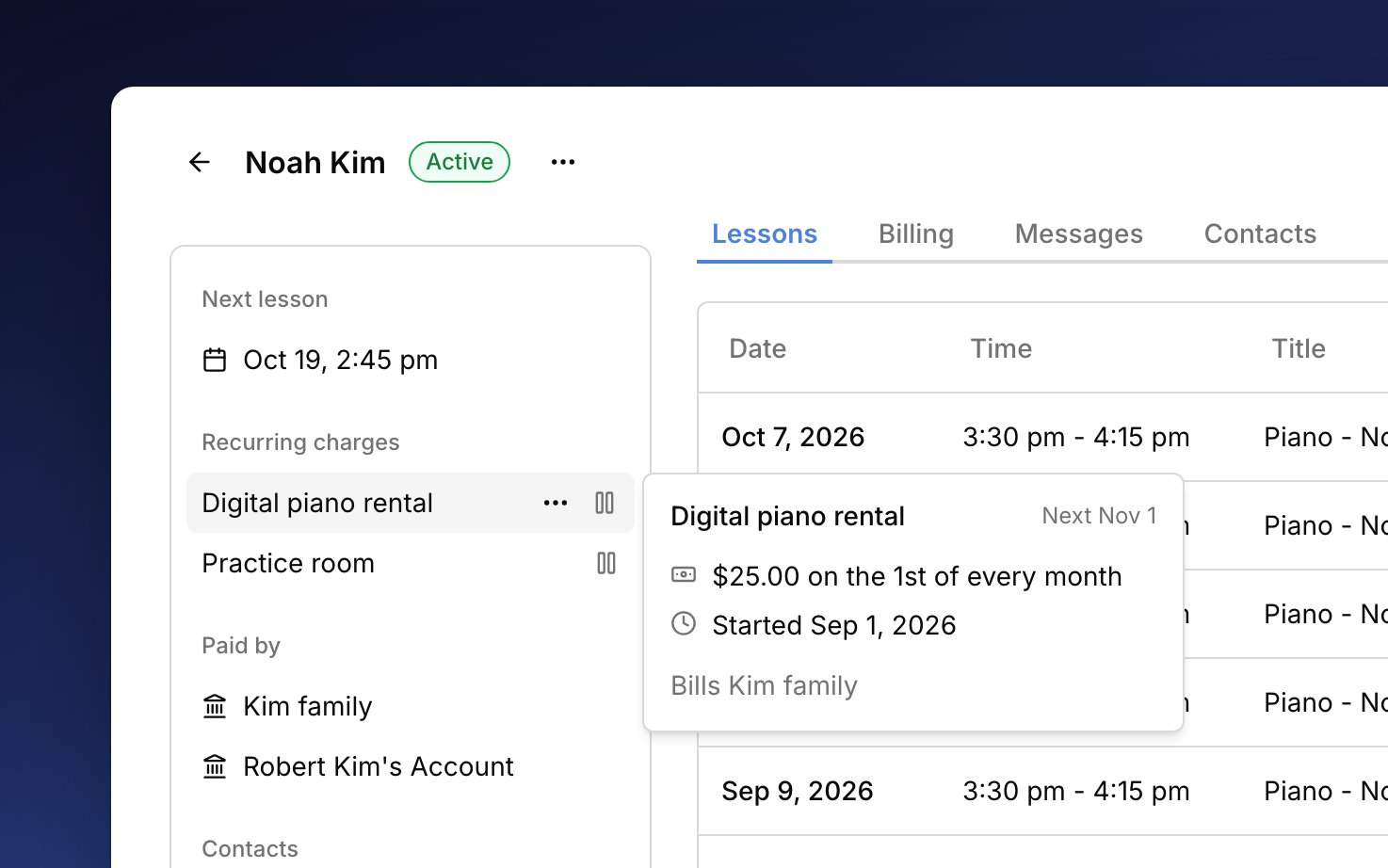
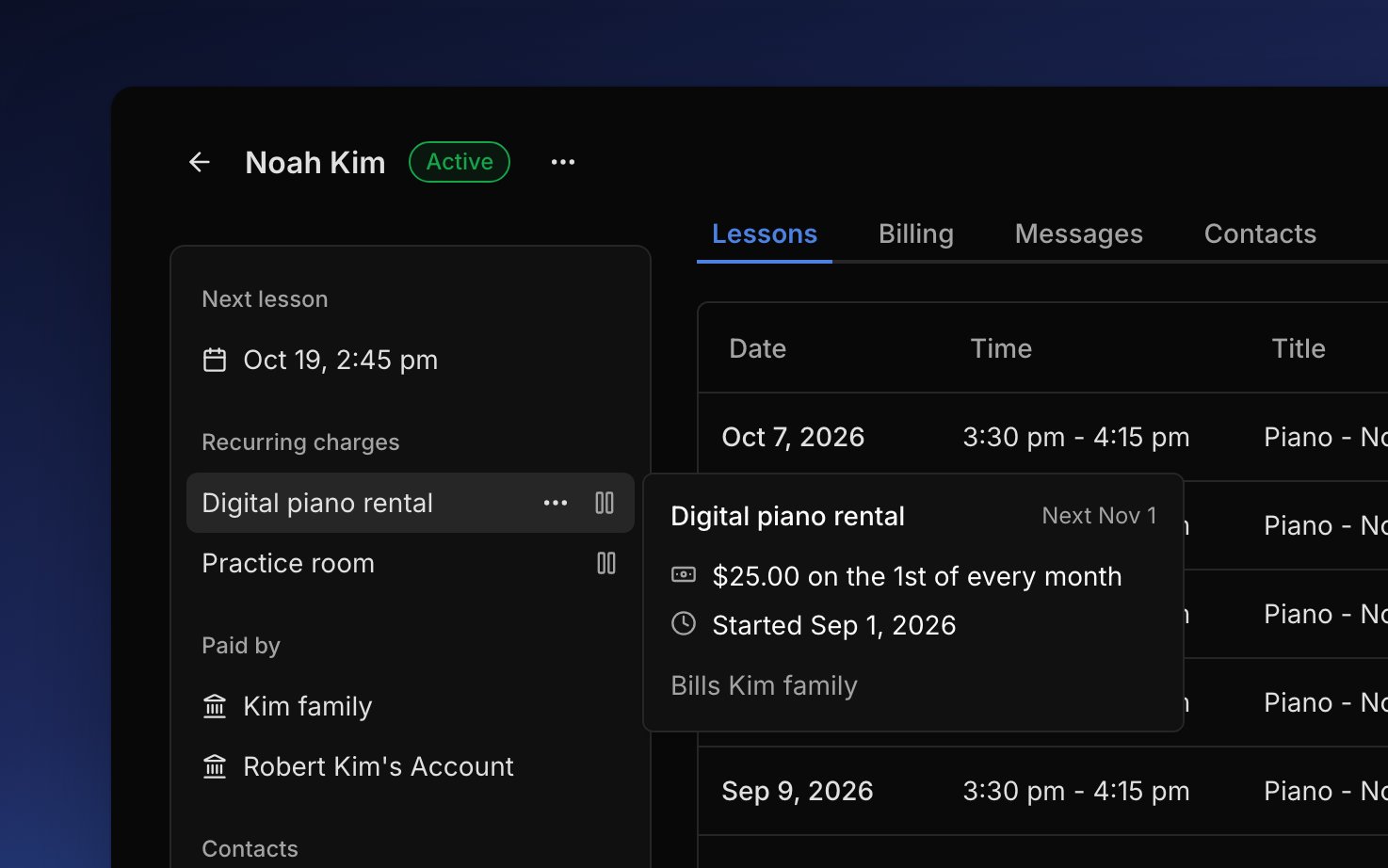
A student’s or account’s recurring charges are listed in the sidebar of their page. Hover one to see its next date, or click it to change its end date. To change the price for everyone who pays a fee, edit it in Settings → Recurring charges; charges already made keep their old amount.- Pause for a break, like summer. Paused dates are skipped, and Resume picks up at the next date.
- End when it’s over. Charges it already made stay, and Start again sets up a new one later. If the family already paid for a date after the end, use Cancel & refund on that charge.
- Delete one that never billed, like a charge added by mistake.
FAQ
Why didn't this month's charge appear?
Why didn't this month's charge appear?
Open the charge from the sidebar. It may be paused, ended, or showing Not billed with what to fix. A charge due today can take until tomorrow to appear.
One student wants to pay every two weeks. How?
One student wants to pay every two weeks. How?
Save a fee with a Custom schedule that repeats every 2 weeks, and add it to that student. Each charge goes on the account’s next invoice, on its billing cycle.
I resumed, so why wasn't the month I missed billed?
I resumed, so why wasn't the month I missed billed?
Paused dates are skipped, not saved for later. To bill a missed month, add an extra charge for it.
Why did three months show up at once?
Why did three months show up at once?
Those dates couldn’t bill, often because no one was set to pay for the student, so they waited. Once you fixed it, every waiting date billed together. To drop one, void it (see Change or void a charge).
Why is my student charged tuition and per lesson?
Why is my student charged tuition and per lesson?
The two are separate, so a lesson with a price still charges when you mark attendance. Take the price off those lessons (see Change the price and Make an event a lesson).