
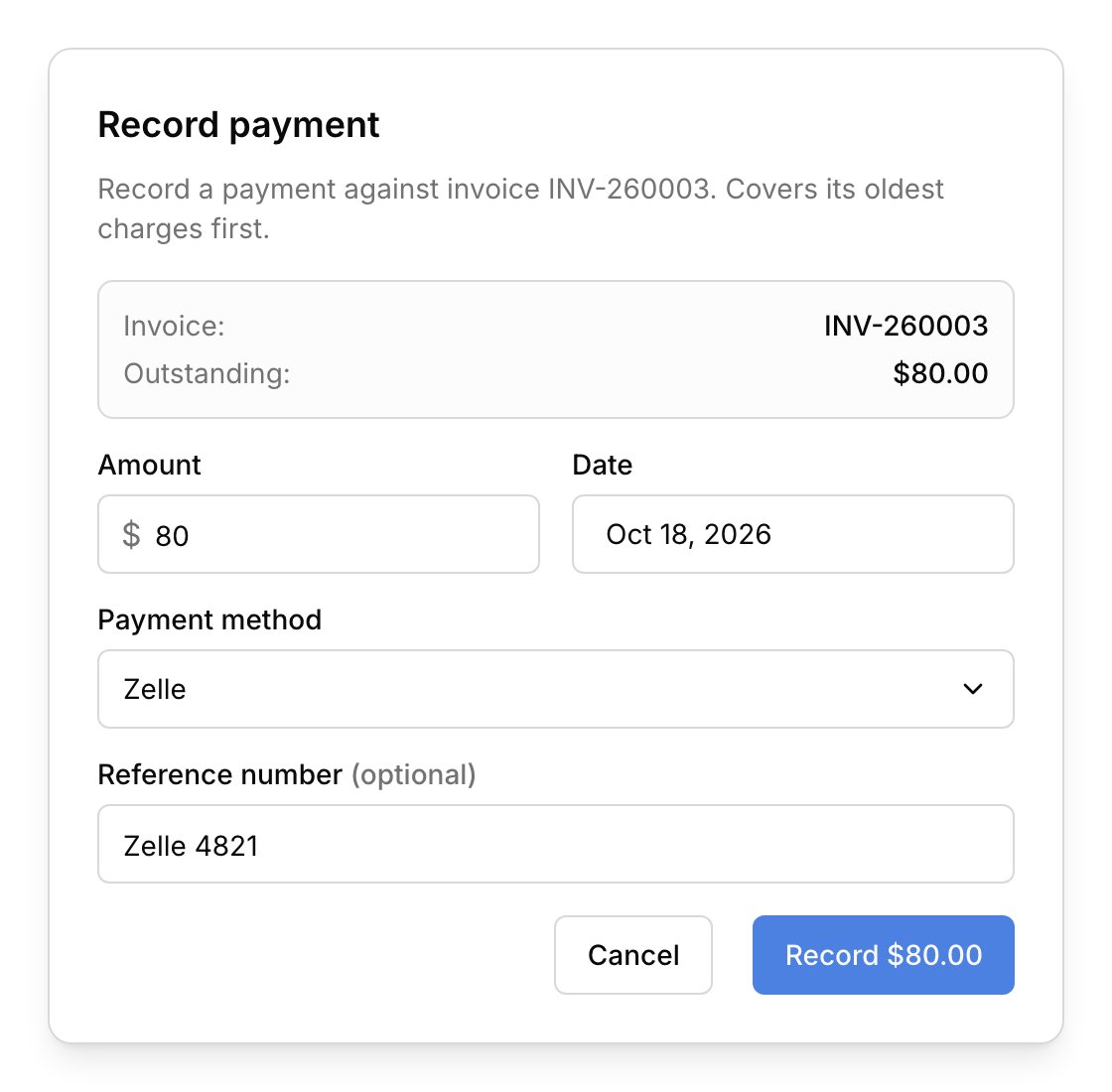
Record a payment
Record a payment whenever a family pays you outside Harness.1
Open Record payment
Choose Record payment from the ⋯ menu of what the family paid for. Usually that’s the invoice, in Finances → Invoices. Use the account’s menu in Finances → Accounts for a lump sum that settles up what they owe, or a charge’s menu in Finances → Transactions to pay just that charge.
2
Enter the amount
The amount starts at what’s owed. Enter less for a partial payment, or more and the form shows how much will be held on the account.
3
Add the details
Set the Date the family paid and the Payment method, like Cash, Check, Zelle, or Venmo. Add a Reference number if you like, such as a Zelle confirmation. It’s saved with the payment and included when you download a transaction report as a CSV.
4
Save
Click Record $X, which shows the amount. The invoice and the account’s balance update right away.
Online payments record themselves
When a family pays through an invoice’s pay link, you don’t need to record anything. A card payment is recorded the moment it goes through. A bank payment shows as Processing for a few business days while it clears, then is recorded when it lands (see money on its way). You get an email and an inbox alert for each one. For the ways families can pay, see Online payments.Partial payments and overpayments
A family doesn’t have to pay the exact amount owed. A smaller payment pays part of the invoice, and the rest stays owed. A larger one pays what’s owed and holds the extra on the account, which shows as in credit on Finances → Accounts. The balance counts that money right away, and it comes off the next invoice you send. It’s the family’s own money, not studio credit, so you can also refund it. If a family pays before you’ve sent an invoice, record the payment from the account’s ⋯ menu. The account shows the money as in credit, and the next invoice you send goes out already paid, with an email telling the family no payment is needed.Fix a payment
Payments can’t be edited, so to fix a mistake, void the payment and record it again. On a fully paid invoice, choose Void payment from the invoice’s ⋯ menu. Otherwise, open Finances → Transactions and choose Void transaction on the payment’s row (see Fix a mistake). Either way, the charges it paid are owed again. A payment made online can’t be voided, so give the money back with a refund instead.What your families see
Families don’t get an email or a receipt when you record a payment. In the student portal, each invoice shows an Amount paid line, and a paid invoice is marked paid with its date. Money held on the account shows as an amount “applied to your next invoice”.FAQ
They've already paid. Can I send the invoice marked as paid?
They've already paid. Can I send the invoice marked as paid?
Yes. Record the payment from the account’s ⋯ menu first, then send the invoice, and it goes out already paid. See Partial payments and overpayments.
Why did a payment go to an older invoice?
Why did a payment go to an older invoice?
Payments settle the oldest unpaid charges first. To pay a particular invoice, record the payment from that invoice.
Why did my invoice's pay link stop working?
Why did my invoice's pay link stop working?
A payment was recorded by hand on that invoice, which turns its pay link off. If the family opens the link, they’re told it’s no longer active and to contact you.
Why can't I record a payment on this invoice?
Why can't I record a payment on this invoice?
A bank payment on it is still on its way. Wait until it clears or fails, then try again.
Why is Record payment missing on an account?
Why is Record payment missing on an account?
The account is closed, and a closed account takes no new payments. Reopen it first.