
Kinds of transactions
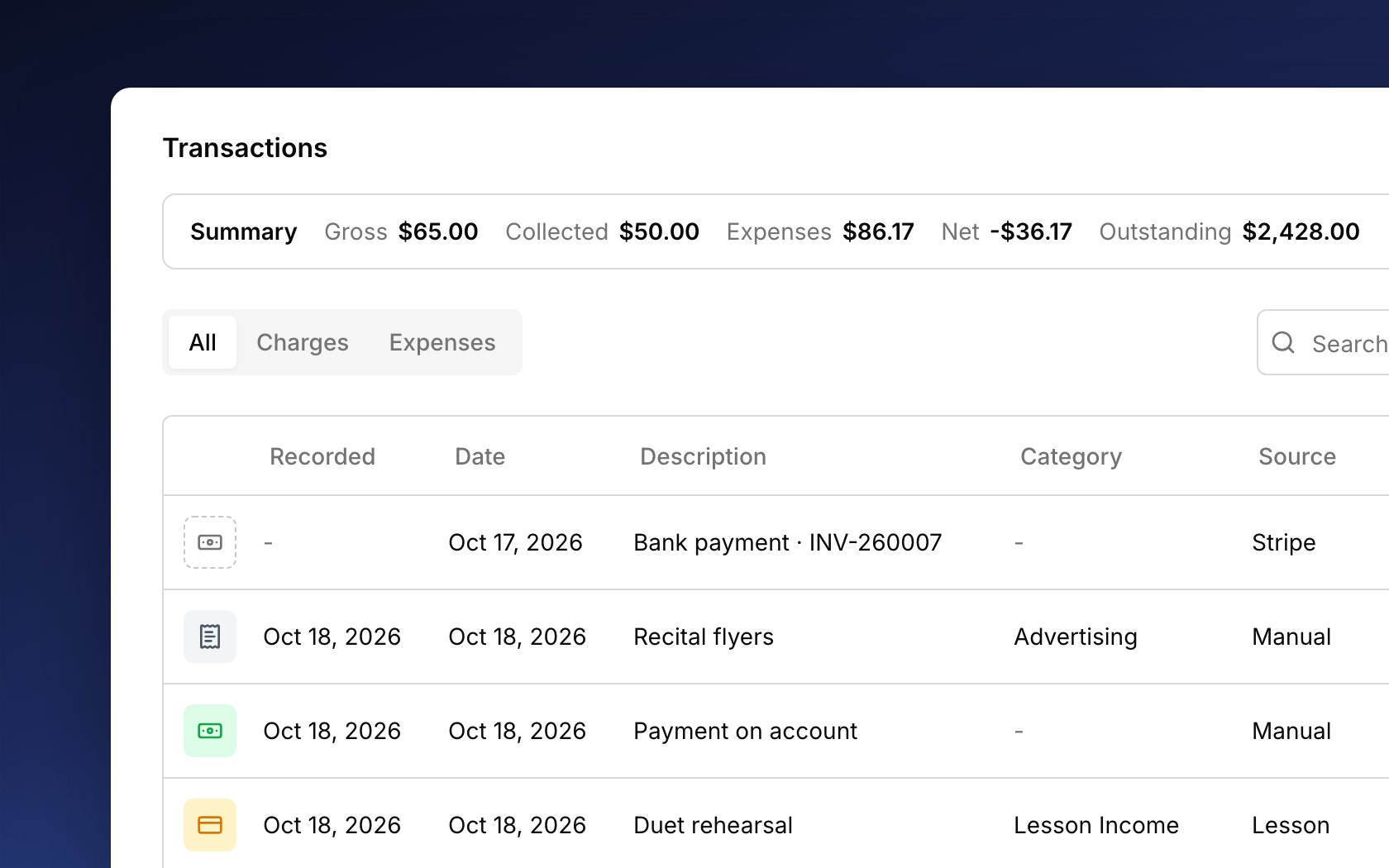
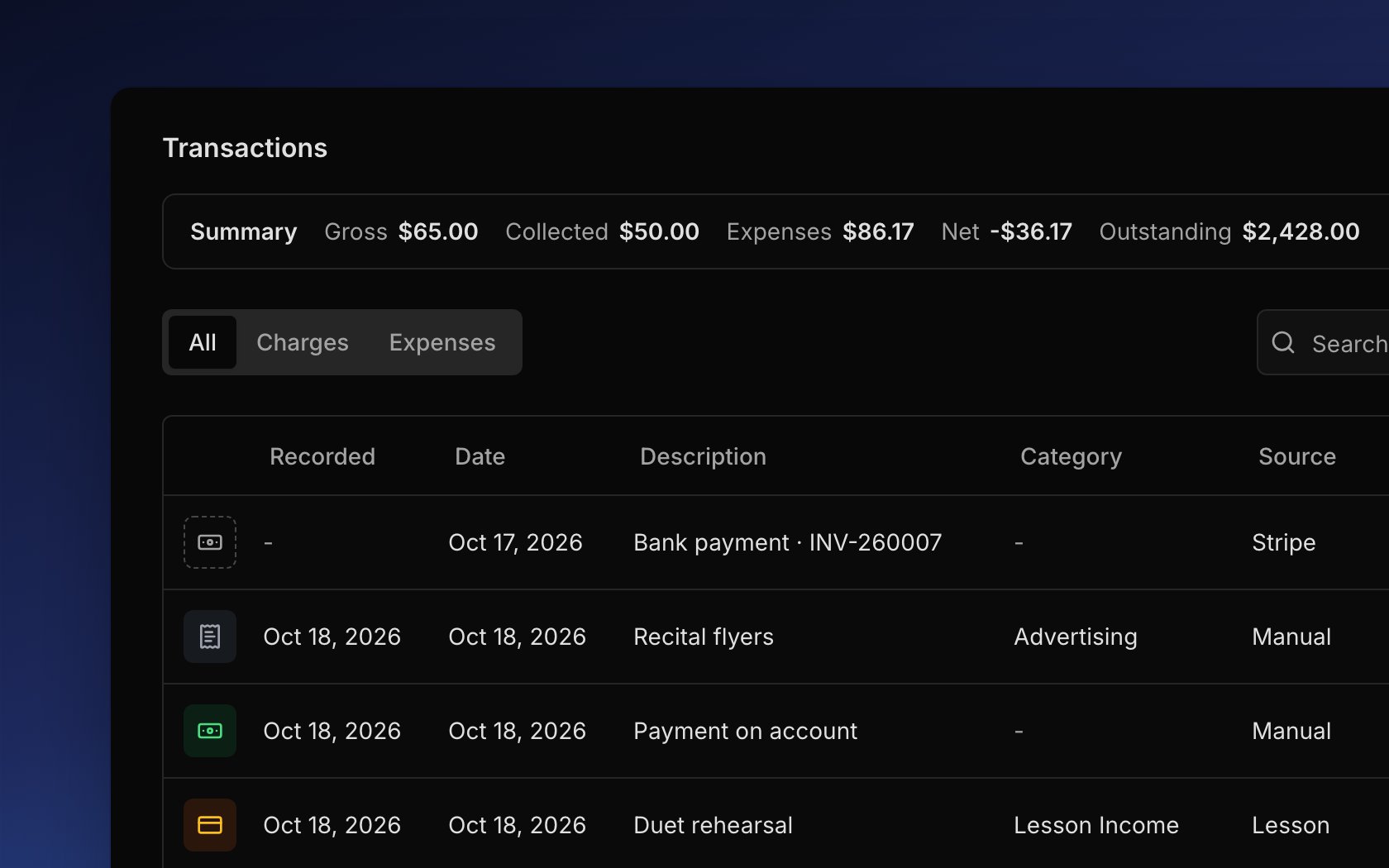
Each row is one transaction, and the icon at its start shows which kind. Open Finances → Transactions to see them all:- Charges: what an account owes for lessons, fees, and anything you add. See Charges.
- Payments: money families paid you, recorded by hand or online. See Payments.
- Refunds: money you gave back. See Refunds.
- Credits: studio credit that came off an invoice.
- Expenses: what your studio spent, including the Stripe fee Harness records on each online payment. See Expenses.
- Voids: an entry that cancels another one, which stays in the list struck through.
- Chargebacks and bounced refunds: rare entries for when a bank takes back a card payment or turns down a card refund.
Money on its way
A family’s bank payment takes a few business days to clear. Until then, it sits at the top of the All tab as a grey row marked Processing, and it doesn’t count toward any balance or total. When the money lands, it becomes an ordinary payment. If the bank doesn’t complete it, the row goes away and you get an alert. For when the money reaches your bank, see Online payments.The summary
The Summary bar at the top shows how the studio is doing over the period you pick: Past Week, Past Month, or Past Year. It tells you what you billed, what families paid, what you spent, and what’s still unpaid. Click the bar to open cards that compare each number with the period before.Add a transaction
Add a charge or an expense by hand with the Add Transaction button. Choose Charge for something like a book or a recital fee (see Add an extra charge), or Expense for something the studio paid for (see Record an expense). Pressc or x anywhere in Harness to open them directly (see keyboard shortcuts). Payments aren’t added here; record them from the invoice or the account, as Payments explains.
Fix a mistake
Money that has moved can’t be edited, so you fix a mistake with an action from the row’s ⋯ menu:- Void transaction cancels an entry but keeps it in the list, struck through, with a void entry beside it.
- Delete transaction erases a charge that was never paid or sent, or an expense, with no record left.
- Cancel & refund cancels a paid charge and gives the money back. See Refunds.
- Refund on a payment gives back money the family has on the account. See Refunds.
- A studio credit makes up for something, like a missed lesson, without undoing anything.
FAQ
Why didn't the balance change?
Why didn't the balance change?
A new charge waits for the account’s next invoice, so the balance goes up once that invoice is sent. A bank payment lowers it once the money clears, not while it shows Processing.
Nobody owes me, so why isn't Outstanding zero?
Nobody owes me, so why isn't Outstanding zero?
Outstanding includes charges that aren’t on an invoice yet, like lessons waiting for the next bill. If you bill flat tuition, check that your lessons don’t still have a per-lesson rate (see Change the price).
Where are my payments?
Where are my payments?
On the All tab. The Charges and Expenses tabs show only their own kind, so payments, refunds, and credits are on All. For one period’s payments, a transaction report for those dates lists them.
Why doesn't Net Profit match my Profit & Loss report?
Why doesn't Net Profit match my Profit & Loss report?
The summary counts all the money families paid, including money held on an account for later, while the Profit & Loss report counts only money that paid for charges.
Why can't I void this payment?
Why can't I void this payment?
It was paid online, and online payments are undone with a refund instead. A payment you recorded by hand can be voided (see Fix a payment).