
Steps
1
Open the refund
Open the account in Finances → Accounts and click Issue refund on its Balance card. The action only appears when the account is in credit.
2
Fill in the refund
The form shows the account’s Available credit at the top. That’s the cap.
- Amount: pre-filled with the full available credit. Lower it for a partial refund.
- Date: when you’re returning the money.
- Pick a Reason and the Return method. Choosing Other as the reason opens a free-text field.
- Reference number: optional, for your records (e.g. a Venmo or Zelle confirmation).
3
Review and confirm
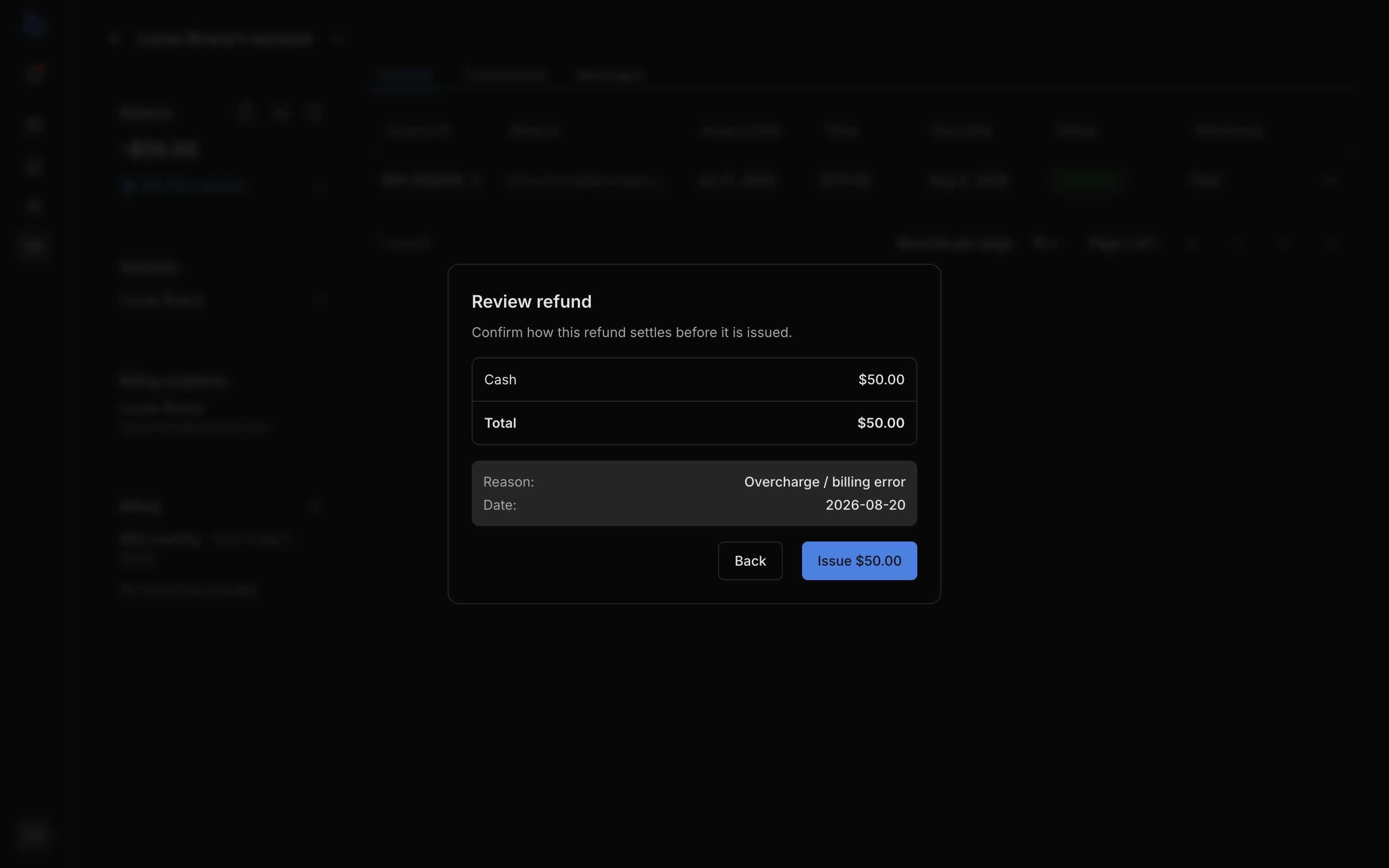
Check the amount, then click Issue $X (the button shows the amount) to confirm.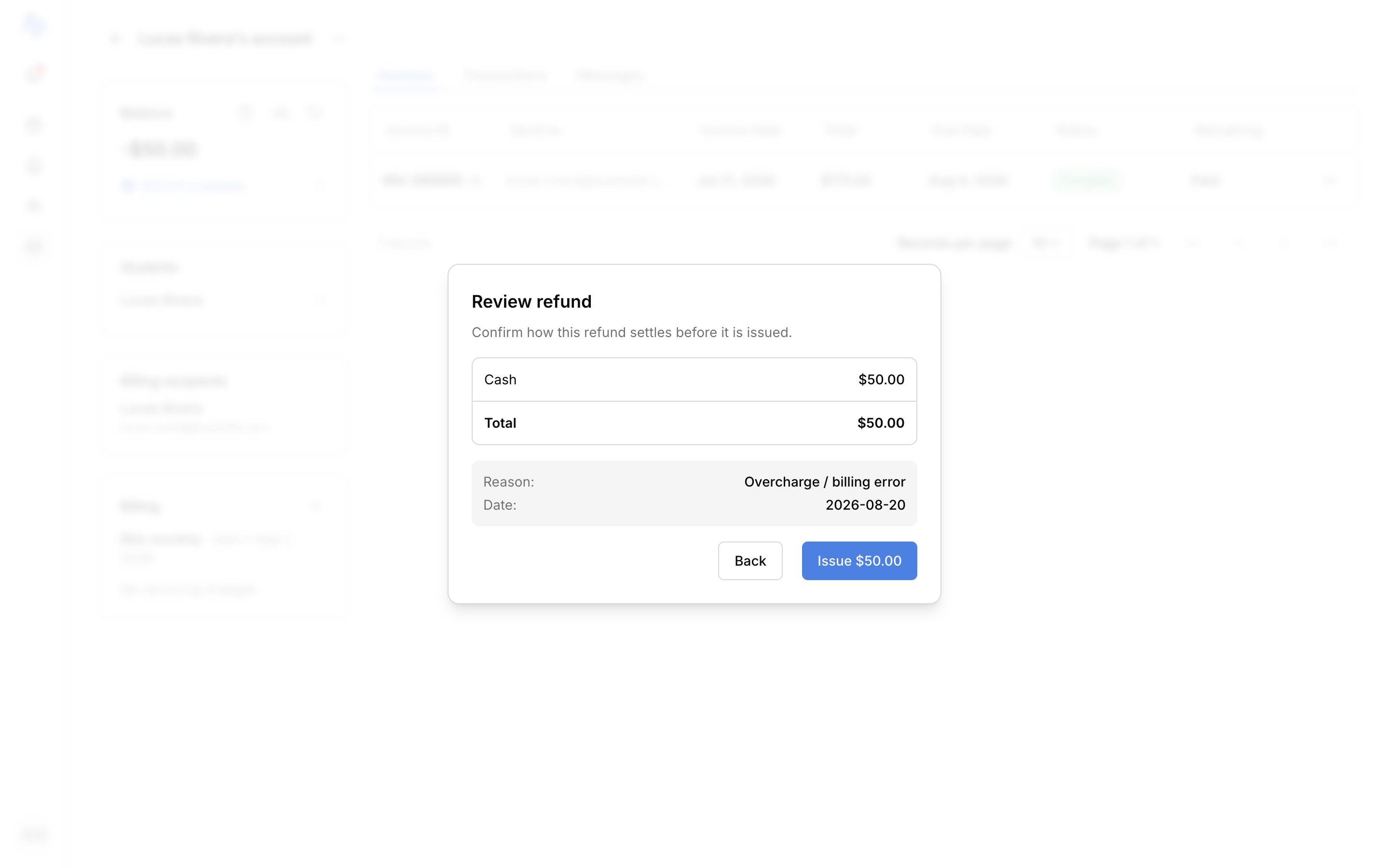
Cancel & refund a charge
To undo a single paid charge and return its money in one go, use Cancel & refund on that charge’s row. This voids the charge (freeing the money it covered as credit on the account) and opens the same refund form on that credit. Fill it in and review as above. Voiding and refunding are recorded as new entries, never edits to the originals; see Understand your transactions.FAQ
Why does the refund say Pending?
Why does the refund say Pending?
The portion paid by card returns to the original card, and the processor has to confirm it before it’s final. That part shows a Pending badge until it lands. Cash, check, and transfer returns aren’t pending: you’re handing those back yourself.
Why can't I refund more than the amount shown?
Why can't I refund more than the amount shown?
A refund only returns money the account is holding, so it’s capped at the available credit. If you expected more, the account may hold less than you think; check its balance. To reduce a future bill instead, issue a credit.
Where does the refund show up?
Where does the refund show up?
Under Finances → Transactions, alongside the account’s payments and charges. The account’s balance updates to reflect the lower credit.
How is this different from voiding an invoice?
How is this different from voiding an invoice?
Voiding cancels the bill but doesn’t return money already paid: that stays on the account as credit. To hand the money back, issue a refund afterward. See Manage invoices.