
Before you start
- An invoice bills an account, not a student directly. Every student already sits on an account. See Accounts and students.
- You need something to bill. Charges come from marking lessons attended, or you add them by hand. See Run a lesson.
- Recipients come from the account’s billing contacts. Set those up on the account first. See Manage billing accounts.
Steps
1
Start a new invoice
Go to Finances → Invoices and click Add invoice. A blank invoice editor opens.You can also reach this editor pre-filled: open an account in Finances → Accounts and use its generate invoice action, or use Create draft on a row of the Upcoming tab to start from everything the account is owed.
2
Pick the account to bill
Choose the account. This limits the bill to that account’s charges: you can only attach charges that belong to its students, and its billing contacts fill in as recipients.
3
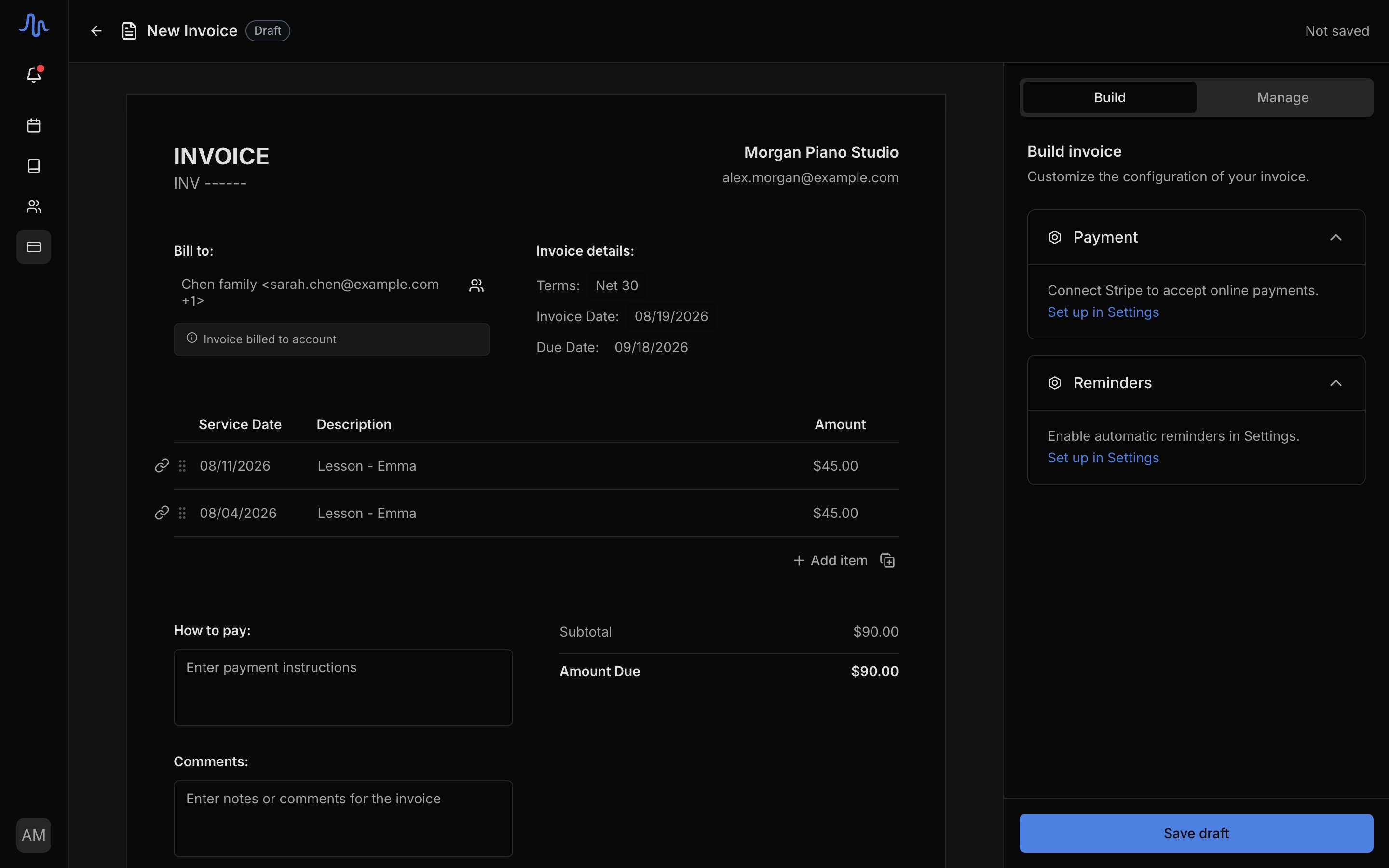
Attach charges and add line items
Click Attach charges to pick from the account’s existing charges. The picker is grouped by student and shows each charge’s status. Already-paid charges can still be attached if you want them on the bill for the record.You can also type line items directly on the bill: a description, amount, and date. On an account with more than one student, assign each line to a student so the bill shows per-student subtotals. A solo account shows no student labels.As you add charges, the bill’s amount due updates.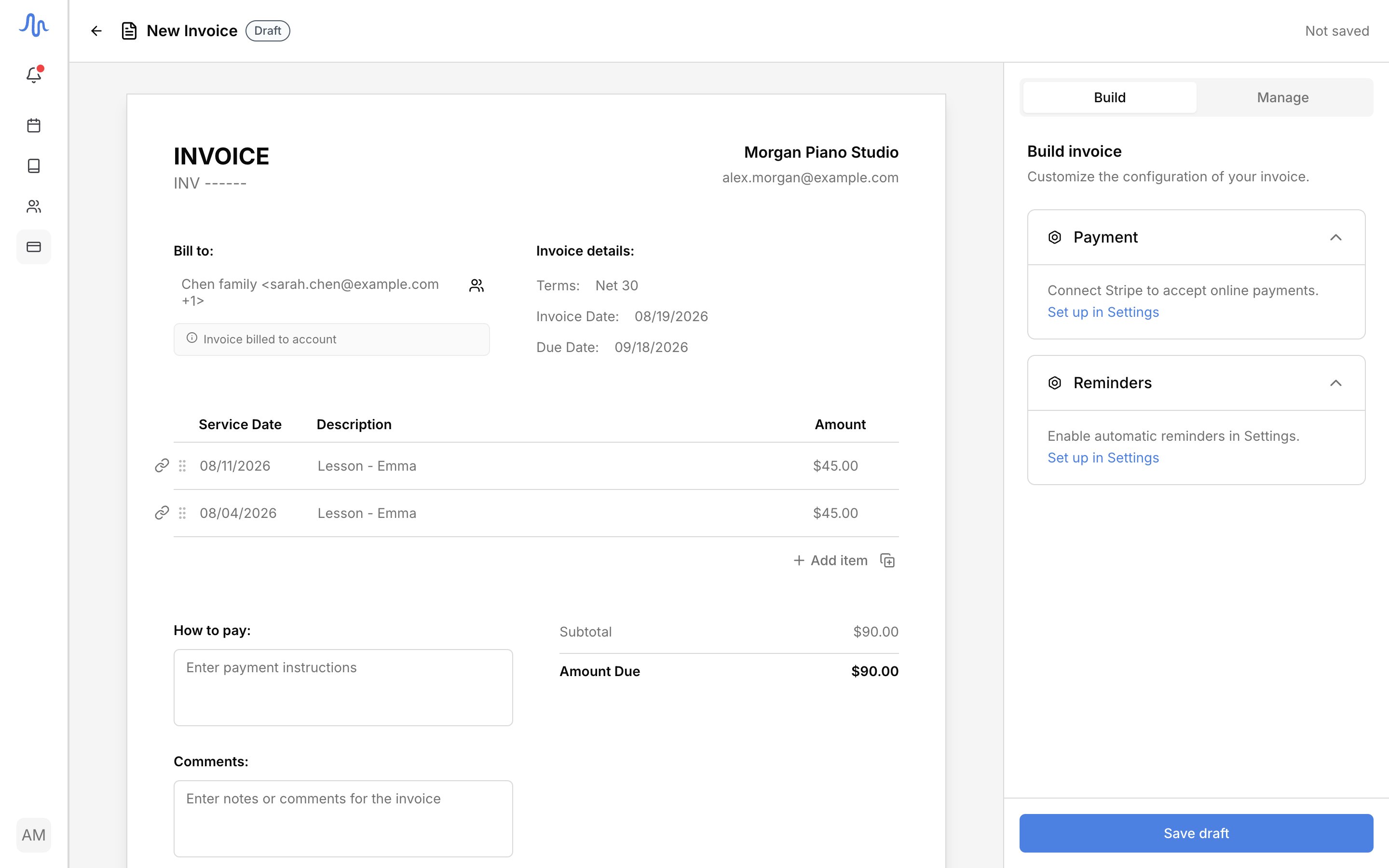
4
Apply a credit (optional)
If the account holds a credit, use Apply credit to deduct it from this bill. The deduction lowers the amount the recipient owes, capped at the amount due. See Credits.
5
Set the dates, terms, notes, and recipients
Set the Invoice Date and Terms (the due date is calculated from the terms, e.g. Net 30). Add Notes and payment instructions if you want them on the bill.Confirm the recipients: they default to the account’s billing contacts. You can adjust who receives this invoice here.
6
Enable online payment (optional)
Turn on Accept online payments to include a card-payment link in the email. This requires Stripe to be connected.
Online card payments need Stripe connected, on the Professional plan. Without it, the bill still sends: recipients just pay you by cash, check, or transfer. See Connect Stripe.
7
Send
Click Send now. The recipients get the invoice by email, with a pay link if online payment is on.
What sending does
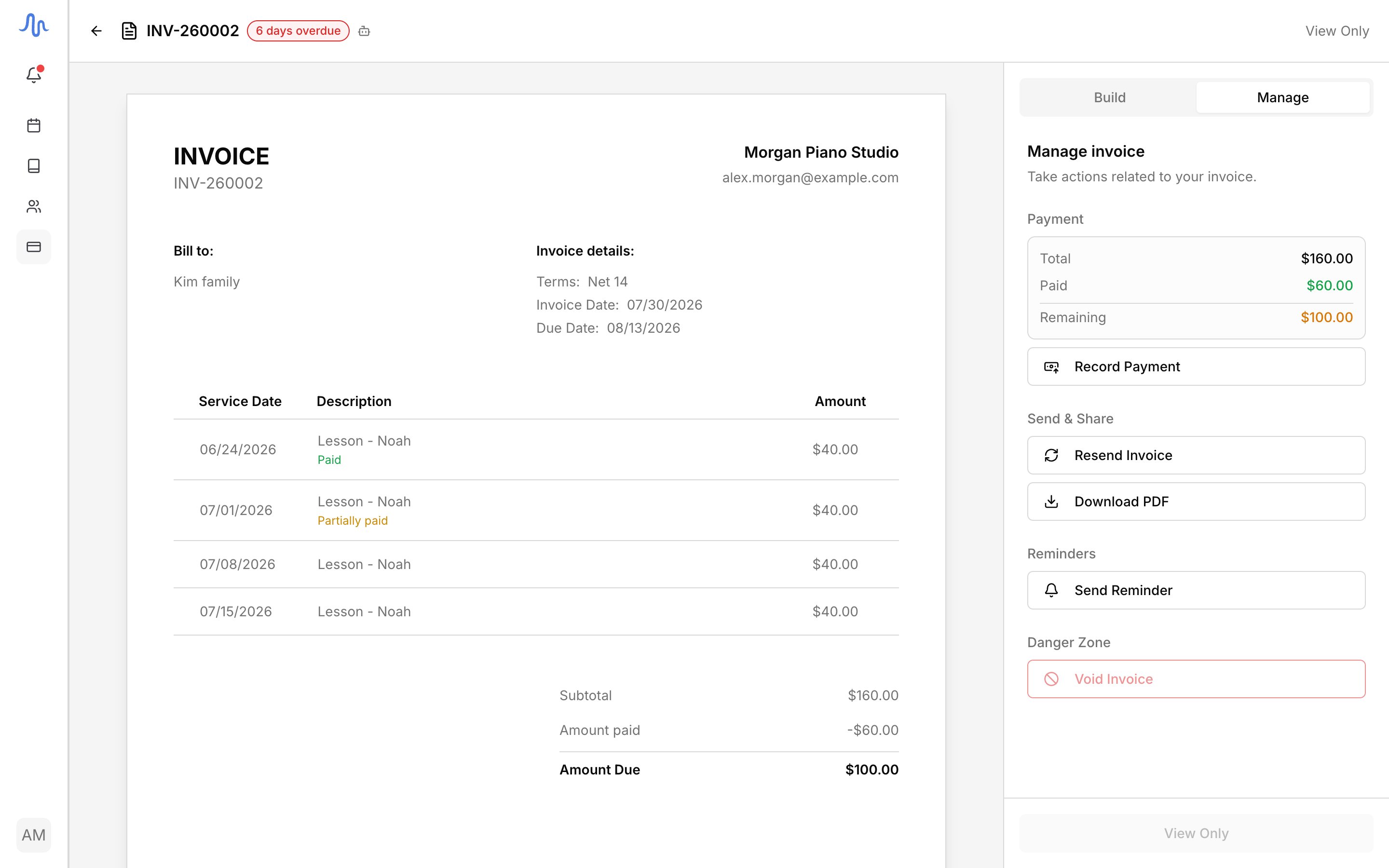
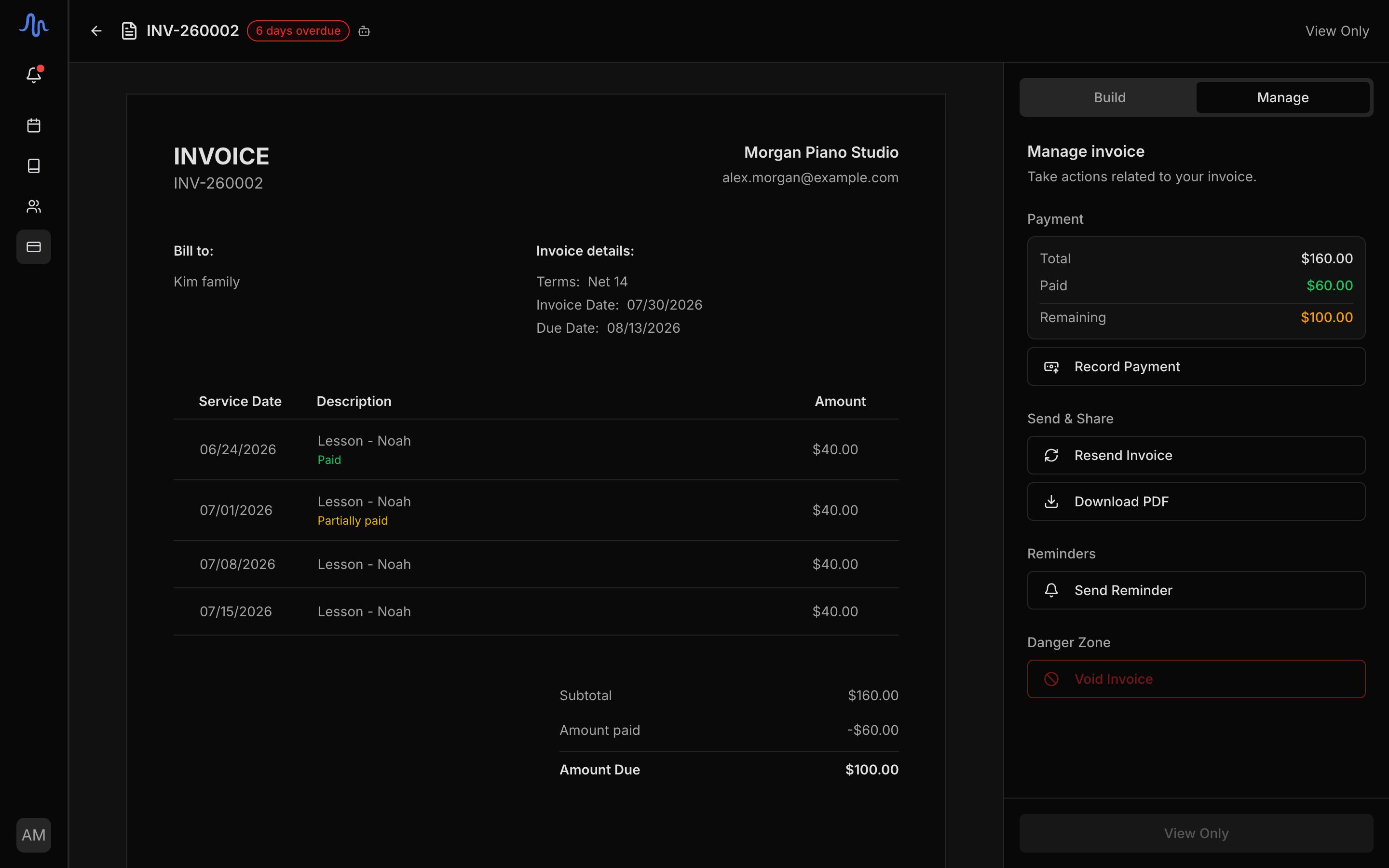
Sending turns a draft into a real bill. At that point:- The set of charges and their amounts are fixed: the bill is what the recipient agreed to pay.
- The invoice moves from Draft to Sent.
- Any credit you applied is deducted.
- Recipients get the email, and the invoice starts tracking what’s paid.
FAQ
The recipients look wrong
The recipients look wrong
Recipients come from the account’s billing contacts. Fix them on the account, then start the invoice again. See Manage billing accounts. If the contacts change after you started the draft, the editor flags the mismatch so you can update them before sending.
What's the difference between the total and the amount due?
What's the difference between the total and the amount due?
The total is everything on the bill. The amount due is what’s left to pay after any applied credit and any payments already recorded against those charges.
A student is on more than one account, how do I bill them?
A student is on more than one account, how do I bill them?
Their lesson charges go to the account named by the Lessons bill to picker on their profile, and bill through that account like any other. To bill from a different account, change the picker (future charges) or attach the charges by hand here. See Accounts and students.
Do I have to build these myself every month?
Do I have to build these myself every month?
No. Harness can assemble one invoice per account at each account’s cycle close, as a draft for your review or sent outright. See Automated billing.