
Create or edit an account
1
Open the accounts list
Go to Finances → Accounts, then click New account. To edit an existing one, open it from the list and choose Edit.
2
Name it (optional)
Give the account a Name, for example Chen family. You can leave it blank: a single-student account is named after the student automatically.
3
Add students
Use the Students picker to add one or more students. Adding a student suggests their primary contact as a billing recipient, so a typical account fills itself in.
4
Set billing recipients
Under Billing recipients, choose the contacts who should receive this account’s invoices, adjusting the suggestions as needed.
5
Pick the billing cycle
Billing cycle decides how often this account’s charges collect into an invoice: Use studio default, or its own Daily, Weekly, or Monthly. See Automated billing.
6
Save
Click Save. A new account opens straight to its page.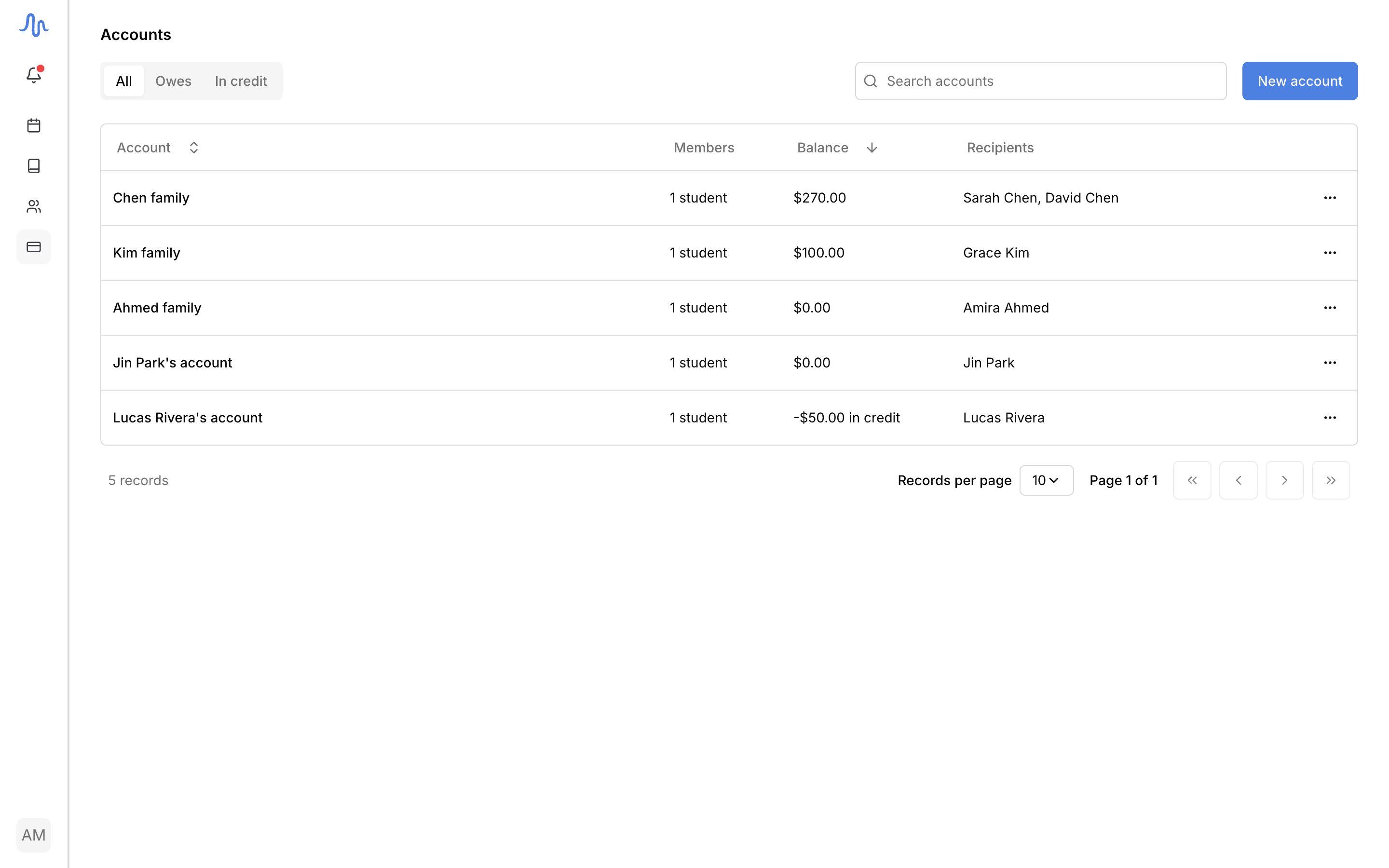
Find an account
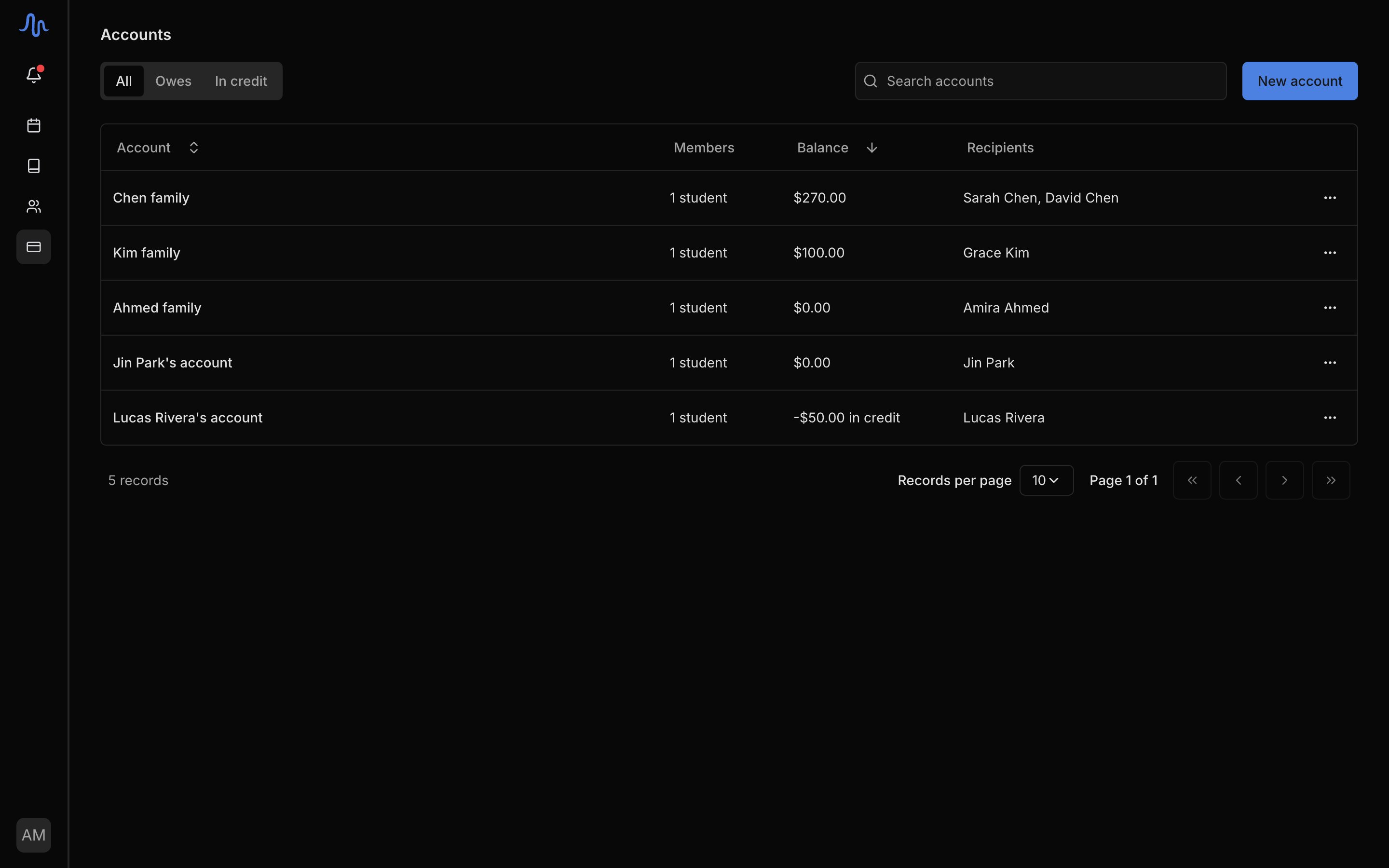
On Finances → Accounts, the tabs filter by standing:- All: every account.
- Owes: accounts with an outstanding balance.
- In credit: accounts holding money they don’t owe.
The account page
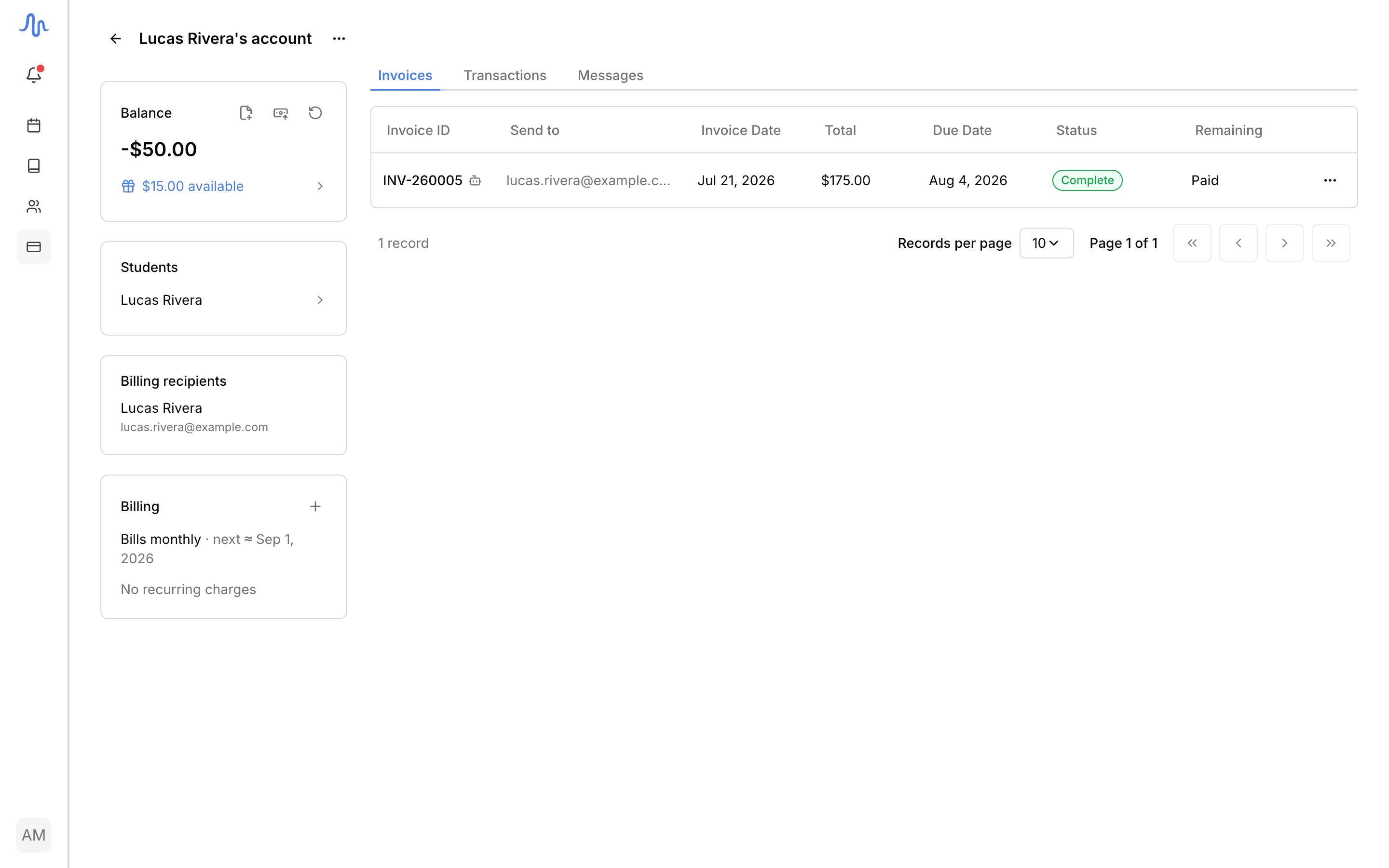
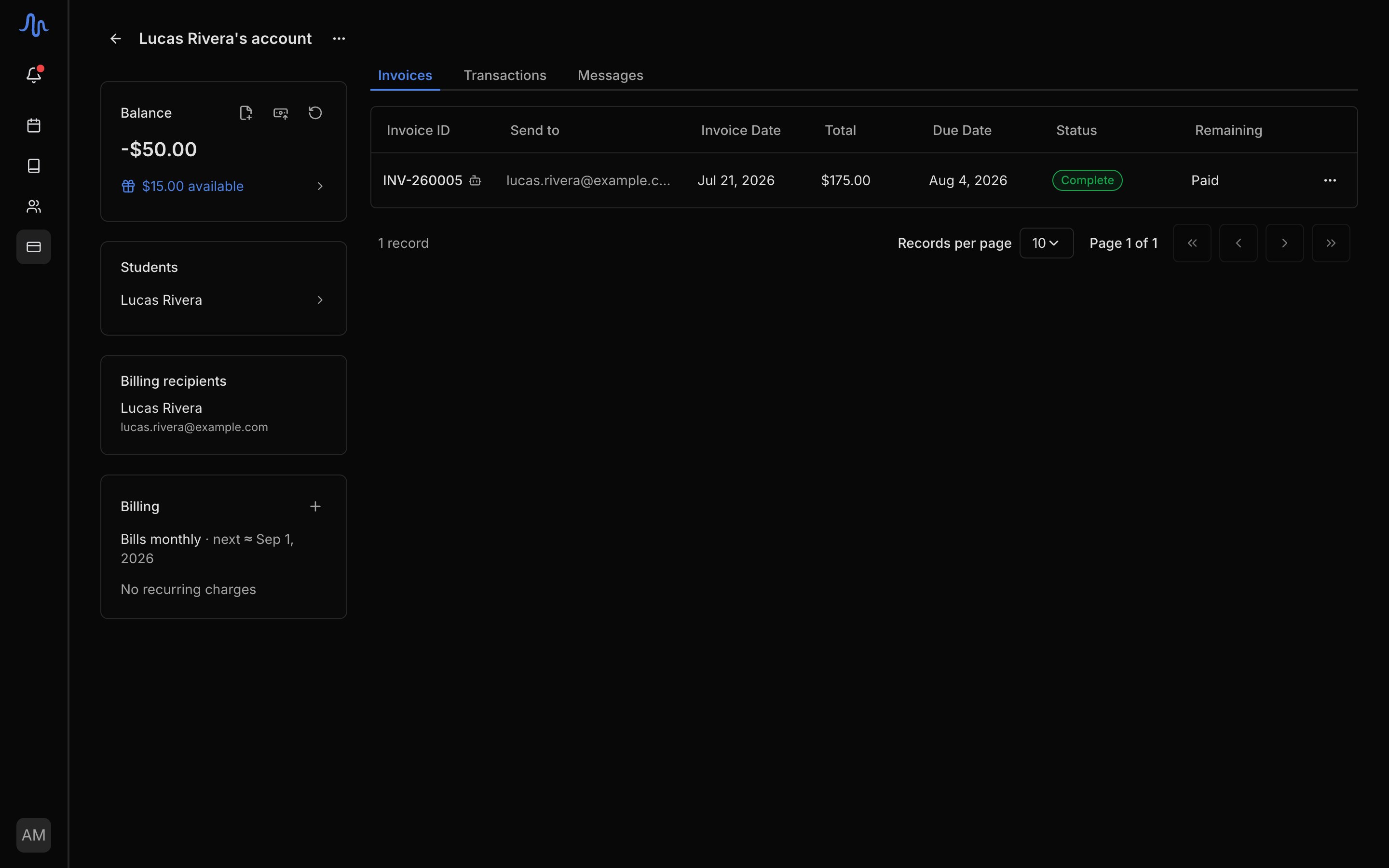
Open an account for its standing, its billing setup, and its history in one place:- Balance: the account’s current standing, labelled Outstanding or In credit. Its header carries the everyday actions: Generate invoice, Record payment, and Issue refund (which appears only when the account is in credit). Below the balance, the credit row reads $X available or No credit. Click it to issue a credit or see its history.
- Students: everyone billed through this account.
- Billing recipients: the contacts who receive this account’s invoices, with their email.
- Billing: the account’s cycle (Bills monthly · next ≈ …) and its attached recurring charges. Attach one here; see Set up recurring charges.
FAQ
What's the difference between Owes and In credit?
What's the difference between Owes and In credit?
Owes means the account has an outstanding balance: money still due. In credit means it’s holding money it doesn’t owe, usually from an overpayment. You can return that with a refund.
Do I have to create accounts?
Do I have to create accounts?
No, every student gets one the moment you add them; see Accounts and students.