
Your profile
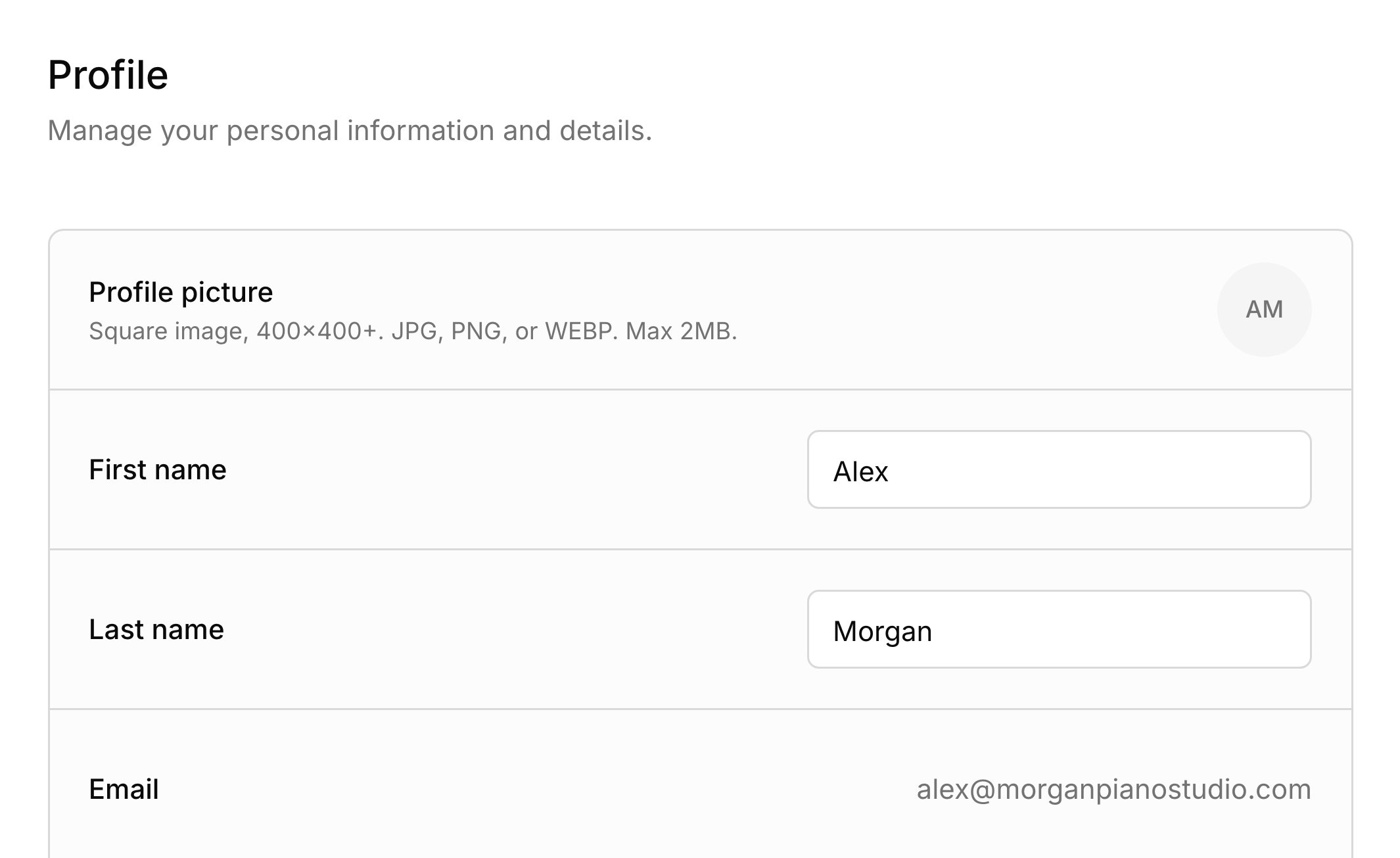
Settings → Profile holds the details about you. To open it, click your name at the bottom of the sidebar and choose Settings. Your photo and name show in the portal, and your phone, which is optional, can print on your invoices. Your Timezone sets every time on your calendar; see Time zone. Two details are shown for reference only. Email is the address you sign in with, and it’s where families’ replies land. Sending address is the address families get your emails from, made from your name when you sign up; see Messages.Studio details
Settings → Studio details holds your business: its name, website, and address. You first fill these in while you set up your studio. The studio name heads your invoices and their emails, and titles your studio policy page. For the address, pick one of the suggestions to get a full street address, which your invoices need. You can also type something simpler, like “Room 302”, and families still see it in the portal. You choose which details print on your invoices in Invoice header, under Settings → Invoicing; see Invoice defaults. The address and website come from your studio details, and the phone and email from your profile. When you first connect Stripe, Harness fills in Stripe’s setup form from your studio details. After that, change them in Stripe.What your families see
Families see your details wherever they hear from you.- Emails come from your name “via Harness”, and their replies go to your sign-in email.
- Invoice emails and PDFs carry your studio name, plus the details you turned on in Invoice header.
- In the student portal, tapping your studio name shows your photo, name, time zone, and contact details. Anything you’ve filled in shows there, whatever your invoice choices.
- The booking page for a scheduling link shows your name.
FAQ
I changed my name. Why do emails still come from my old address?
I changed my name. Why do emails still come from my old address?
Your sending address is made once, when you sign up, and doesn’t change with your name. Your emails still show your new name.
Why can't I turn on my address or phone on my invoices?
Why can't I turn on my address or phone on my invoices?
Your invoices need a full street address, so pick one from the suggestions in Settings → Studio details instead of typing it. The phone comes from your profile, so add it under Settings → Profile.
I changed my studio name. Why does Stripe still show the old one?
I changed my studio name. Why does Stripe still show the old one?
Harness fills in your Stripe details only when you first connect. After that, update them in Stripe.
Why does my booking page still show my old name?
Why does my booking page still show my old name?
A scheduling link keeps the name you had when you made it. Make a new link to show your new name.
Why can't I change my email here?
Why can't I change my email here?
It’s the email you sign in with, so Settings → Profile shows it for reference only.