
Steps
1
Enter student details
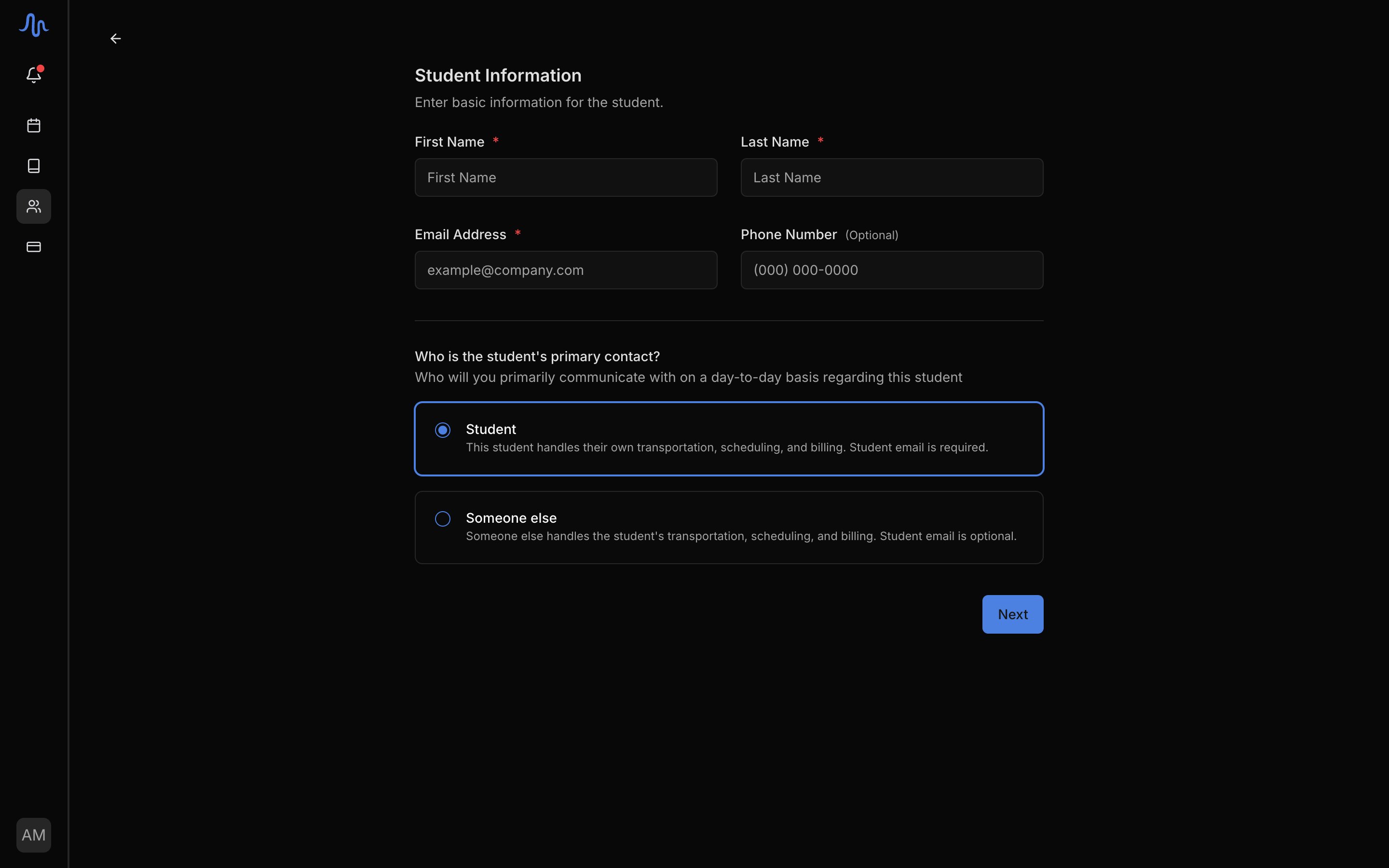
Fill in the contact information for the student and choose who the student’s primary contact is: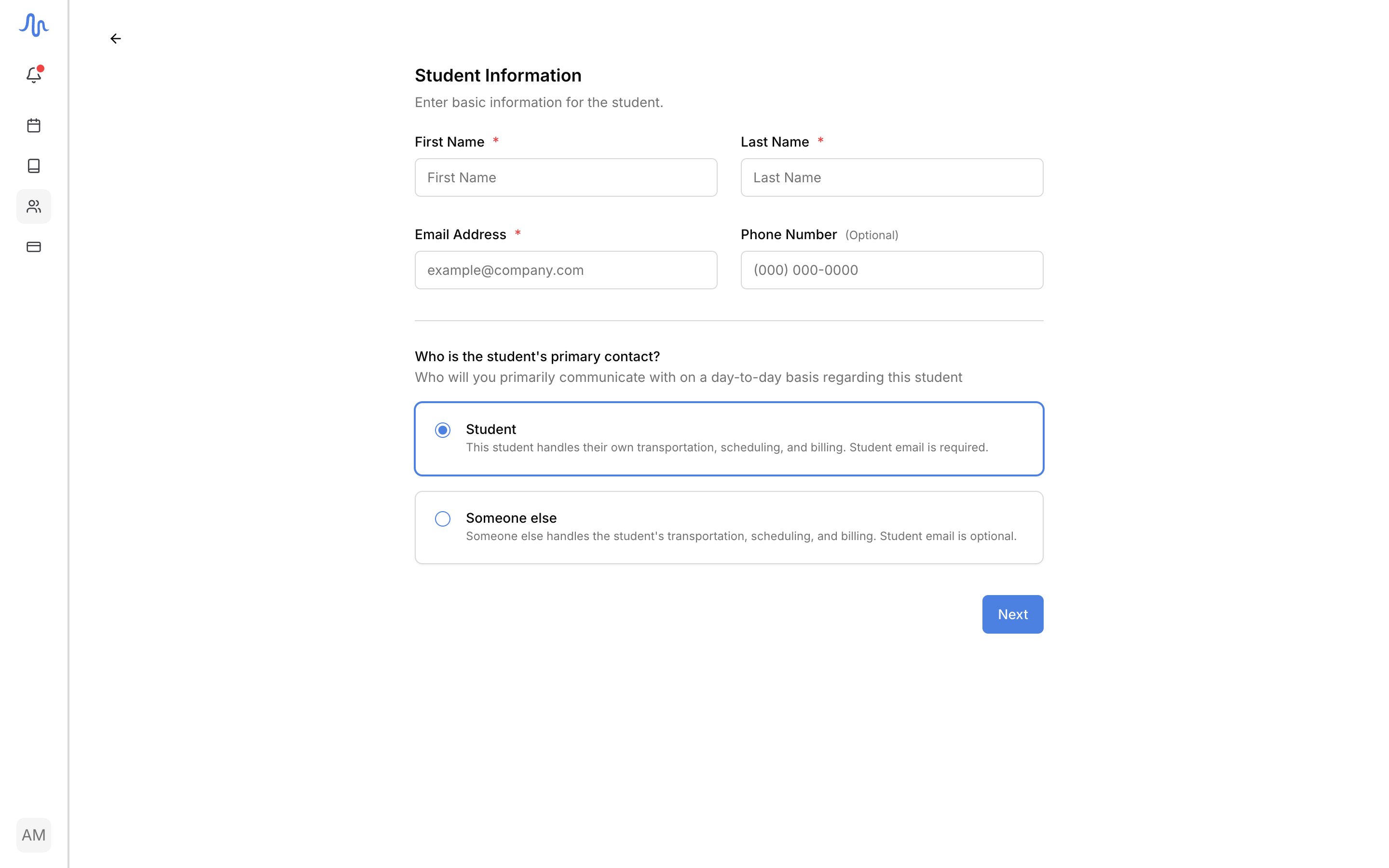
- Student: the student handles their own scheduling and billing. A student email is required.
- Someone else: a parent or guardian handles it. The student’s own email becomes optional.
2
Add additional contacts
Add anyone else attached to the student: up to 6 contacts besides the student themselves (the primary guardian counts as one of the 6).To manage contacts after the student exists, see Contacts and notifications.
3
Set notification preferences
Choose which contacts receive each kind of email:
- Lesson details: lesson progress and notes.
- Lesson schedule: lesson updates and cancellations.
4
Add a first lesson (optional)
A first lesson created here is priced from your first rate preset; you can change its rate on the event afterwards.No lesson scheduled yet? Click Skip for now.
If you skip the first lesson, the student is created as Inactive until you add them to a lesson.
5
Review and create
Check the summary, then click Create. Send welcome email to primary contact is ticked by default; it introduces your studio and links your published studio policy. Untick it to add the student quietly.
FAQ
Do I need a student email?
Do I need a student email?
Only when the student is their own primary contact. Then their email is required. If someone else (a parent or guardian) is the primary contact, the student’s own email is optional.
Why is my student Inactive right after I added them?
Why is my student Inactive right after I added them?
A student with no lesson scheduled is Inactive. Add them to a lesson and they become active. See Create an event.