Find a student
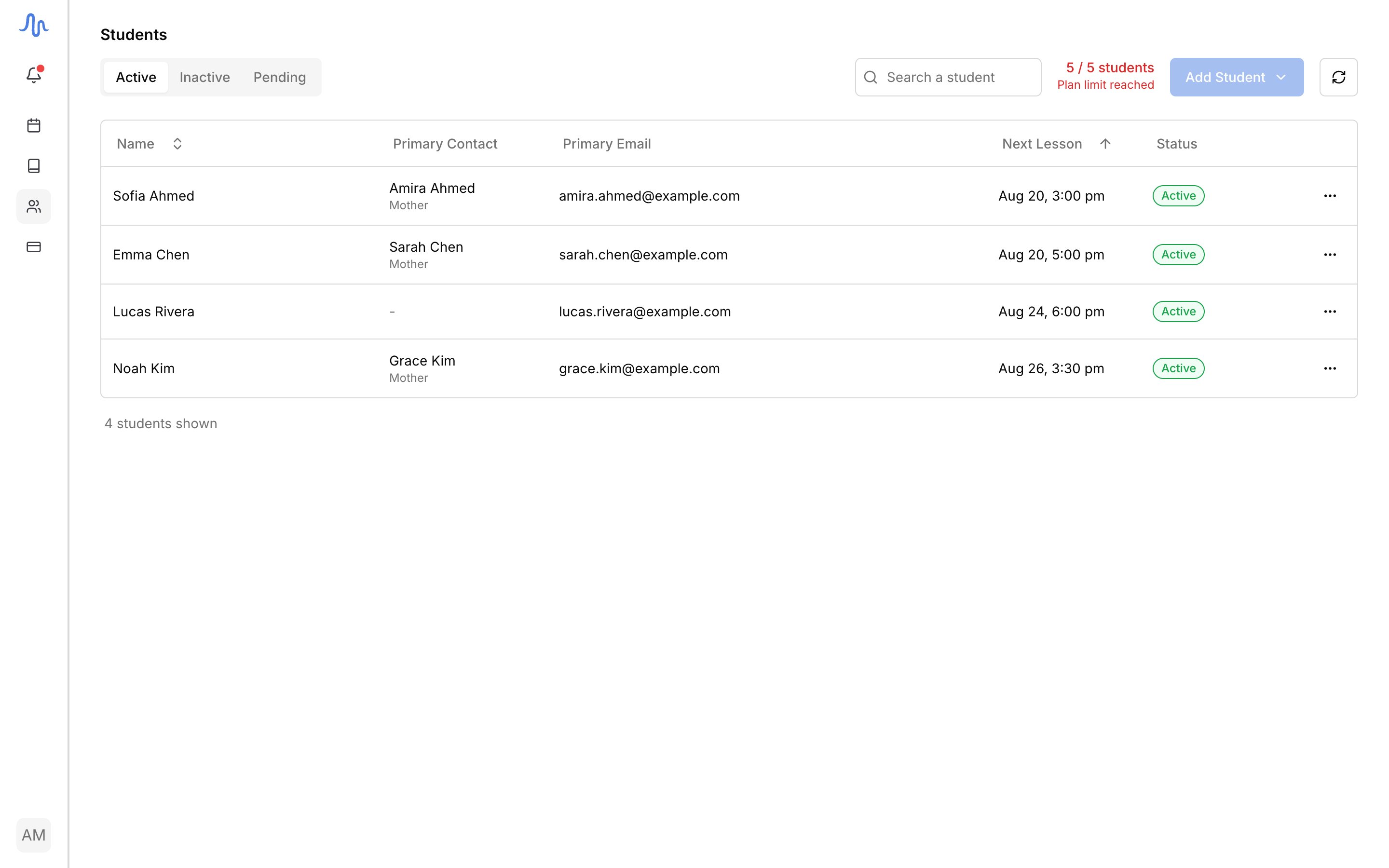
The list opens on three tabs:| Tab | Who’s here |
|---|---|
| Active | Students with at least one upcoming lesson |
| Inactive | Students with no upcoming lesson, including locked students |
| Pending | People who submitted a sign-up link, waiting for you to approve or reject. See Invite with a link |
Open a student’s profile
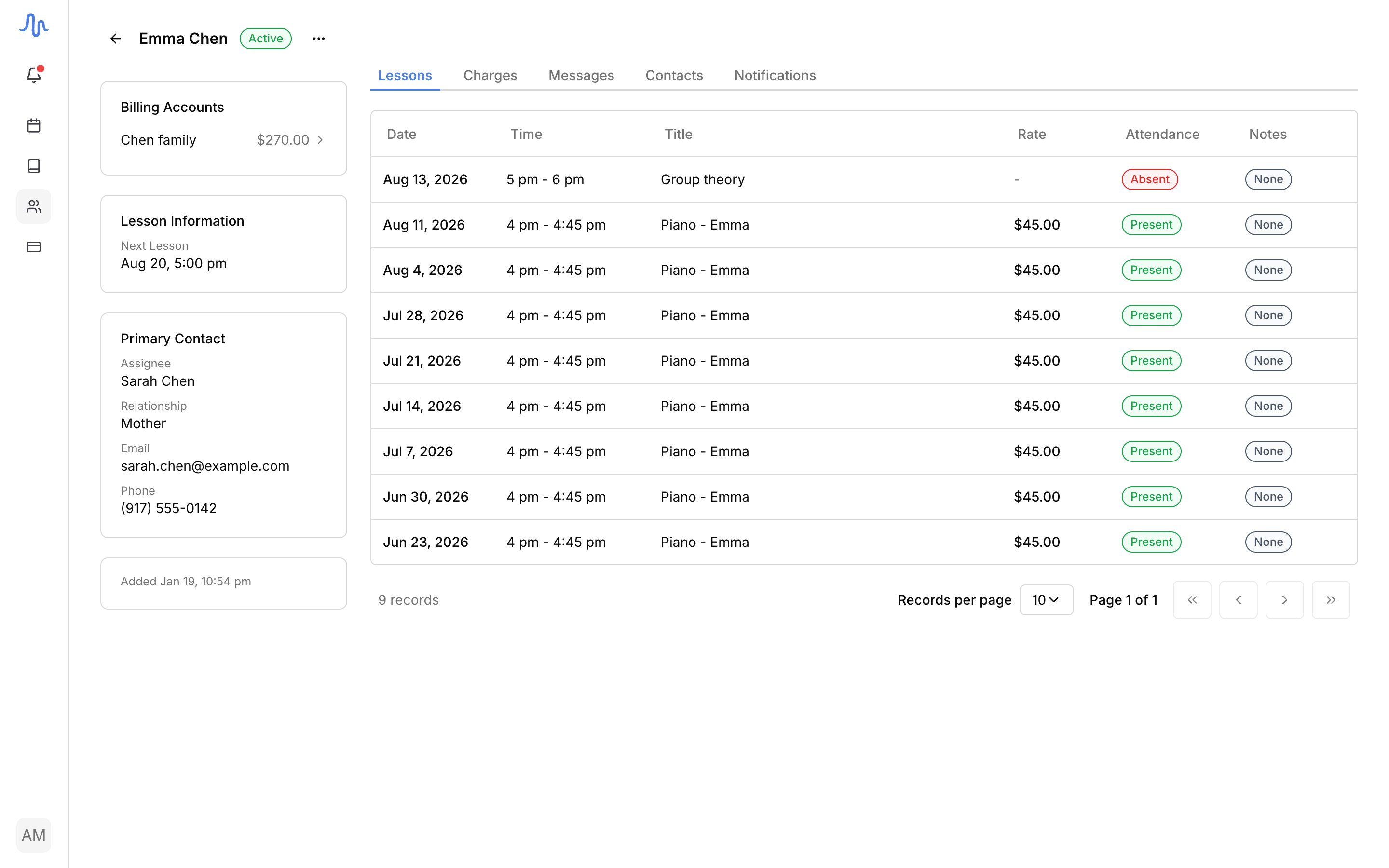
Click a student to open their profile. The sidebar holds four cards:| Card | What it shows |
|---|---|
| Billing accounts | Every account the student is billed through, with its balance and any available credit. See Accounts and students |
| Lesson information | The student’s default rate and their next lesson |
| Primary contact | The student, or the guardian who handles billing and scheduling, with their email and phone |
| Date added | When the student joined your studio |
| Tab | What it shows |
|---|---|
| Lessons | Lesson history: date, time, rate, attendance, and whether notes were sent. See Operate a lesson |
| Transactions | The student’s charges, payments, and refunds. To bill them, see Send an invoice |
| Contacts | Everyone attached to the student. See Contacts and notifications |
| Notifications | Who receives Lesson details and Lesson schedule emails. See Contacts and notifications |
What you can do
From a student’s row menu (the …) or their profile:- Add a student to your roster. See Add a student.
- Edit a student’s details and contacts. See Contacts and notifications.
- Deactivate a student to pause them, or reactivate an inactive one. See Deactivate a student.
- Delete a student for good. See Delete a student.
- For a pending sign-up, Approve or Reject it. See Invite with a link.