Deleting a student removes them for good. It scrubs their personal information and takes them off future lessons. To pause a student you might bring back instead, see Deactivate a student.
1

Open the Delete dialog

On the student’s profile, click the menu and choose Delete. Harness checks the student’s financial state and then shows one of two dialogs.
2

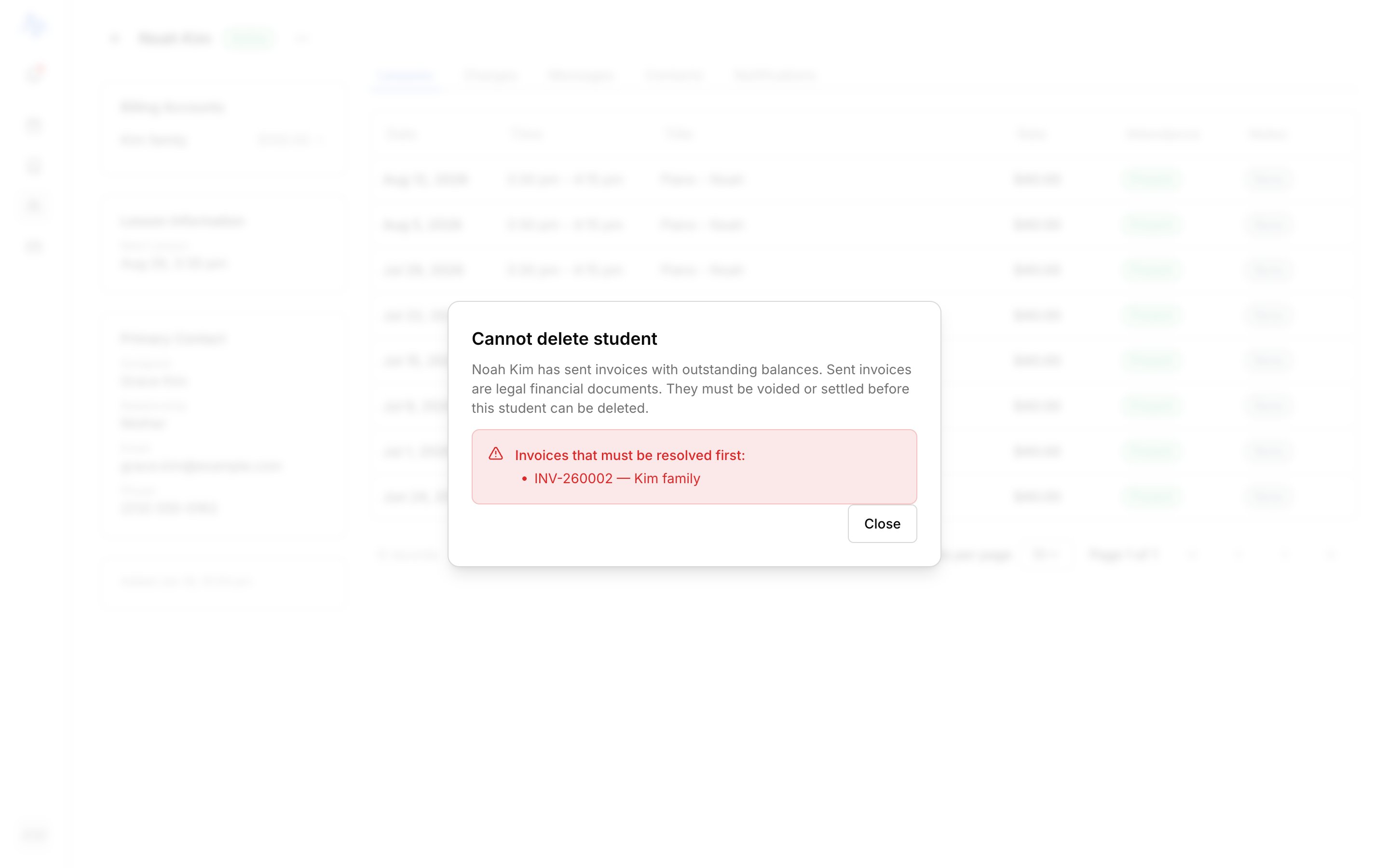
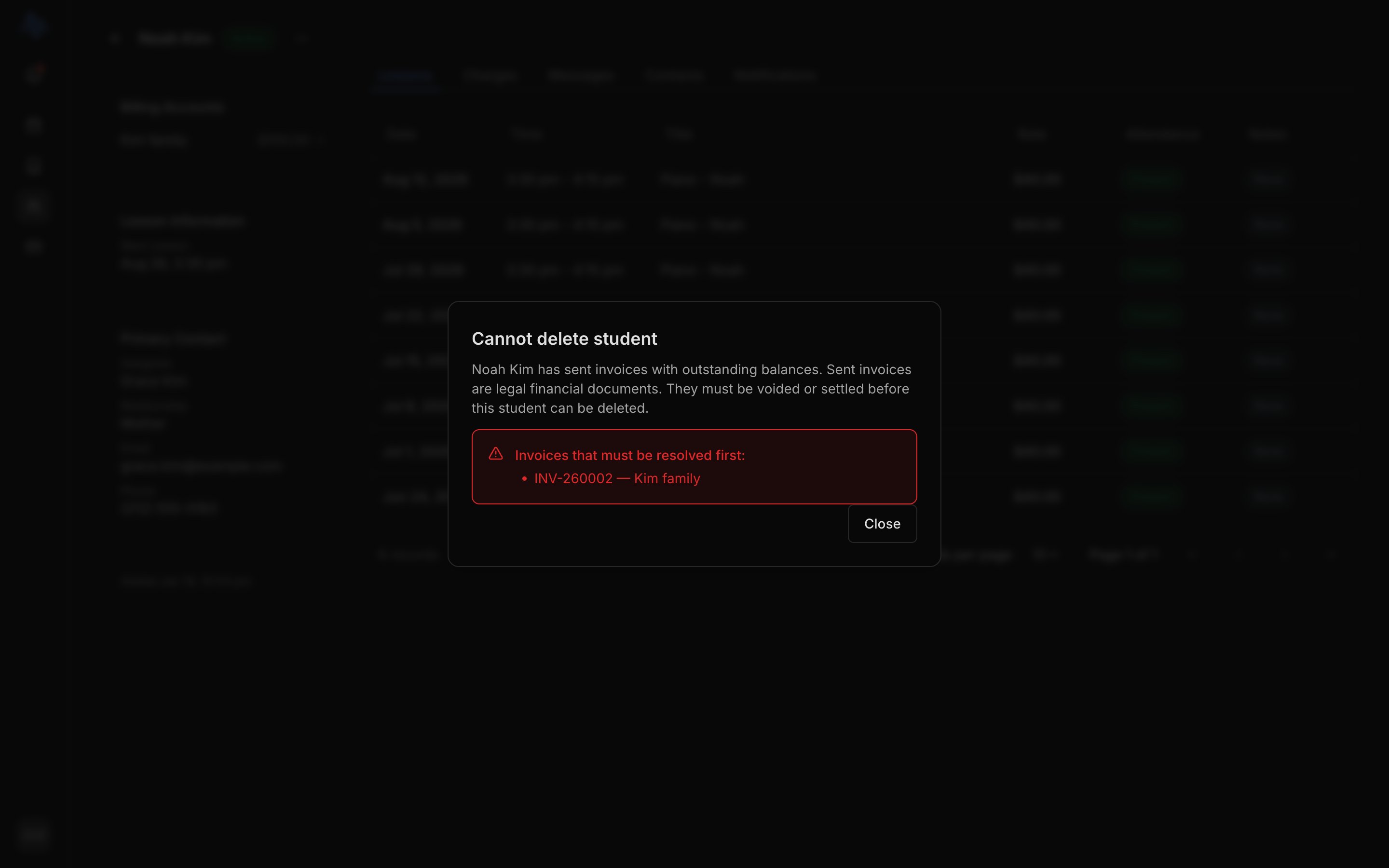
If deletion is blocked

If the student has sent invoices with outstanding balances, deletion is blocked. The dialog lists each invoice to resolve first, along with the account it bills (and whether it’s shared with other students).Void or settle those invoices, then reopen the Delete dialog. Until they’re resolved, only Close is available. To void or record a payment, see Send an invoice.
3

Confirm the deletion

Type delete to confirm.
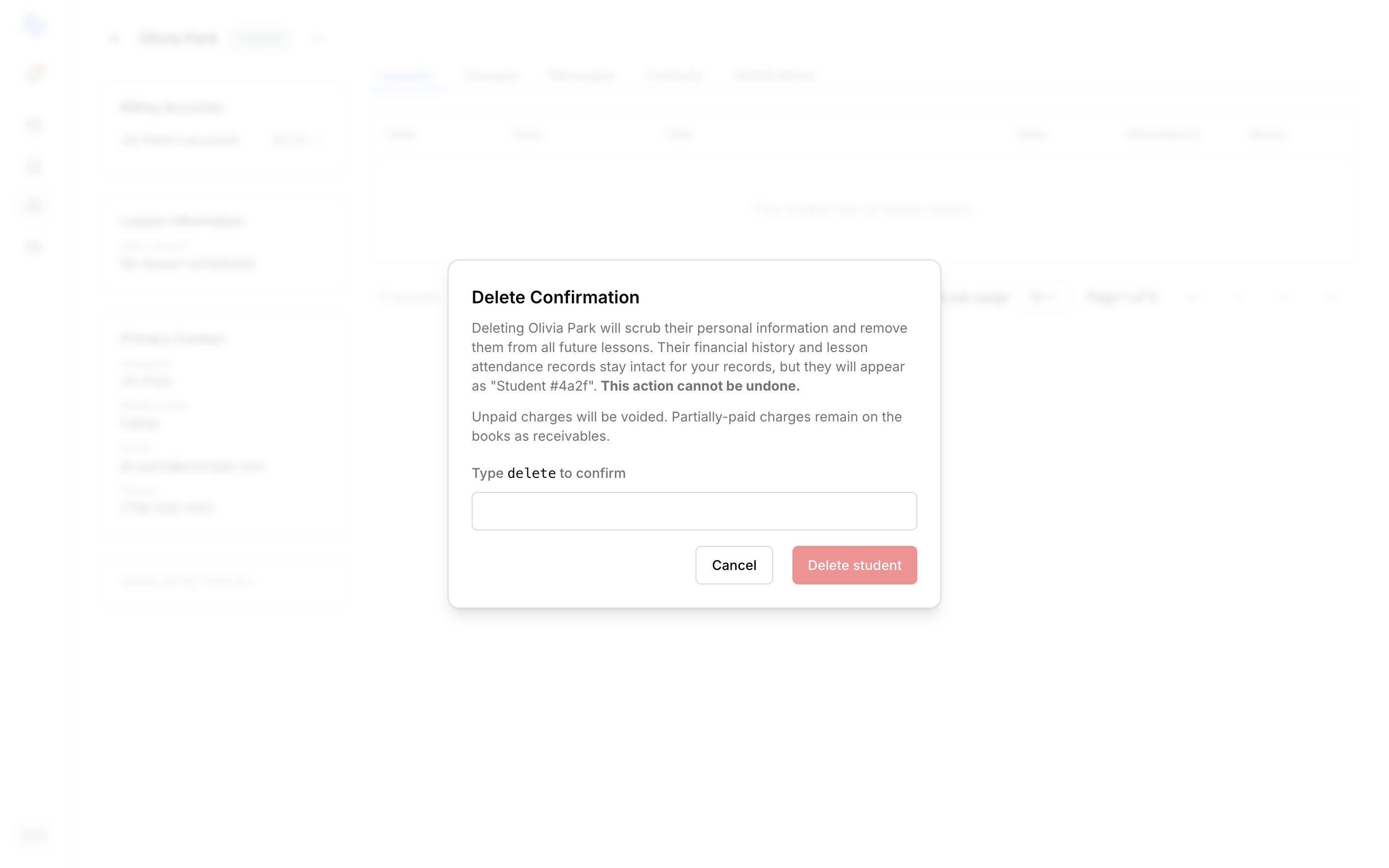
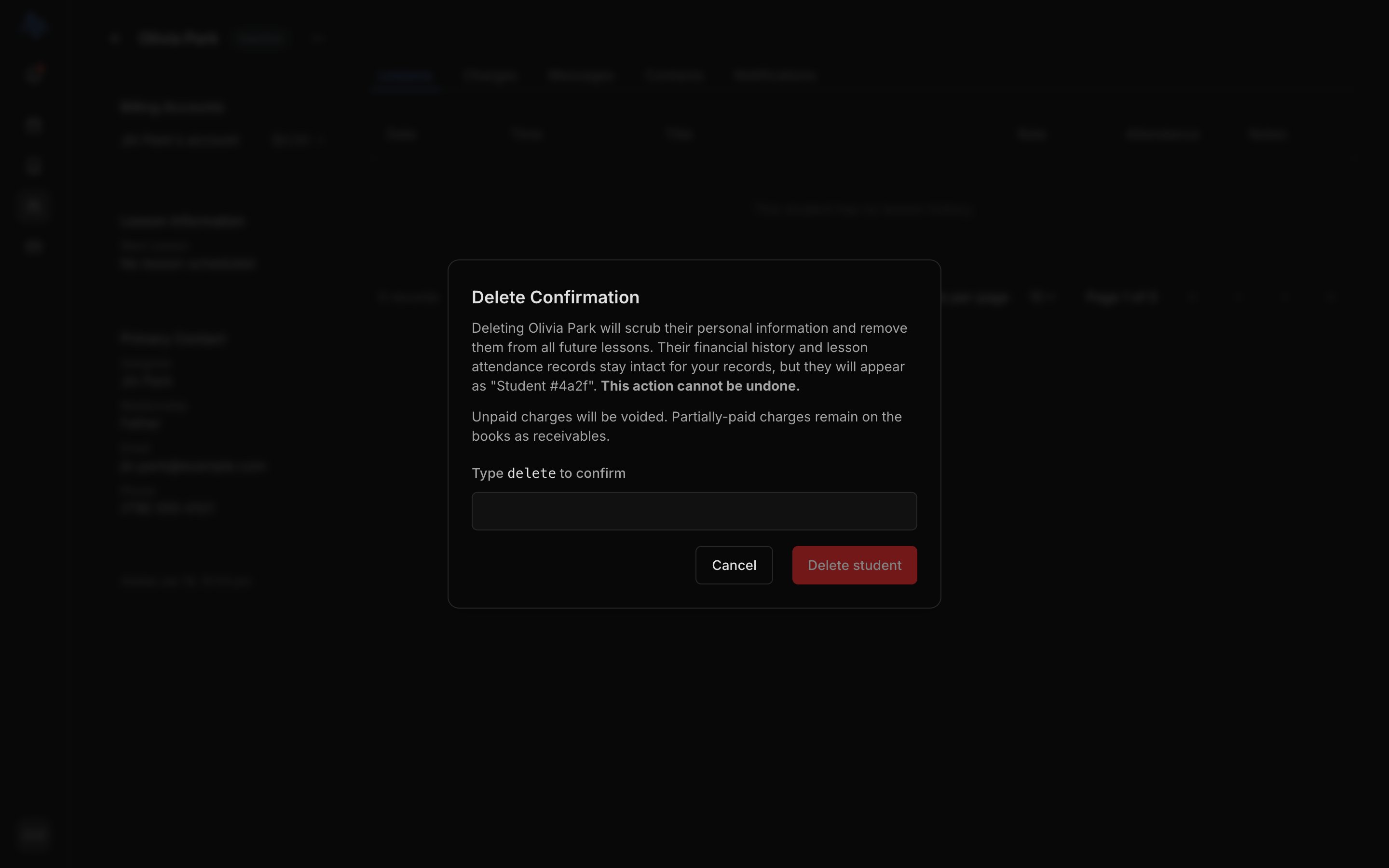
Once you confirm:
  • The student’s personal information (their name and contact details) is removed. Anywhere they still appear in your records, they show as an anonymized label such as Student #4a2f.
  • Their lesson attendance and financial history stay intact for your records.
  • They leave the Active, Inactive, and Pending lists on the Students page.
  • Unpaid charges are voided. Partially-paid charges stay on the books as receivables.
  • Any credit on the student’s account is cleared.
Deleting can’t be undone. If there’s any chance the student returns, deactivate them instead. That pauses the student and keeps everything.

Locked students (Hobby)

On the Hobby plan, a studio over the student limit has Locked students. A locked student sits in the Inactive tab with a lock badge (“Limit of 5 students reached”) and can only be Edited or Deleted. There’s no Activate or Deactivate. Upgrading to Professional or deleting a locked student frees a slot. For the limit itself, see Settings → Subscription.

FAQ

No. Deleting is permanent. If you might bring the student back, deactivate them instead. That’s reversible and keeps everything.
Charges with no payments are voided. Charges that are partially paid stay on the books as receivables, so your records still reconcile.
The student has one or more sent invoices with an outstanding balance. Void or settle them first. The dialog lists exactly which invoices and the account each one bills. See Send an invoice.
That’s a Locked student: your Hobby studio is over its student limit. Locked students sit in Inactive and can only be edited or deleted. Upgrading or deleting one frees a slot. See Settings → Subscription.